If your PC is acting up — freezing mid-game, refusing to boot, running slower than it should, or crashing without warning — you are not alone, and you probably do not need a technician.
Managing a gaming cafe with dozens of machines running simultaneously teaches you one thing fast: most PC problems follow predictable patterns. The same handful of issues come up again and again, and once you know what to look for, you can diagnose and fix the majority of them yourself.
This guide covers the most common PC problems across hardware, software, and Windows with step by step fixes and links to deeper guides for each issue.
What Is PC Troubleshooting?
PC troubleshooting is the process of identifying, diagnosing, and resolving problems with your computer. Those problems can be hardware related (a failing drive, a loose RAM stick, an overheating GPU), software related (corrupted drivers, a broken Windows update, conflicting apps), or a combination of both.
Good troubleshooting is not guesswork. It follows a repeatable process:
- Identify what is happening — error message, blue screen, no display, slowness
- Isolate whether the problem is hardware or software, then narrow it to one component
- Test by changing one variable at a time
- Fix based on what the test reveals
- Confirm the fix resolved the problem without introducing a new one
Skipping steps wastes time. Changing five things at once means you will never know what actually solved it.
Basic PC Troubleshooting: Always Start Here
Before diving into specific issues, run through these checks first. They take two minutes and resolve more problems than you would expect.
- Restart your PC fully — not sleep or hibernate, a complete shutdown and cold boot
- Check every cable connection — power, display, SATA, and front panel headers
- Write down any exact error messages before dismissing them
- Think back to what changed recently — a Windows update, new hardware, a new app install
- Check whether the problem happens in a specific app or across the whole system
If the problem persists after these checks, move to the specific section below that matches your symptoms.
PC Won’t Turn On
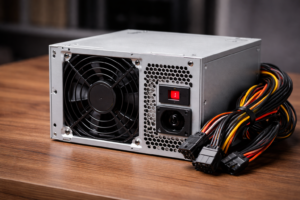
You press the power button and nothing happens — no fans, no LEDs, complete silence.
Work through this in order before assuming the worst:
- Confirm the power cable is firmly plugged into both the wall outlet and the PSU
- Check the PSU rocker switch on the back — it must be set to I (On), not O (Off)
- Try a different wall outlet or power strip
- Reseat the 24 pin motherboard power connector and the CPU power connector
- Disconnect all non-essential peripherals and try again
- If you have a PSU tester, test the unit — a failing power supply is a common and frequently overlooked cause
If none of these work, the issue is most likely the PSU, the motherboard, or a short caused by improper installation.
Full guide: PC Won’t Turn On — 7 Often Missed Causes
PC Turns On But No Display
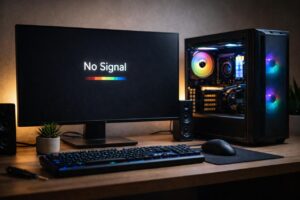
Fans spin, lights come on, but the monitor shows nothing — no signal, no POST screen, just black.
This is one of the most common problems in gaming setups and has a short list of causes:
- Your monitor cable is plugged into the motherboard video output instead of the GPU. If your GPU has its own ports, always use those.
- RAM is not fully seated — power off completely, remove both sticks, and push them back in firmly until the retention clips click into place
- GPU is not seated properly — remove and reseat the graphics card, making sure the PCIe locking tab clicks
- BIOS was changed or corrupted after a hardware swap — clearing CMOS by removing the motherboard battery for 30 seconds often resolves this
If you have two RAM sticks, try each one individually in different slots. A faulty slot or dead stick will prevent POST entirely.
Full guide: PC Turns On But No Display — How to Fix
PC Freezing and Random Restarts
Your PC locks up completely or reboots without warning, especially during gaming or heavy workloads.
Overheating is the most common cause. When a CPU or GPU hits its thermal limit, it throttles or shuts the system down to protect itself. But RAM instability, PSU failures, and corrupted Windows files produce identical symptoms.
Check Temperatures First
Open HWInfo64 or HWMonitor and watch your CPU and GPU temperatures under load. CPU should stay under 90°C and GPU under 85°C during sustained gaming. If either is exceeding these numbers, you have a thermal issue before anything else.
Check RAM Next
Open the Start menu, search for Windows Memory Diagnostic, and run a full pass. A single bad RAM stick causes random freezes that are very difficult to trace otherwise.
Check Windows System Files
Open Command Prompt as Administrator and run sfc /scannow. This scans for and repairs corrupted system files that cause instability.
Use Event Viewer
Open Start, search Event Viewer, go to Windows Logs then System, and look for Critical or Error entries that match the time of your crashes. These often point directly at the failing component or driver.
Full guide: How to Fix PC Freezing and Random Restarts
PC Running Slow — Especially on Startup
Slow boot times and general sluggishness usually have a software cause, though a degraded drive can produce the exact same result.
Cut Down Startup Programs
Press Win + R, type msconfig, and go to the Startup tab. On Windows 11, open Task Manager and click Startup Apps. Disable anything you do not need running at boot. Spotify, Discord, Steam, and OneDrive all add seconds individually and minutes collectively.
Check Your Drive Health
A degraded SSD will slow your entire system silently. If your PC used to boot faster and nothing software related has changed, your storage drive is the first thing to check.
Free Up RAM
Check Task Manager on startup. If RAM usage is already above 70% before you open anything, background processes are eating your headroom before you even start working.
Related guides:
- Why Is My PC So Slow on Startup?
- How to Free Up RAM on Windows
- SSD Speed Test — Is Your Drive Slowing You Down?
- How to Optimize Your Computer for Best Performance
PC Crashing While Gaming
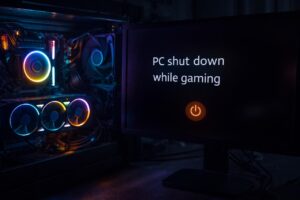
If your PC only crashes during gaming and runs fine otherwise, the problem is almost always thermal or power related. Games push every component to its limit simultaneously — CPU, GPU, RAM, and PSU all at once.
GPU Overheating
This is the most common gaming crash cause. Dust buildup inside the GPU cooler, dried out thermal paste, or a fan that has stopped spinning can all cause the GPU to hit its thermal limit and crash the system.
CPU Thermal Throttling
CPU throttling causes a slightly different symptom — sudden FPS drops mid game rather than an outright crash, though it can escalate to full crashes if temperatures continue climbing.
PSU Instability
If your power supply cannot deliver stable power through GPU load spikes, the system will restart abruptly. This is especially common after a GPU upgrade without a corresponding PSU upgrade.
Outdated GPU Drivers
Outdated GPU drivers cause crashes, black screens, and game specific instability. Always download GPU drivers directly from NVIDIA or AMD’s official website, not through Windows Update.
Related guides:
- GPU Overheating — How to Stop It For Good
- How to Make Sure Your GPU Fan Is Working
- PC Crashing While Gaming
- PC Shuts Down While Gaming But Not Overheating
- Can CPU Thermal Throttling Cause Game Stuttering?
- Fix Games That Stutter Due to a CPU Bottleneck
Windows Freezes But Mouse Still Moves
This specific symptom — cursor moves but the screen is completely unresponsive — points to a software issue rather than hardware failure.
Windows Explorer Crash
The shell has crashed but the system is still running underneath. Press Ctrl + Shift + Esc to open Task Manager, find Windows Explorer under Processes, right click it, and select Restart.
Stuck Background Process
Look in Task Manager for any process showing unusually high CPU or memory usage and end it.
GPU or Audio Driver Conflict
A driver stuck in a bad state can freeze display output while the system keeps running. Check whether this started after a recent driver or Windows update.
Full guide: Windows 11 Freezes But Mouse Still Moves
PC Turning On and Off Repeatedly
Your PC powers on, shuts off, powers on again, and loops — never reaching Windows.
This is a protective behaviour. When a PC cannot complete POST due to a hardware problem, it reboots and tries again. The most common causes are:
- A failing PSU that cannot sustain enough power through POST
- CPU not fully seated or cooler not making proper contact with the heat spreader
- RAM not seating correctly — try one stick at a time in different slots
- Overheating that shuts the system down before the OS even loads
Full guide: PC Turning On and Off Repeatedly — Here’s How to Fix It
PC Hardware Troubleshooting
Motherboard Problems
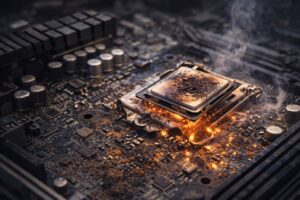
The motherboard connects every component, which makes its failure hard to distinguish from other hardware failures. Signs of a motherboard problem include no POST, USB ports that stop working, components not being detected, and the system powering on then immediately off.
Common causes include blown capacitors (look for bulging or leaking near them), a BIOS that needs updating after a CPU upgrade, or damage from static discharge during installation.
Related guides:
CPU Overheating
A CPU running too hot will throttle its own performance to protect itself, causing lag, stuttering, and eventually full crashes. On machines running for long sessions daily, this is one of the most consistent sources of degraded performance over time.
Signs your CPU is overheating: games stutter under load even on a powerful system, your PC shuts down during demanding tasks, and CPU temperatures in monitoring software exceed 90°C. The fix is to clean the cooler thoroughly, replace the thermal paste (every 2 to 3 years is a solid schedule), and confirm the cooler is mounted with even pressure across the heat spreader.
Full guide: Why Is My CPU Overheating?
SSD and Storage Problems

A failing or misconfigured drive causes symptoms that closely mimic RAM or Windows problems — slow boot, random crashes, files not loading correctly. Always rule out storage before assuming the issue lies elsewhere.
If the drive is visible in BIOS but not in Windows, it is likely uninitialized or using an incompatible partition format. Open Disk Management by right clicking Start and look for unallocated space — initialize and format it from there.
If the drive is not visible in BIOS at all, reseat the SATA cable or M.2 module and try a different SATA port. Use CrystalDiskInfo to read your drive’s S.M.A.R.T. data. Reallocated sectors or uncorrectable errors mean the drive is degrading and should be replaced before it fails completely.
Related guides:
- Windows Not Detecting SSD — Fix It (BIOS Detects It)
- SSD Not Showing Up in BIOS — 7 Easy Fixes
- How to Fix an SSD Drive
- How to Clean an SSD Drive
PC Optimization Troubleshooting
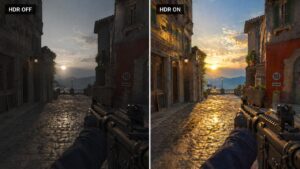
Performance problems do not always mean broken hardware. Sometimes the system is working exactly as configured — just configured badly.
Second Monitor Lagging During Gaming
Using a second monitor adds GPU workload. If your second display lags while gaming on the primary, the fix is usually setting both monitors to the correct refresh rate and ensuring the GPU is driving both outputs correctly.
Full guide: Second Monitor Lagging When Playing Games
Monitor Stuck at 60Hz Instead of 144Hz
If your 144Hz monitor is running at 60Hz, this is almost always a settings or cable issue and not a hardware fault. HDMI 1.4 cables cap at 60Hz for high resolution displays. Switching to DisplayPort or HDMI 2.0 and setting the correct refresh rate in Windows Display Settings usually resolves this completely.
Full guide: Monitor Stuck at 60Hz Instead of 144Hz
Mouse and Keyboard Disconnecting Randomly
USB devices disconnecting and reconnecting usually comes down to Windows power management putting USB ports to sleep. Go to Device Manager, then Universal Serial Bus Controllers, right click each USB Root Hub, open Properties, go to Power Management, and uncheck Allow the computer to turn off this device to save power.
Full guide: Fix Mouse and Keyboard Keeps Disconnecting
Windows and Software Troubleshooting
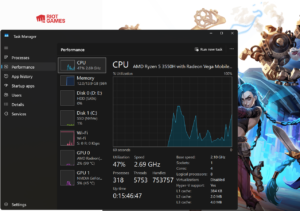
Useful CMD Commands for PC Troubleshooting
Command Prompt is one of the most powerful diagnostic tools on your PC and most users never open it. These commands cover the most common repair scenarios:
sfc /scannow— scans and repairs corrupted Windows system filesDISM /Online /Cleanup-Image /RestoreHealth— repairs the Windows image that SFC relies onchkdsk C: /f /r— checks your drive for errors and bad sectors (requires a restart to run)netsh winsock reset— resets the network stack, useful for internet connection problemsipconfig /flushdns— clears the DNS cache, fixing some browsing and connectivity issues
Full guide: Windows CMD Commands Every PC User Should Know
PC Connected to Internet But Not Working
Your PC shows connected to Wi-Fi or Ethernet but websites and apps are not loading. This is almost always a DNS or network adapter issue and not a hardware fault.
Run netsh winsock reset and ipconfig /flushdns in Command Prompt as Administrator, then restart. If that does not resolve it, manually set your DNS to 8.8.8.8 (Google) or 1.1.1.1 (Cloudflare) in your network adapter settings.
Full guide: PC Connected to Internet But Not Working — 7 Fixes
PC Maintenance: The Best Troubleshooting Is Prevention
The best troubleshooting is the kind you never have to do. Consistent maintenance keeps hardware running longer and prevents the most common problems from developing in the first place.
Clean Your PC Every 3 to 6 Months
Dust is the primary enemy of cooling. Buildup on heatsinks, fans, and GPU coolers acts as an insulating layer that raises operating temperatures and causes the exact symptoms covered throughout this guide. Compressed air and 10 minutes every few months prevents most thermal problems before they start.
Related guides:
- How to Clean a CPU — Step by Step Guide
- How to Clean Dust from a Gaming PC
- Does Cleaning Your PC Improve Performance?
Monitor Temperatures Regularly
You do not need to wait for crashes to check thermals. Reviewing CPU and GPU temperatures periodically helps you catch a degrading thermal paste job or a slowing fan before it becomes a problem that takes your system down.
Keep Drivers and Windows Updated
GPU drivers, chipset drivers, and Windows updates all contain stability and performance improvements. Falling behind on GPU drivers in particular is a common cause of game crashes and system instability that is completely avoidable.
Follow a Maintenance Checklist
A simple checklist keeps everything covered without needing to remember it all yourself.
Full guide: PC Maintenance Checklist
Complete deep dive: Gaming PC Maintenance — The Complete Guide
Browse All PC Troubleshooting Guides
This article covers the most common problems, but every situation is different. Browse the full category archives for more specific fixes:
- Hardware Issues — PSU, RAM, GPU, motherboard, and physical component fixes
- Windows and Software — OS crashes, driver problems, boot failures, and Windows repairs
- PC Optimization — performance tuning, FPS fixes, and system speed improvements
- PC Maintenance — cleaning schedules, cooling guides, and preventive care
Frequently Asked Questions
How do I start troubleshooting a PC?
Start with the simplest possible cause — a full restart, a cable check, and a review of recent changes to the system. Eliminate software causes before assuming hardware. When testing hardware, change one thing at a time so you know exactly what fixed it.
What are the most common PC problems?
The most common PC problems are overheating leading to crashes and throttling, RAM instability causing freezes and blue screens, failing storage drives causing slow boot and file errors, corrupted Windows system files, and outdated or conflicting drivers.
How do I know if my PC problem is hardware or software?
Boot from a USB live environment such as a Linux live USB. If the problem disappears, the issue is in Windows or your software. If the problem persists on a completely separate OS, it is hardware. Hardware problems also tend to occur under load or at high temperatures, while software problems usually follow specific actions or updates.
Can a dirty PC cause problems?
Yes. Dust buildup on heatsinks and fans raises operating temperatures, which causes throttling, random shutdowns, and long term hardware degradation. Cleaning your PC every three to six months is one of the most effective maintenance tasks you can do.
What is the first thing to check when a PC won’t boot?
Check power first — the PSU switch position, the cable connection, and the wall outlet. Then check display output (GPU port versus motherboard port). Then reseat RAM. These three checks resolve the majority of no boot situations without any parts replacement.
How do I fix a PC that keeps restarting on its own?
A PC that loops through restarts is usually failing POST due to bad RAM, a failing PSU, or a CPU that cannot boot at its current settings. Try one RAM stick at a time, clear CMOS, and confirm all power connectors are fully seated before drawing any other conclusions.
Is PC troubleshooting difficult?
Basic PC troubleshooting is methodical, not technical. The most important skill is patience and the discipline to change one variable at a time. A structured process gets you to the answer far faster than guessing and swapping parts at random.

I spent 2 years managing a gaming café where I maintained a full setup — multiple gaming PCs, PS5 consoles, and racing simulators running back to back every day. I hold a Diploma in Computer Applications and started FixMyGames.in to document the real fixes I learned on the job — not the generic advice you find everywhere else.