I still remember the first PC I ever maintained properly. It belonged to a friend who was convinced his GPU was dying because his games kept crashing and frames were all over the place. Twenty minutes with a compressed air can, a screwdriver and some fresh thermal paste later — problem solved. His GPU temperatures dropped by 18°C. That PC ran perfectly for another two years.
That experience taught me something I’ve seen proven dozens of times since: most gaming PC problems are maintenance problems. Not hardware failures. Not bad drivers. Dust, degraded paste, full SSDs and Windows installs nobody has touched in two years.
This PC maintenance checklist is everything I actually do — organised by how often you need to do it. There’s a free downloadable PDF at the end.
Why PC Maintenance Matters for Gamers
A dirty, neglected PC doesn’t fail suddenly. It degrades slowly, and you barely notice until the damage is done:
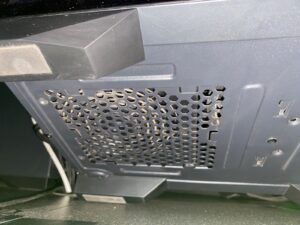
- Dust blocks airflow → temps rise → CPU throttles → frames drop
- Old thermal paste → 10–20°C higher temps than necessary
- Full SSD → slower load times and stuttering
- Bloated Windows → longer boot times, higher idle RAM usage
CPU thermal throttling alone causes more in-game stuttering than most players realise — and it’s completely preventable. Before you blame your GPU or the game’s optimisation, run through this checklist first.
Monthly Tasks (15–20 minutes)
Physical Cleaning
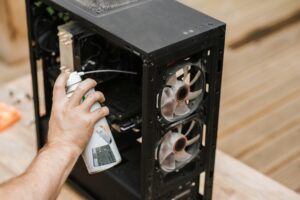
- Blow dust out of the case with compressed air — focus on heatsink fins, GPU fans and the PSU vent
- Rinse dust filters under the tap, let them dry before replacing
- Wipe monitor with a microfibre cloth — never paper towels, they scratch anti-glare coatings
- Compressed air between keyboard keys, then wipe down with isopropyl alcohol
- Clean your mouse sensor window — a dirty sensor causes cursor stuttering that gets mistaken for a software problem every single time
Still not convinced cleaning makes a difference? Read: does cleaning your PC improve performance?
Temperature Check
Run HWiNFO64 during a 10-minute gaming session. Safe ranges to aim for:
- CPU: under 85°C. Above 90°C → clean or repaste urgently
- GPU: under 83°C. Most cards throttle between 83–90°C
- NVMe SSD: under 70°C — yes, SSDs throttle from heat too
While you have the case open, watch all your fans spin up. A dead case fan is silent and invisible — and a single dead 120mm fan can raise temps by 8–12°C without you ever knowing.
Full guide: why is my CPU overheating?
Storage Quick Check
- Keep at least 15–20% of your SSD free — they slow down significantly when nearly full
- Run Disk Cleanup — Windows update caches quietly eat 10–20GB
- Empty Recycle Bin and clear your Downloads folder
- Back up game saves to cloud or an external drive
Network Check
Power cycle your router and modem every month. Unplug both from the wall, wait 30 seconds, plug the modem in first, wait for it to fully reconnect, then the router. Router memory fills up over time and causes latency spikes that look exactly like server-side lag — most people never think to do this.
After the restart, run a packet loss test. Even 1–2% loss causes rubber-banding, teleporting enemies and hit registration failures in online games.
Every 3 Months
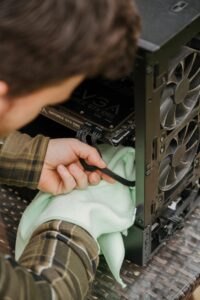
Deep Physical Clean
- Remove the CPU cooler and clean fins and fan blades thoroughly → step-by-step CPU cleaning guide
- Clean GPU heatsink and fans — soft brush first to loosen dust, then compressed air
- Clean PSU fan from the exterior only — never open a PSU
- Review your optimal fan setup — better airflow often costs nothing if you rearrange what you already have
- Full walkthrough: how to clean dust from a gaming PC
Drivers & Software
- Update GPU drivers via GeForce Experience or AMD Adrenalin — outdated GPU drivers cause more crashes than most people realise
- Update chipset drivers from your motherboard manufacturer’s site
- Update network adapter drivers — stale ones directly cause packet loss and random disconnects
- Update router firmware via its admin panel (usually 192.168.1.1)
- Run a Malwarebytes scan — background crypto miners are regularly mistaken for hardware performance problems
Storage Health
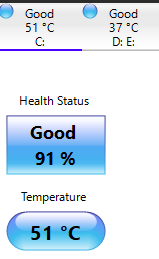
- Open CrystalDiskInfo — every drive should show “Good” in green
- Any drive showing “Caution” → back up immediately and plan a replacement. Don’t wait.
- Check for SSD firmware updates from your manufacturer’s site
Guide: how to clean an SSD drive
RAM Check
- Open Task Manager and check idle RAM usage. Above 50% with nothing open means something is running in the background that shouldn’t be
- Go into BIOS and confirm XMP/EXPO is enabled — most PCs ship running RAM at 2133MHz instead of the rated speed (e.g. 3600MHz). That’s free performance sitting completely unused
Guide: how to free up RAM on Windows
Every 6–12 Months
Replace Thermal Paste
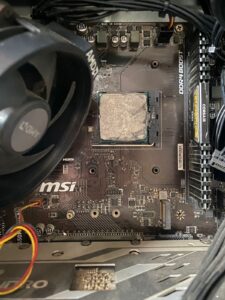
This is the most skipped task on this entire list — and the one that makes the biggest single difference.
I’ve repasted CPUs that were hitting 95°C under load. After fresh paste: 78°C. Same cooler, same room, no other changes. Thermal paste degrades over 12 months, and when it dries out it adds 5–12°C to your temps — sometimes more on systems that run hot.
- Remove CPU cooler, clean old paste with isopropyl alcohol, apply fresh paste (Arctic MX-6 or Thermal Grizzly Kryonaut)
- If GPU temps are consistently above 90°C at stock settings, repaste the GPU too
- Check cooler mounting screws and tighten if needed — I’ve seen 15°C differences from a single loose screw
Full guide: how to clean a CPU — step by step
Windows Health
- Run
sfc /scannowin Command Prompt as Administrator — repairs corrupted system files that cause random crashes and slowdowns - Run
DISM /Online /Cleanup-Image /RestoreHealthafter that — repairs the Windows image itself - Open Event Viewer and filter by Critical and Error — recurring entries almost always precede a crash or BSOD
- After 12–18 months, a fresh Windows install recovers more performance than any tweak or optimisation tool ever will
Useful commands: Windows CMD commands guide
Slow boot times? Why is my PC so slow on startup?
Backup
One evening I helped a user who had lost 60+ hours of save data to a dead HDD. The drive gave zero warning signs. Since then I tell everyone the same thing — don’t wait for a failure to take backups seriously.
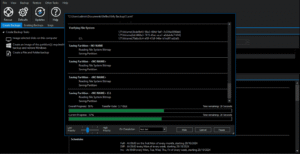
- Create a full disk image with Macrium Reflect (free) — if your drive dies, recovery takes 20 minutes instead of a 3-hour reinstall
- Back up important documents to an external drive or cloud storage
- Create a Windows System Restore point before any major driver or software changes
Network & Connection Health
For gaming, your connection is as important as your CPU or GPU. A great PC on a bad connection still loses gunfights, rubber-bands and disconnects.
- Power cycle router and modem monthly (covered above)
- Run a packet loss test — tests both HTTP and UDP packet delivery
- Check ethernet cables for kinks or crimps. One user I helped had 30% packet loss from a cable that looked completely fine from the outside
- If you’re gaming on Wi-Fi and getting inconsistent ping — switch to ethernet before doing anything else. Wireless interference accounts for more gaming connection problems than most people want to admit
If your test shows packet loss above 1%: how to fix packet loss on PC — every cause covered
Free Downloadable Checklist PDF
Everything above, formatted as a printable checklist with checkboxes and colour-coded by frequency. Keep it next to your PC or pull it up on your phone while you work through the tasks.
[Download the Free PC Maintenance Checklist PDF] ←
Related Guides
- Why is my CPU overheating?
- How to clean a CPU — step by step
- Optimal fan setup for PC
- Does cleaning your PC improve performance?
- How to fix packet loss on PC
- PC crashing while gaming
- How to fix PC freezing and random restarts
- SSD speed test

I spent 2 years managing a gaming café where I maintained a full setup — multiple gaming PCs, PS5 consoles, and racing simulators running back to back every day. I hold a Diploma in Computer Applications and started FixMyGames.in to document the real fixes I learned on the job — not the generic advice you find everywhere else.