A GPU fan that is not working properly is one of those problems that can silently destroy your graphics card before you even realise something is wrong. Temperatures climb, the game stutters, the PC shuts down, and most people blame the game or their drivers. The fans were the problem the whole time.
I spent two years managing gaming PCs at a gaming café. GPU temperatures were something I monitored constantly. And from researching this problem across dozens of forum threads and real user reports, the GPU fan situation is almost always one of a small number of causes — all of them fixable.
This guide tells you exactly how to make sure your GPU fan is working, what the common failure patterns look like, and how to fix each one.
How to Check If Your GPU Fan Is Working
There are three ways to check and I recommend doing all three.
Method 1: Watch the Fans Directly
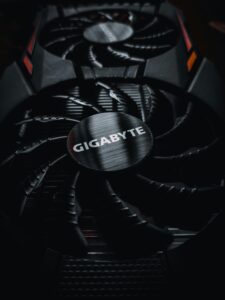
Open your PC case while it is running and look at the GPU fans. In most modern GPUs the fans do not spin at all when the card is idle or under light load. This is by design — it is called a zero RPM or semi-passive mode. The fans only kick in when the GPU reaches a certain temperature, usually around 50°C to 60°C.
So if your fans are not spinning while you are on the desktop doing nothing, that is completely normal. To properly test them you need to put the GPU under load. Launch a game, run a benchmark, or open FurMark and run it for two to three minutes. Then look at the fans. They should be spinning clearly and visibly.
If they are not spinning under full load and your temperatures are climbing above 80°C, you have a problem.
Method 2: Check Fan Speed in Monitoring Software
Download MSI Afterburner or HWiNFO64 — both are free. Open either one and look at the GPU fan speed reading, shown in RPM. Under load this should be reading somewhere between 1000 RPM and 2500 RPM depending on your card and how hot it is running.
A reading of 0 RPM while the GPU is under load and temperatures are above 70°C means your fans are not responding correctly.
Here is something important that comes up repeatedly in real user reports: HWiNFO or Afterburner can show 0 RPM even when the fans are visibly spinning. This is a known issue with certain GPU fan controllers. The fans are physically running but the controller is not reporting speed data correctly. This matters because it means 0 RPM in software does not always mean the fans have stopped — but it does mean the fan controller has a problem that needs addressing.
Method 3: Force the Fans to Spin With Afterburner
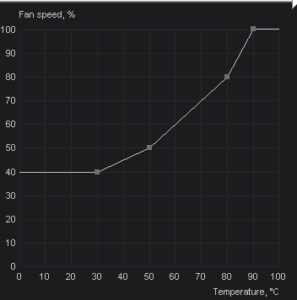
This is the most reliable test. Open MSI Afterburner, click the fan icon to open the fan curve settings, enable manual fan control, and drag the fan speed up to 80% or 100%. If the fans spin up loudly when you do this, the fans themselves are physically working fine. If nothing happens and temperatures continue climbing, the fans or their controller have a hardware fault.
This test separates a software or controller problem from an actual fan hardware failure.
GPU Fans Start Then Stop — What This Means
This is one of the most searched GPU fan problems and it has a specific cause. When you boot your PC, GPU fans often spin up briefly for a self-test and then stop. This is completely normal behaviour and means nothing is wrong.
However if your fans spin up during gaming, run for a few seconds, and then stop while the GPU is still hot, that points to one of three things.
The first possibility is that your fan curve is set too conservatively. The fans hit the temperature threshold, spin up, cool the card slightly below the threshold, and then stop again. This creates a cycle of spinning and stopping. The fix is to set a custom fan curve in Afterburner that keeps fans running once temperatures reach a certain point rather than switching on and off repeatedly.
The second possibility is a dying fan controller. The controller is sending inconsistent signals to the fans, causing them to lose power intermittently. The fix here is to bypass the automatic controller entirely with a manual fan curve in Afterburner.
The third possibility is a physical connection issue. The fan power connector on the GPU PCB can work loose, especially in systems that have been moved or transported. Opening the card and reseating the fan connector resolves this if that is the cause.
GPU Fans Not Spinning But the Card Is Working
This confuses a lot of people. The game is running, the card is outputting video, but the fans are completely still. Is this a problem?
It depends entirely on temperature. If your GPU is sitting at 45°C to 55°C with fans not spinning, your card is in semi-passive mode and everything is fine. Modern GPUs from Nvidia and AMD are designed to run fanless at low loads to reduce noise and wear on the fans.
If your GPU is at 80°C or above and the fans are still not spinning, that is a serious problem. At that point the fans should absolutely be running and something is preventing them from doing so.
Check the temperature first using Afterburner or HWiNFO. That single reading tells you whether the non-spinning fans are a feature or a fault.
Why GPU Fans Stop Working: The Real Causes
Dust Locking the Fan Blades
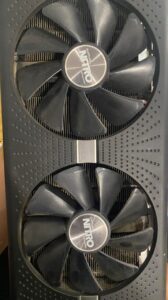
This is the most common cause I found through research and real user reports. Dust accumulates between the fan blades and the fan housing over months of use. Eventually there is enough buildup that the fan motor cannot overcome the resistance and the blades stop spinning.
The fix is compressed air. Hold the fan blade still with a finger or a pen to prevent it from spinning while you blow air through it — letting compressed air spin fans at high speed can damage the bearings. Blow from multiple angles to clear debris from inside the housing. After cleaning, spin the blades gently by hand. They should spin freely with no resistance. If they feel stiff or grinding, the bearings may be worn.
For a full guide on cleaning your GPU properly, see our article on how to clean dust from a gaming PC.
Faulty Fan Controller
The GPU fan controller is a small chip on the graphics card PCB that reads temperature data and tells the fans how fast to spin. When this controller malfunctions, fans can stop responding to temperature changes entirely, report 0 RPM to monitoring software while physically running, or spin erratically.
This is exactly the situation described in real forum posts where users report HWiNFO saying 0 RPM while the fans are visibly and audibly running. The fans work. The controller does not.
The fix is a manual fan curve in MSI Afterburner. By setting manual control you bypass the GPU’s onboard controller and manage fan speed directly from software. Set your fans to run at 50% from 50°C and 80% from 75°C as a starting point. This keeps temperatures under control regardless of what the hardware controller is doing.
Worn Fan Bearings
GPU fans use either sleeve bearings or ball bearings. Sleeve bearings are quieter but wear out faster, especially in cards that run hot. When bearings wear out the fan produces a grinding or rattling noise and eventually stops spinning under load because the motor cannot overcome the friction.
If your GPU fan is making noise it did not used to make and is struggling to spin, worn bearings are the likely cause. Individual GPU fans can be replaced — search your GPU model plus “replacement fan” and you will find compatible options. This is a cheaper fix than replacing the card.
Loose Fan Power Connector
Inside the GPU the fans connect to the PCB via a small power connector. This can work loose if the system has been moved, if the GPU was recently reseated, or simply from vibration over time. A loose connector causes intermittent fan operation or complete failure.
To check this you need to remove the GPU heatsink and fan assembly, which requires some confidence working inside hardware. If you have done a GPU repaste before this is the same process. Check that the fan cable connector is fully seated on the PCB header.
The Deshroud Situation
Some users in forums have reported that their fan controller was so unreliable that the only permanent fix was to remove the GPU shroud and fans entirely and replace them with case fans zip-tied directly to the heatsink. This is called a deshroud and it is a genuine last resort fix for cards with completely dead fan controllers that cannot be bypassed through software.
It looks unusual but it works. A 120mm case fan blowing directly onto the GPU heatsink moves more air than most stock GPU fans anyway. If your fan controller is dead and you cannot afford a replacement card, this is worth knowing about.
How to Fix GPU Fan Problems: In Order
Work through these steps before assuming the worst.
1. Confirm the problem is real by checking GPU temperature under load with HWiNFO or Afterburner. Fans not spinning at idle is normal. Fans not spinning above 70°C is a problem.
2. Clean the fans with compressed air holding the blades still. Spin the blades by hand after cleaning to check for resistance.
3. Set a manual fan curve in MSI Afterburner to bypass the automatic controller. Test whether fans respond to manual control. If they do, the fans work fine and the controller is the issue — keep manual control enabled permanently.
4. If fans do not respond to manual control in Afterburner, check the fan power connector inside the GPU.
5. If the fans are physically damaged or the bearings are grinding, look for replacement fans for your specific GPU model.
If none of the above resolves the problem and temperatures are still climbing dangerously, see our full guide on GPU overheating for additional steps including thermal paste replacement and airflow improvements.
Related Guides
GPU overheating: every cause and fix explained
How to clean dust from a gaming PC
Does cleaning your PC improve performance?
Gaming PC maintenance: the complete guide

I spent 2 years managing a gaming café where I maintained a full setup — multiple gaming PCs, PS5 consoles, and racing simulators running back to back every day. I hold a Diploma in Computer Applications and started FixMyGames.in to document the real fixes I learned on the job — not the generic advice you find everywhere else.