I run a gaming cafe. Every single PC in my cafe gets maintained on a schedule — no exceptions.
Why? Because I have seen what happens when you skip it. A machine that cost ₹80,000 starts stuttering mid game. A GPU that should last 5 years dies in 2. A customer complains that their favorite game keeps crashing. Almost every time, the root cause is the same thing: the PC was never properly maintained.
This is my complete gaming PC maintenance guide — the exact routine I follow at the cafe, written so that even a complete beginner can follow it at home.
Why Gaming PCs Need More Maintenance Than Regular PCs
A PC used for browsing and office work runs at maybe 20% to 40% load most of the time.
A gaming PC runs at 80% to 100% load for hours at a stretch. That means more heat, more fan activity, more dust pulled in, and more stress on every component.
If you are new to PC gaming, our PC gaming for beginners guide covers the basics. But if you already have a gaming setup and want to keep it running well for years, this maintenance guide is what you need.
The Two Types of Gaming PC Maintenance
Before getting into the checklist, it helps to understand that maintenance falls into two categories:
Physical maintenance — cleaning dust, replacing thermal paste, checking cables and fans. This is the stuff you do with your hands.
Software maintenance — managing your Windows installation, storage, startup programs, and drivers. This is done through your operating system.
Both matter. Skipping either one will eventually cause problems.
Monthly Maintenance for Your Gaming PC
Here is what I do every month at the cafe, and what you should do at home.
1. Clean the Dust Filters
Most modern gaming cases have removable mesh filters on the front panel and bottom intake. These catch dust before it enters the case.
Remove them, rinse under running water, let them dry completely, then reinstall. Takes 10 minutes. Makes a real difference to airflow.
2. Check Temperatures
Download a free tool like HWiNFO or MSI Afterburner. Play your most demanding game for 30 minutes, then check your peak temperatures.
Healthy gaming temperatures:
| Component | Safe Range | Too Hot |
|---|---|---|
| CPU | 65°C to 80°C | Above 90°C |
| GPU | 70°C to 83°C | Above 90°C |
| SSD (NVMe) | 40°C to 60°C | Above 70°C |
If you are regularly hitting the “too hot” column, your PC needs a clean or a thermal paste refresh. CPU overheating is one of the most common causes of gaming problems we see at the cafe.
3. Free Up Storage Space

Windows and games slow down when your drive is nearly full. Keep at least 15% of your storage free at all times.
Delete old game installs you no longer play. Clear your Downloads folder. Empty the Recycle Bin.
If your PC has been feeling slow lately, also check our guide on why your PC is so slow on startup — storage is often the culprit.
4. Free Up RAM
Too many apps running in the background eat into the RAM your games need. Our guide on how to free up RAM on Windows walks through this step by step.
Every 3 Months: Deep Clean Your Gaming PC
A full physical clean should happen every 3 months for home setups. At the cafe we do this every 6 weeks because the machines run all day.
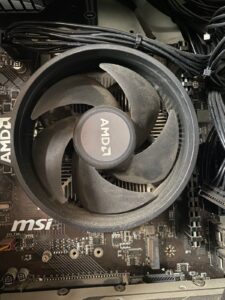
Step by Step Deep Clean
- Shut down and unplug from the wall
- Take the PC outside or to a well ventilated area
- Open the side panel
- Use short bursts of compressed air on the CPU heatsink, GPU fins, case fans, and motherboard
- Hold fans still while blowing so they do not overspin
- Use a soft paintbrush on stubborn dust around the motherboard
- Wipe down the inside of the case with a dry microfibre cloth
- Clean all dust filters separately
- Check that all cables are firmly seated (vibration can loosen them over time)
- Close up, reconnect, and power on
We have a dedicated guide specifically on how to clean dust from a gaming PC with more detailed steps and photos.
Every 1 to 2 Years: Thermal Paste Replacement
Thermal paste sits between your CPU and its cooler. It transfers heat efficiently when fresh, but dries out over time and becomes much less effective.
Once it dries, your CPU temperatures creep up even with a clean system. Replacing it typically drops CPU temps by 5°C to 15°C.
Our step by step CPU cleaning guide covers thermal paste replacement in full detail.
Liquid Cooled Gaming PC Maintenance: Extra Steps Required
If you have a liquid cooled gaming PC, your maintenance routine needs a few additions.
AIO (All in One) coolers are low maintenance but not zero maintenance:
- Check the pump is working (you will hear it running quietly)
- Make sure the radiator fans spin freely and are dust free
- Inspect the tubing for any kinks or discolouration
- AIO coolers last around 5 to 7 years before the pump may start to fail
Custom water cooling loops require more work:
- Flush and refill the coolant every 12 months
- Check all fittings for leaks every few months
- Clean the radiator fins the same way you would clean a heatsink
- Keep an eye on coolant colour — discolouration means it needs replacing
If you notice your CPU running hotter than usual despite having liquid cooling, check whether thermal throttling is causing game stuttering — a failing pump often shows up as in game slowdowns before anything else.
Software Maintenance for Gaming PCs
Physical cleaning keeps hardware healthy. Software maintenance keeps Windows and your games running smoothly.
Update Your Drivers
GPU drivers in particular should be kept current. Outdated GPU drivers are a common cause of game crashes and performance issues. Check for updates from NVIDIA GeForce Experience or AMD Adrenalin monthly.
Manage Startup Programs
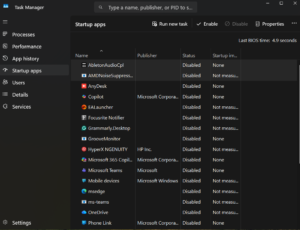
Every app that launches at startup uses RAM and slows your boot time. Press Ctrl + Shift + Esc, go to the Startup tab, and disable anything you do not need loading automatically.
Check Your SSD Health
SSDs have a health rating that degrades over time. Use CrystalDiskInfo (free) to check the health status of your drives. A drive showing “Caution” or “Bad” status should be backed up and replaced soon.
If your SSD has been acting up, our SSD fix guide and SSD speed test tool can help you diagnose it.
Optimize Windows for Gaming
There are several Windows settings that affect gaming performance. Our full guide on how to optimize your computer for best performance covers this in detail, but the quick wins are:
- Set Power Plan to High Performance
- Turn off Xbox Game Bar if you do not use it
- Make sure Windows is not running big updates in the background during gaming sessions
Gaming PC Maintenance Near Me: When to Get Professional Help
Some maintenance tasks are straightforward for beginners. Others are worth getting professional help for.
Do it yourself:
- Dust cleaning
- Driver updates
- Startup program management
- Storage cleanup
Consider getting help for:
- Thermal paste replacement (if you are not confident)
- Liquid cooling refills and leak checks
- Any time a component is behaving oddly after maintenance
If you are unsure whether your PC needs a repair rather than just maintenance, our guide on how much it costs to fix a gaming PC gives you a realistic breakdown of service costs in India.
Signs Your Gaming PC Is Overdue for Maintenance
Not sure if your PC needs attention? These are the warning signs we see most often at the cafe:
- FPS drops and stuttering that were not there before — often a CPU bottleneck caused by heat
- PC shuts down during gaming — see our guide on PC shutting down while gaming
- PC crashing while gaming — heat and dust are the first things to rule out
- Fans running loud constantly — a sign they are working harder than they should
- Slow startup and loading — usually storage or too many background programs
- PC freezing randomly — can be heat, RAM, or storage related
If you are seeing any of these, a full maintenance session should be your first step before spending money on new parts.
Your Gaming PC Maintenance Schedule at a Glance
| Task | How Often |
|---|---|
| Clean dust filters | Monthly |
| Check temperatures | Monthly |
| Free up storage and RAM | Monthly |
| Update GPU drivers | Monthly |
| Full dust clean (inside case) | Every 3 months |
| Check SSD health | Every 3 months |
| Replace thermal paste | Every 1 to 2 years |
| Liquid cooler flush (custom loop) | Every 12 months |
Print this out and stick it somewhere visible. Consistent maintenance is what separates a gaming PC that lasts 7 years from one that starts causing problems after 2.

I spent 2 years managing a gaming café where I maintained a full setup — multiple gaming PCs, PS5 consoles, and racing simulators running back to back every day. I hold a Diploma in Computer Applications and started FixMyGames.in to document the real fixes I learned on the job — not the generic advice you find everywhere else.