Many Windows users often come across unfamiliar files or folders on their computers and wonder whether they are safe to delete. Files like .lock, ProgramData, or unknown folders can make users nervous because deleting the wrong file might break a program or even damage the Windows system.
To solve this problem, we built the SSD File Safety Checker. For more details on how to clear your SSD you can check this article on How to clean an SSD without any damage.
This free tool helps you quickly determine whether a file or folder on your computer is safe to delete. Instead of guessing or risking system errors, you can paste the file path and instantly get guidance.
Running Test
0 / 0 packetsTest Results
Use the SSD File Safety Checker Tool
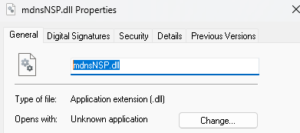
Using the tool is very simple.
- Copy the file name or full file path from your computer.
- Paste it into the SSD File Safety Checker input box.
- Click the Check button.
- The tool will analyze the file and display its safety status.
The tool classifies files into three categories:
Safe Files – Temporary files, cache files, installer leftovers, and log files that can usually be deleted safely.
Caution Files – Files that may be used by installed programs. Deleting them could affect software functionality.
Danger Files – Critical Windows or program files. Deleting them may break Windows or installed applications.
How the SSD File Safety Checker Works
The SSD File Safety Checker compares the file name or path you enter with a database of known Windows files, temporary files, and commonly found system directories.
The tool analyzes several things:
• Known Windows system file locations
• Temporary file directories
• Program installation folders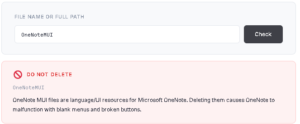
• Common cache and log file patterns
• Installer and leftover files
If the file is recognized, the tool labels it with one of these statuses:
Safe – The file can usually be deleted without issues
Caution – The file may belong to an installed program
Danger – The file is critical to Windows or important software
If the file is not found in the database, the tool will show a “Not in Database” message and recommend researching the file before deleting it.
Why You Should Check Files Before Deleting Them
Deleting random files from your system can lead to serious problems.
Possible issues include:
• Programs failing to start
• Missing drivers
• Windows system errors
• Software crashes
• Broken installations
Using a file safety checker helps prevent accidental deletion of important files and keeps your system stable.
Common Files People Are Afraid to Delete
Some commonly searched files include:
C:\Windows\Temp
C:\ProgramData
.lock files
Windows.old
pagefile.sys
hiberfil.sys
Installer .exe files in Downloads
These files can sometimes be safe to remove depending on how they are used by Windows or installed programs.
Examples of Files Usually Safe to Delete
Files that are generally safe to remove include:
- Temporary files
- Browser cache
- Recycle bin contents
- Old installer files
- Windows update cache
- Application log files
Removing these files can help free up space and improve SSD performance.
Files You Should Never Delete
Some files should never be deleted manually because they are essential for Windows.
Avoid deleting:
C:\Windows\System32
Boot files
Driver folders
Program installation directories in Program Files
Core Windows system files
What to Do If the Tool Says “Not in Database”
If the file you entered is not found in the database:
- Copy the exact file name
- Search the file name online
- Check whether it belongs to Windows or a specific program
- Only delete the file if you confirm it is safe
- When in doubt, it is safer to leave the file untouched.
Frequently Asked Questions
Is it safe to delete ProgramData?
The ProgramData folder stores data used by installed programs. Deleting it entirely is not recommended.
Is it safe to delete temporary files?
Yes, temporary files located in the Windows Temp folder can usually be safely deleted.
Can deleting files damage my SSD?
Deleting files does not damage an SSD. Removing unnecessary files can improve available storage space and performance.
What happens if I delete an important system file?
Deleting critical system files may cause Windows errors or prevent the system from booting.
Final Thoughts
Cleaning your SSD can free up storage space and improve system performance. However, deleting unknown files without checking them first can be risky.
The SSD File Safety Checker helps you make safer decisions by analyzing file names and comparing them with known system and application files.
Before deleting anything from your computer, simply paste the file path into the tool and let it guide you.

I spent 2 years managing a gaming café where I maintained a full setup — multiple gaming PCs, PS5 consoles, and racing simulators running back to back every day. I hold a Diploma in Computer Applications and started FixMyGames.in to document the real fixes I learned on the job — not the generic advice you find everywhere else.