GPU overheating is one of those problems that looks complicated but almost always comes down to a small number of fixable causes. I spent two years managing gaming PCs, PS5 consoles, and racing simulators at a gaming café. GPU overheating was one of the most common issues I dealt with, and in that time I fixed it on dozens of different setups.
This guide covers every real cause and every real fix, in the order I would actually work through them.
What Temperature Is Too Hot for a GPU?
Before anything else, you need to know what normal looks like.
At idle your GPU should sit between 30°C and 50°C. Under gaming load, most GPUs are designed to run between 70°C and 85°C. That is completely normal and nothing to worry about.
You should start paying attention above 85°C. Above 90°C your GPU will begin thermal throttling, which means it automatically reduces its clock speed to protect itself. This is when you notice frame drops and stuttering that seem to come out of nowhere. Above 95°C the card may shut down your PC entirely to prevent damage.
Check your GPU temperature using MSI Afterburner or HWiNFO64. Run a game for 10 minutes and watch the peak temperature. That number tells you how serious the problem is.
Why Is My GPU Overheating? The Real Causes
1. Dust Buildup Inside the Card
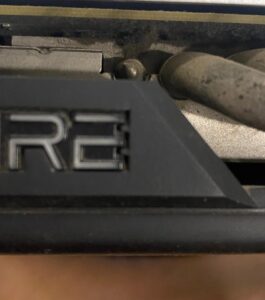
This is the number one cause I found at the café and it is the first thing I check every time. Dust collects on GPU fan blades and inside the heatsink fins over months of use. When it gets thick enough it acts as an insulator, trapping heat against the chip.
A GPU that used to sit at 75°C under load can climb to 92°C purely because of dust. I have seen this happen on cards less than a year old in dusty environments.
The fix is straightforward. Power off your PC, open the case, and use compressed air to clean the GPU fans and heatsink. Hold the fans still while you blow air through them so the air pressure does not spin them faster than they are rated for. Do this every three months if your room is dusty.
For a full walkthrough on cleaning your setup properly, see our guide on how to clean dust from a gaming PC.
2. Dried Out Thermal Paste
Between the GPU chip and its heatsink sits a thin layer of thermal paste. This paste transfers heat from the chip into the heatsink efficiently. Over time, usually after one to two years of use, it dries out, cracks, and stops conducting heat properly.
I saw this repeatedly at the café on cards that ran for eight to ten hours a day. A card running Arctic MX6 fresh would sit at 78°C. The same card six months later with dried paste would hit 91°C doing the same task.
On forums I have seen people mention getting 6°C to 7°C temperature drops after repasting, which matches exactly what I experienced. Repasting a GPU is not as difficult as it sounds. Remove the heatsink, clean off the old paste with isopropyl alcohol, apply a small amount of new paste (Arctic MX6 or Thermal Grizzly Kryonaut are both excellent), and reassemble.
One thing worth noting is that when you remove the old paste, use a good amount of isopropyl alcohol to fully clean the die surface. Remnants of old paste under new paste can create uneven contact and make things worse.
3. GPU Fans Not Spinning Correctly
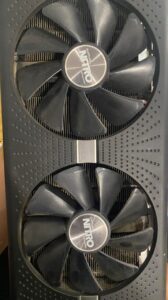
This one catches people off guard. Your GPU fans might look like they are spinning and even sound like they are spinning, but still report 0 RPM in monitoring software.
I have seen this situation come up in forum posts and I have seen it in person. Some GPU fan controllers can malfunction while the fans themselves still operate from inertia or residual current. HWiNFO or Afterburner showing 0 RPM when fans are visibly running usually means a faulty fan controller, not the fans themselves.
The fix in this case is to set a manual fan curve in MSI Afterburner. This bypasses the GPU’s automatic fan controller entirely and lets you control fan speed directly. Go to Afterburner, click the fan curve icon, enable the manual fan curve, and set it to run at 60% speed from 60°C and 80% or higher from 80°C. This one change drops temperatures significantly even when the automatic controller is misbehaving.
While you are in Afterburner, also cap your frame rate. Uncapped frame rates push your GPU to 100% utilisation even in menus and loading screens where there is no reason to generate 400 frames per second. Capping at 60 to 120 fps depending on your monitor reduces GPU load and heat output noticeably without any impact on your actual gaming experience.
4. Poor Airflow Inside the Case
A GPU can be perfectly clean with fresh paste and working fans and still overheat if the case airflow is bad. The GPU pulls cool air in and exhausts hot air out. If there is no cool air coming into the case and no way for hot air to leave, temperatures climb no matter what the GPU itself is doing.
I dealt with this exact situation on a setup at the café where the PC was pushed against a wall with the exhaust blocked. Temperatures were 15°C higher than the same hardware in a properly ventilated position.
Check these things in order. Make sure the PC has at least 10cm of clearance on all sides. Confirm that your intake fans are bringing air in from the front or bottom and your exhaust fans are pushing air out from the rear and top. Check that cables inside the case are tied back and not blocking airflow over the GPU. Check that the GPU itself has at least 3cm of clearance below it to the case floor.
For a proper guide on setting up your fans correctly, see our article on optimal fan setup for PC.
5. The GPU Cooler Screws Are Loose
This is a less obvious one but worth checking, especially on older cards or cards that have been repasted before. The screws holding the heatsink to the GPU die can loosen over time due to heat expansion and contraction cycles. When the heatsink is not making even, firm contact with the die, there are hot spots where heat cannot transfer properly.
I have seen people on forums get 6°C to 7°C temperature drops just from adding washers to GPU screws to improve the contact pressure. If you have repasted and temperatures are still higher than expected, check the heatsink mounting and tighten the screws in a crosshatch pattern, the same way you would tighten a CPU cooler.
6. The Room Is Too Hot
This sounds obvious but it is genuinely overlooked. A GPU running in a 35°C room will run 15°C to 20°C hotter than the same GPU in a 20°C room doing identical tasks. In India during summer this is a real factor, not a minor one.
At the café we had specific problems in summer months that did not exist in winter on the same hardware. If your GPU temperatures are fine in winter and spike in summer, ambient temperature is contributing significantly. Improving room ventilation or adding a desk fan blowing across the open case is a legitimate fix in this situation.
What to Do If Your GPU Keeps Shutting Down the PC
If your PC shuts down completely during gaming rather than just throttling, that is the GPU’s thermal protection activating. This is the situation described in many forum posts, including people who replaced their PSU thinking that was the cause only to find the problem continued.
Before assuming hardware failure, work through this checklist in order:
Clean the GPU with compressed air. Check that all fans are spinning and set a manual fan curve in Afterburner. Cap your frame rate to reduce unnecessary GPU load. Check case airflow and cable management. If temperatures are still above 90°C after all of that, repaste the GPU.
If you have done all of the above and the card is still shutting down the system at 90°C or above, the card itself may have a hardware fault. This is less common but it does happen, particularly on second hand cards or cards that have been running hot for a long time without maintenance.
For related issues around PC shutdowns, see our article on PC shut down while gaming but not overheating and PC crashing while gaming.
Does CPU Overheating Cause GPU Overheating?
Sometimes what looks like a GPU temperature problem is partly a CPU problem. If your CPU is thermal throttling, it becomes a bottleneck for the GPU. The GPU sits waiting for data from the CPU and in some scenarios this causes the GPU to sustain load longer than it should during frames, pushing temperatures up.
Check your CPU temperatures at the same time as your GPU temperatures using HWiNFO. If your CPU is above 90°C under load, fix that first. See our guide on why is my CPU overheating for a full walkthrough.
Also see our article on can CPU thermal throttling cause game stuttering for more on how these two problems interact.
Quick Summary: GPU Overheating Fixes in Order
Start here and work down the list. Most GPU overheating problems are solved within the first three steps.
First, clean the GPU fans and heatsink with compressed air. Second, set a manual fan curve in MSI Afterburner and cap your frame rate. Third, check case airflow and make sure the PC has room to breathe. Fourth, repaste the GPU if temperatures are still above 85°C after the above steps. Fifth, check cooler mounting screws for tightness. Sixth, consider ambient room temperature as a contributing factor in hot climates.
If none of these fix the problem and temperatures remain above 90°C under normal gaming load, the card may have a hardware fault and worth having assessed.
Related Guides
How to clean dust from a gaming PC
Can CPU thermal throttling cause game stuttering?
Gaming PC maintenance: the complete guide
Does cleaning your PC improve performance?
How to fix PC freezing and random restarts

I spent 2 years managing a gaming café where I maintained a full setup — multiple gaming PCs, PS5 consoles, and racing simulators running back to back every day. I hold a Diploma in Computer Applications and started FixMyGames.in to document the real fixes I learned on the job — not the generic advice you find everywhere else.