If your game is stuttering but your GPU usage is low, your CPU is most likely the problem. This is called a CPU bottleneck, and it is one of the most common performance issues I fix at my gaming café.
The good news is that most cases are fixed without spending any money, and in this article, I’m going to show you exactly how to fix games that stutter due to a CPU bottleneck.
What Is a CPU Bottleneck?
Your GPU renders the game frames. Your CPU feeds the GPU with instructions and data. When the CPU is too slow to keep up, the GPU sits idle waiting. The result is stuttering and inconsistent FPS, even on a capable graphics card.
It is easy to confuse this with overheating stutter. Before doing anything, check: Can CPU Thermal Throttling Cause Game Stuttering?
How to Confirm Your CPU Is the Problem
Download MSI Afterburner and enable the on-screen display. Play your game and watch these two numbers:
- CPU Usage above 90% and GPU Usage below 70% at the same time = CPU bottleneck confirmed
- CPU at 60% and GPU at 99% = your GPU is the limit, not your CPU

You can also press Ctrl + Shift + Esc, go to the Performance tab in Task Manager, and watch both graphs while the game runs.
How to Fix It
1. Reduce CPU-Heavy Graphics Settings
Lowering these settings directly reduces CPU load. They are not the same as GPU settings.
- Shadow Distance: set to Medium or Low
- Simulation Quality: set to Low
- NPC Count or Crowd Density: lower where available
Do not lower Texture Quality. Textures run off GPU VRAM and have almost no effect on CPU load.
2. Switch to High Performance Power Plan
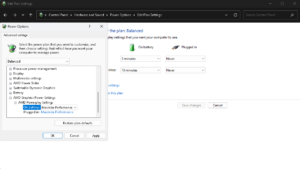
Windows slows your CPU down by default to save power. High Performance mode lets it run at full speed.
- Open Start and search Power Plan
- Click Choose a power plan
- Select High Performance and restart
Also worth doing: Free Up RAM on Windows to reduce extra CPU pressure.
3. Close All Background Programs
Every open app steals CPU cycles. Even a browser tab playing a video can cause stutter. Close browsers, Discord video, antivirus scans, OneDrive and Windows Update before gaming.
Press Ctrl + Shift + Esc, go to Processes, and end anything using above 2% CPU that you do not need.
4. Enable XMP or EXPO in BIOS
Most PCs ship with RAM running slower than its rated speed. Slow RAM forces the CPU to wait for data, which causes stutter that looks exactly like a bottleneck. XMP (Intel) or EXPO (AMD) unlocks the correct speed in under 5 minutes.
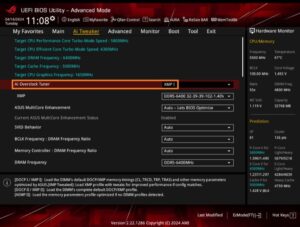
- Restart and press Delete or F2 to enter BIOS
- Find XMP, EXPO or DOCP and enable it
- Save and restart
5. Cap Your Frame Rate
If your CPU is pushing 200 FPS, it is working far harder than necessary. Capping at your monitor’s refresh rate reduces CPU load and removes the burst spikes that cause stutter.
- Set Max Frame Rate in your game settings to match your monitor refresh rate
- Or use NVIDIA Control Panel or AMD Adrenalin for a global cap
If your monitor is not running at its full refresh rate yet, fix that first: Monitor Stuck at 60Hz Instead of 144Hz
6. Update Your Chipset Drivers
Outdated chipset drivers cause random stutters that look exactly like a bottleneck. This takes 10 minutes and is often overlooked.
- Intel Driver and Support Assistant for Intel systems
- AMD Auto Detect and Install for AMD systems
7. Set Your Game to High Priority
Tell Windows to give your game more CPU time than other processes.
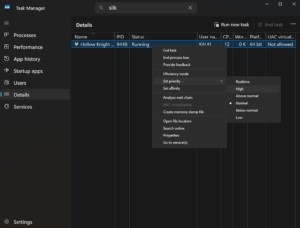
- Start the game, then open Task Manager with Ctrl + Shift + Esc
- Go to the Details tab and find your game’s .exe
- Right-click and choose Set Priority then High
Do not choose Realtime. High is enough. Realtime can destabilise your system.
8. Disable Windows Full Screen Optimisations
This feature sometimes causes stutter by giving Windows partial control over your game window.
- Right-click the game’s .exe and click Properties
- Go to the Compatibility tab
- Tick Disable fullscreen optimisations and click Apply
When You Actually Need a New CPU
If you have tried all the above and the stutter is still bad, consider these signs:
- Your CPU is more than 5 years old and every new game is getting worse
- Your CPU has 4 or fewer cores and modern games recommend 6 or 8
- CPU hits 100% in every game, not just one
Before buying a new CPU, try upgrading from 8GB to 16GB RAM first. This has fixed the stutter completely on several machines at my cafe without touching the processor.
If your PC is also crashing during games and not just stuttering: PC Crashing While Gaming
Common Questions
Does lowering graphics quality always fix a CPU bottleneck?
No. You need to lower the right settings. Shadow distance and crowd density are CPU tasks. Texture quality is a GPU task and makes almost no difference.
Can a bottleneck damage my PC?
No. It only means one component is slower than the other. Your hardware is not at risk.
Is there a tool to check my bottleneck?
Yes. Use the PC Builds Bottleneck Calculator for an estimate. MSI Afterburner is more accurate for real usage.
My mouse and keyboard also stutter during gameplay. Is that the CPU?
Sometimes, but it can also be a USB issue. Check: Fix Mouse and Keyboard Keeps Disconnecting to rule that out first.