Before you spend money on a new CPU, more RAM, or a faster SSD, try this first. Most slow PCs are not slow because of weak hardware. They are slow because Windows is cluttered, settings are wrong, and background processes are eating up resources that should be going to your apps or games. In this guide I’ll show you exactly how to optimize your computer for best performance without buying new hardware.
I manage over 20 PCs at my gaming café, and this is the exact checklist I run whenever a machine starts feeling sluggish. In most cases, the PC feels like new before I even consider a hardware change. Everything in this guide is free.
1. Disable Startup Programs
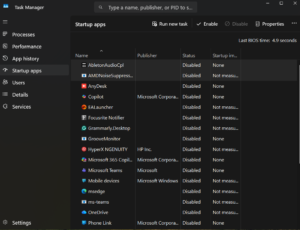
Every program that launches automatically when Windows starts is stealing CPU and RAM before you have even opened anything. Most of them are completely unnecessary at startup.
- Press Ctrl + Shift + Esc to open Task Manager
- Click the Startup tab
- Right-click and Disable anything you do not need immediately at boot, such as Spotify, Discord, OneDrive and Adobe updaters
At the cafe this step alone cuts 20 to 30 seconds off boot time on most machines and makes the PC feel properly responsive much faster after logging in.
2. Free Up RAM Without Adding More
If your PC slows down after being on for a while, RAM is usually the reason. Once RAM fills up, Windows uses your storage drive as overflow memory, which is far slower and causes lag and stuttering.
- Close browser tabs you are not actively reading
- Quit apps sitting in the system tray that you are not using
- Restart your PC regularly to clear memory that apps do not properly release
Full walkthrough here: How to Free Up RAM on Windows
3. Switch to the High Performance Power Plan
Windows runs on a Balanced power plan by default. This deliberately slows your CPU down to save electricity. Switching to High Performance allows the processor to run at full speed at all times, at no cost to you.
- Open Start and search for Power Plan
- Click Choose a power plan
- Select High Performance and restart
This makes a noticeable difference especially on laptops and machines that have never had this changed. It is the single quickest free fix on this entire list.
4. Clean the Dust Out
Dust is the most ignored performance killer on this list. When dust clogs your fans and heatsinks, your CPU and GPU overheat. When they overheat, they automatically slow themselves down to avoid damage. This is called thermal throttling and it causes the same sluggishness as weak hardware.
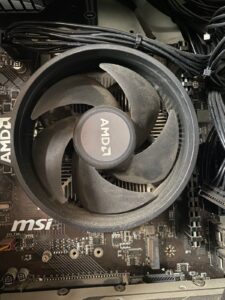
The fix costs nothing except a can of compressed air.
- Shut down and unplug the PC
- Blow out the vents, fans and heatsinks with compressed air
- Focus on the CPU cooler and GPU fans as those are the most critical
Detailed cleaning guide: How to Clean Dust from a Gaming PC
If your CPU is already running hot: Why Is My CPU Overheating?
5. Update Your Drivers
Outdated GPU and chipset drivers cause stuttering, crashes and poor performance. Driver updates are completely free and often include direct performance improvements for popular games and applications.
- GPU drivers: NVIDIA GeForce Experience or AMD Adrenalin
- Chipset drivers: Intel Driver Assistant or AMD Auto Detect
Restart after updating. GPU driver updates in particular regularly improve gaming performance by 5 to 15% on their own.
6. Turn Off Windows Visual Effects
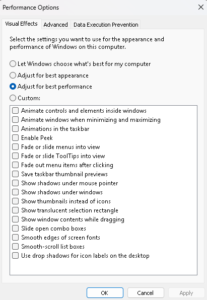
Windows spends CPU and GPU resources on animations, shadows and transparency effects that most people never consciously notice. Turning them off gives those resources back to your apps and games.
- Press the Windows key and search for Adjust the appearance and performance of Windows
- Select Adjust for best performance to disable all effects at once
- Or choose Custom and keep only Smooth edges of screen fonts if you want the text to stay readable
This is especially effective on older machines and any PC with integrated graphics rather than a dedicated GPU.
7. Clear Temporary Files and Run Disk Cleanup
Windows quietly builds up gigabytes of temp files, old update packages and cached data. These fill up your storage drive and a nearly full drive runs noticeably slower than one with breathing room.
- Press Windows + R, type %temp% and press Enter, then delete everything in that folder
- Open Start, search for Disk Cleanup, run it on your C drive
- Tick Windows Update Cleanup and Temporary Internet Files then click OK
You can also speed this up using command line: Useful Windows CMD Commands
8. Check Your Storage Drive Is Healthy

A failing or worn storage drive makes the entire PC feel slow even when the CPU and RAM are fine. Programs take longer to open, games stutter on loading screens and Windows itself becomes unresponsive at random.
Run a quick benchmark to see how your drive is actually performing: SSD Speed Test Guide
If the results show significantly lower speeds than your drive is rated for, the drive is either failing or has a connection issue. Reseating the cable or connector costs nothing and sometimes fixes it entirely.
If Windows is not detecting your drive at all: Windows Not Detecting SSD
9. Keep Windows Updated
Skipping Windows updates for months leaves your PC running with known bugs and performance issues that Microsoft has already fixed. Updates are free and take effect after a single restart.
- Open Start and search for Windows Update
- Click Check for updates and install everything available
- Restart when prompted and test performance afterwards
If your PC starts freezing after a Windows update: Windows 11 Freezes but Mouse Still Moves
What Kind of Improvement Can You Expect?
On a machine that has never been cleaned or optimised, steps 1, 3 and 4 alone regularly produce 20 to 40% improvement in gaming frame rates and a meaningfully faster everyday experience at my cafe. Boot times, app load times and game load times all improve.
On a PC that is already reasonably maintained the gains are smaller but the consistency improves. Stutter and random lag spikes reduce even when average speeds do not change dramatically.
New to PC gaming entirely? Start here first: PC Gaming for Beginners
Still Slow After All of This?
If you have worked through every step above and the PC still feels sluggish, the issue is likely one of two things.
For gamers: If the game specifically is stuttering even though general Windows use feels fine, your CPU may be bottlenecking your GPU. This is a very common issue and most cases are still fixable for free. Read: How to Fix Games That Stutter Due to a CPU Bottleneck
For general users: If everything feels slow including Windows itself, the most common cause is either 8GB of RAM being genuinely insufficient for modern multitasking or an old spinning hard drive that needs replacing with an SSD. These are the only two hardware upgrades worth considering at this stage, and both are affordable.
If your PC is crashing during use and not just running slowly: PC Crashing While Gaming
Common Questions
How often should I do this?
Run steps 1, 2 and 7 once a month. Clean dust every 2 to 3 months. Check for driver and Windows updates whenever you notice a performance drop or after installing a new game.
Do these steps work on a laptop?
Yes. All 9 steps apply to laptops. The power plan change and dust cleaning matter even more on laptops since they run hotter and throttle more aggressively than desktops.
Is it safe to delete temp files?
Yes. Temp files are created as scratch space and are not needed after the program closes. If a file is still in use, Windows will skip it during deletion automatically.
Will this help with game stuttering specifically?
Steps 1, 2, 3 and 4 have the most direct impact on game stutter. If the stutter continues after these, the cause is likely a CPU bottleneck rather than a software issue. See: How to Fix Games That Stutter Due to a CPU Bottleneck for a full diagnosis and fix guide.

I spent 2 years managing a gaming café where I maintained a full setup — multiple gaming PCs, PS5 consoles, and racing simulators running back to back every day. I hold a Diploma in Computer Applications and started FixMyGames.in to document the real fixes I learned on the job — not the generic advice you find everywhere else.