I run a gaming cafe and packet loss is something I deal with constantly — especially on Valorant. After troubleshooting it across dozens of PCs I have learned that the most common fix is also the simplest one. Most of the time a restart of the game or PC is all it takes. This guide starts there and only moves to deeper fixes when the basics do not work.
How to fix packet loss on PC depends entirely on where the packet loss is actually happening — and most guides skip that diagnostic step entirely. Packet loss on a Windows PC can come from your Wi-Fi card, your Ethernet driver, your router, your ISP, or the game server itself. Each one has a different fix.
This guide works through fixes in order from simplest to most advanced. Try each one before moving to the next — most players fix it within the first three steps.
What Is Packet Loss on PC and Why Does It Happen?
Packet loss on PC means data packets sent between your computer and a server are being dropped somewhere along the route. In gaming this causes rubber banding, shots not registering, and lag spikes. In video calls it causes frozen frames and choppy audio.
The most common causes on Windows are an unstable Wi-Fi connection, an outdated or corrupted network driver, a misconfigured router, background apps consuming bandwidth, or your ISP dropping packets mid-route.
0%
Ideal — no loss
1–3%
Noticeable in gaming
5%+
Fix immediately
How to Check for Packet Loss on PC Before Fixing Anything
Before changing any settings, confirm you actually have packet loss and find out roughly where it is. Open Command Prompt and run:
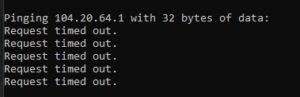
ping 8.8.8.8 -n 50
If you see Request timed out on any line, packets are being dropped. Now run a second test to narrow down where:
ping 192.168.1.1 -n 50
This pings your router directly. If this is clean but the first test shows loss, the problem is outside your home — your ISP or the game server. If both show packet loss, the problem is inside your home network. This single test tells you exactly where to focus. For more CMD networking commands see our guide on Windows CMD commands every gamer should know.
How to Fix Packet Loss on PC — Start Simple, Then Go Deeper
1.Restart the Game First
This sounds too simple but it genuinely works more often than anything else. At my gaming cafe, Valorant packet loss was a daily complaint — and in probably half of those cases, fully closing the game and relaunching it fixed it completely.
Games hold a persistent connection to their servers. If that connection initializes badly due to a brief network hiccup during launch, it stays broken for the entire session. No amount of setting changes will fix a bad connection from launch — only restarting the game will.
Make sure you fully close the game — not just minimize it. For games with launchers like Valorant, also check your system tray and close the launcher process completely before reopening.
2. Restart Your PC
If restarting the game did not work, restart your PC completely. Not sleep mode, not a sign-out — a full restart. Windows accumulates network state, driver memory, and background processes over time that can degrade your connection quality. A restart clears all of this.
This is especially true if your PC has been running for days. At the cafe we noticed that PCs running for more than 48 hours started showing packet loss symptoms that disappeared completely after a restart.
If you regularly shut your PC down using “Sleep” instead of “Shut down”, switch to full shutdowns. Sleep does not clear network driver state the way a proper restart does.
3 Restart Your Router
Routers accumulate connection state over time and can develop memory issues that cause packet loss. A full power cycle clears this. Do not just use the reboot button in the admin panel — physically unplug it from the wall.
- Unplug your router and modem from the wall
- Wait a full 60 seconds
- Plug the modem in first and wait for it to fully connect
- Then plug the router in and wait for a full restart
- Retest with the ping command above
If packet loss goes away after a router restart but comes back within a few hours, your router is overheating or reaching end of life. Check our gaming PC maintenance guide for hardware care tips.
4 Turn Off Windows Update Delivery Optimization
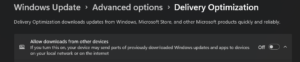
This is one of the most overlooked causes of packet loss on PC and almost nobody knows it exists. By default Windows uses your internet connection to upload Windows Update files to other people’s PCs on the internet — not just download updates for yourself. Microsoft calls this Delivery Optimization and it is switched on by default on every Windows 10 and 11 machine.
This silently eats your upload bandwidth in the background while you game, which causes packet loss that feels completely random because you never see it happening. Here is how to turn it off:
- Open Settings → Windows Update → Advanced Options
- Click Delivery Optimization
- Toggle Allow downloads from other PCs to Off
This alone fixed packet loss for two PCs at my cafe. Both had perfectly fine connections but Delivery Optimization was uploading to other users during peak hours and causing dropped packets mid-match. It is worth checking before anything else on the list below.
5 Switch to Ethernet If You Are on Wi-Fi
Wi-Fi is the single most common hardware cause of packet loss on PC. Wireless signals are affected by interference from walls, neighboring networks, microwave ovens, and Bluetooth devices. Each interference event drops multiple packets at once.
Switching to a wired Ethernet connection eliminates this entirely. If you cannot run a cable, try moving your PC closer to the router or switching your router to the 5GHz band to reduce congestion.
Already on Ethernet? Swap the cable for a new one and try a different port on your router. Damaged Ethernet cables cause intermittent packet loss that is very hard to diagnose any other way.
6 Close Background Apps Consuming Bandwidth
Windows runs dozens of background processes that use your network connection without asking. Windows Update downloads, cloud backup syncs, and Discord screen shares can all push you into packet loss territory mid-match.
- Open Task Manager and check the Network column — anything using significant bandwidth that you do not need, end it
- Pause downloads in Steam, Epic, and Microsoft Store
- Go to Settings → Windows Update → Pause updates temporarily
- Switch Discord to audio only — no video or screen share
- Close any browser tabs streaming video
For a full guide on freeing up resources: How to free up RAM on Windows and How to optimize your PC for best performance.
7 Flush Your DNS Cache and Switch DNS Servers
A corrupted DNS cache forces network traffic through degraded routing paths, causing packet loss that appears suddenly and feels random. Open Command Prompt as Administrator and run:
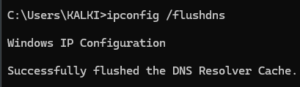
ipconfig /flushdns
ipconfig /release
ipconfig /renew
Then switch to a faster DNS. Go to Network Adapter Settings → IPv4 Properties and set Preferred DNS to 1.1.1.1 and Alternate to 1.0.0.1. Cloudflare’s 1.1.1.1 and Google’s 8.8.8.8 are both free and significantly faster than most ISP defaults.
8 Update or Reinstall Your Network Adapter Driver
An outdated or corrupted network driver is a silent cause of packet loss that most players never check — especially after a major Windows update, which can silently roll back your driver to a generic version.
- Press Windows + X and open Device Manager
- Expand Network Adapters
- Right-click your Ethernet or Wi-Fi adapter and select Update driver
- Choose Search automatically — if nothing is found go to your motherboard manufacturer’s site and download it manually
Do not trust Windows when it says your driver is up to date. It is frequently months behind. Always check the manufacturer’s website directly for the latest version.
9 Disable Large Send Offload (LSO)
Large Send Offload bundles outgoing packets together to reduce CPU load. In practice it causes packet loss on many gaming PCs because the bundled packets arrive in uneven bursts that game servers cannot process correctly.
- Open Device Manager → Network Adapters
- Right-click your adapter and go to Properties → Advanced
- Find Large Send Offload V2 (IPv4) and set it to Disabled
- Find Large Send Offload V2 (IPv6) and set it to Disabled
- Click OK and restart your PC
This setting is not available on all network adapters. If you do not see it in the Advanced tab your adapter does not support LSO and you can skip this step.
When the Packet Loss on Your PC Is Your ISP’s Problem
If all 9 fixes above did not help, run this two-step test to confirm the problem is your ISP and not your hardware.
Step 1 — ping your router:
ping 192.168.1.1 -n 100
Step 2 — ping Google’s DNS:
ping 8.8.8.8 -n 100
If Step 1 is clean and Step 2 shows packet loss, your home hardware is fine. The problem is between your ISP and the wider internet. Screenshot both results, call your ISP, and ask specifically about packet loss on your line — not just your speed. ISPs are required to fix line quality issues. Also see: PC connected to internet but not working — 7 fixes.
You can also use PingPlotter’s free tool to trace exactly where along the route your packets are dropping — this gives you hard evidence to show your ISP.
Quick Recap — How to Fix Packet Loss on PC
| Fix | When to Use It | Time |
| Restart the game | Always try this first | 1 min |
| Restart your PC | PC running for a long time | 2 min |
| Restart your router | Loss that gets worse over time | 2 min |
| Turn off Delivery Optimization | Random packet loss on any PC | 2 min |
| Switch to Ethernet | Any Wi-Fi user | 2 min |
| Close background apps | Loss only while gaming | 2 min |
| Flush DNS + switch DNS | Sudden or random loss | 3 min |
| Update network driver | After any Windows update | 5 min |
| Disable LSO | Nothing else worked | 5 min |
Frequently Asked Questions
Why do I have packet loss on PC but not on my phone or console?
Your PC’s network driver or Windows network stack is likely the issue. Phones and consoles have simpler network stacks with fewer layers that can go wrong. Try updating your network adapter driver and turning off Delivery Optimization as described in fixes 8 and 4 above.
Can a CPU bottleneck cause packet loss on PC?
In extreme cases yes. If your CPU is at 100% during a game it can delay packet processing and cause symptoms identical to network packet loss. Check Task Manager during a match. If CPU usage is maxed see our guide on fixing game stutter from CPU bottlenecks. Also check if CPU thermal throttling is causing your stuttering.
Does packet loss fix itself?
Sometimes. If the cause is a temporarily overloaded game server or ISP node it will resolve on its own within a few hours. But if the cause is a driver issue, Delivery Optimization, a misconfigured MTU, or a faulty cable it will not fix itself and will likely get worse over time.
My PC keeps freezing and disconnecting randomly — is that packet loss?
Random disconnects with freezing are more likely a driver crash than packet loss. Check our guide on how to fix PC freezing and random restarts for a full diagnosis.
Is 1% packet loss bad for gaming on PC?
Yes, in competitive games. 1% sounds small but in a 10-minute match that is hundreds of dropped packets — enough to cause missed shots, rubber banding, and ability delays in games like Valorant or CS2. Aim for 0% at all times.
More Guides on fixmygames.in
→ How to fix packet loss in Valorant
→ How to fix packet loss in Fortnite
→ How to fix packet loss in CS2
→ How to fix packet loss in Battlefield 6
→ Windows CMD commands every gamer should know
→ How to free up RAM on Windows
→ How to optimize your PC for best performance
→ Fix games that stutter due to a CPU bottleneck
→ Can CPU thermal throttling cause game stuttering?
→ PC connected to internet but not working — 7 fixes
→ How to fix PC freezing and random restarts
→ Gaming PC maintenance — the complete guide
→ PC crashing while gaming — how to fix it
→ Why is my PC so slow on startup?

I spent 2 years managing a gaming café where I maintained a full setup — multiple gaming PCs, PS5 consoles, and racing simulators running back to back every day. I hold a Diploma in Computer Applications and started FixMyGames.in to document the real fixes I learned on the job — not the generic advice you find everywhere else.