How to fix packet loss in Fortnite is one of the most searched gaming problems right now — and for good reason. Fortnite packet loss causes rubber banding mid-build, shots that clearly hit but deal zero damage, and that frustrating freeze right before you get eliminated.
The tricky part is that Fortnite runs on Epic’s own server network, which means some fixes that work in other games simply do not apply here. This guide covers every Fortnite-specific fix first, then moves to general PC network fixes that solve the problem for most players within minutes.
Why Packet Loss in Fortnite Happens
Fortnite uses Epic’s own dedicated servers spread across multiple regions worldwide. Unlike other games, Fortnite does not always connect you to the closest server — it connects you to the server with the most available players for faster matchmaking. This means you can end up on a server physically far from you, causing packet loss that has nothing to do with your internet connection.
On top of that, Fortnite is one of the most resource-heavy games on PC. On lower-end systems, a CPU or RAM bottleneck during a heavy fight causes packet processing delays that show up as packet loss even when your connection is fine.
How to Check Packet Loss in Fortnite
Fortnite has a built-in network stats display. Enable it before doing anything else so you can confirm the problem and measure whether your fixes are working.
In-Game Method
- Open Fortnite and go to Settings → Game
- Scroll down to HUD and enable Net Debug Stats
- In a match, press Shift + F3 to toggle the network overlay
- Look for the Pkt Loss Out and Pkt Loss In rows
Both incoming and outgoing packet loss matter in Fortnite. Outgoing loss affects your shots and builds. Incoming loss causes enemies to rubber band and teleport.
Check With CMD
You can also test your connection to Epic’s servers from outside the game. Open Command Prompt and run:
ping 34.194.17.60 -n 50Any “Request timed out” responses confirm packet loss between your PC and Epic’s servers. For more useful network commands see our guide on Windows CMD commands every gamer should know.
How to Fix Packet Loss in Fortnite — 8 Fixes in Order
1Change Your Fortnite Matchmaking Region
This is the most Fortnite-specific fix and the one most guides skip. By default Fortnite uses “Auto” matchmaking which prioritizes queue speed over server distance. You can be playing on a server in a completely different country without knowing it.
- From the Fortnite lobby, open Settings → Game
- Scroll to Matchmaking Region and change it from Auto to your nearest region
- The ping value shown next to each region helps you pick — lower is better
- Play a match and check your Net Debug Stats
2Run Epic Games Launcher Network Diagnostics
Epic Games Launcher has a built-in network diagnostic tool that most players have never opened. It tests your connection to Epic’s servers directly and can identify whether the packet loss is on your end or Epic’s.
- Open the Epic Games Launcher
- Click your profile icon in the top right and go to Settings
- Scroll all the way down and click Run Network Diagnostics
- Wait for it to complete — it will flag any connection issues to Epic’s servers
3Switch to Ethernet
Wi-Fi is by far the most common cause of packet loss in Fortnite, especially during peak hours when multiple devices on your network compete for signal. Fortnite’s fast-paced building and shooting mechanics make every dropped packet visible — a momentary Wi-Fi stutter that you would never notice in other games shows up as a missed shot or a build that did not place.
Switching to a wired Ethernet connection eliminates this entirely. If running a cable is not possible, position your PC or router so there are fewer walls between them, and switch your router to the 5GHz band.
4Close Every Background App Before Launching Fortnite
This fix matters more for Fortnite than most games because Fortnite is genuinely demanding on both CPU and network simultaneously. On a mid-range or lower-end PC, Windows Update, Discord, a browser, and Fortnite all running together is enough to starve Fortnite of the network resources it needs.
- Open Task Manager before launching Fortnite
- End any process using significant CPU, RAM, or network that you do not need
- Pause downloads in Epic Games Launcher, Steam, and Windows Update
- Switch Discord to voice-only — no video or screen share
For a full guide on freeing up resources before gaming: How to free up RAM on Windows and How to optimize your PC for best performance.
5Flush DNS and Switch to a Faster DNS Server
A stale or corrupted DNS cache forces Fortnite traffic through slow or broken routing paths. Open Command Prompt as Administrator and run:
ipconfig /flushdns

ipconfig /release

ipconfig /renew
Then switch your DNS to a faster server. Go to Network Adapter Settings → IPv4 Properties and set Preferred DNS to 1.1.1.1 and Alternate to 1.0.0.1. Cloudflare’s 1.1.1.1 and Google’s 8.8.8.8 are both consistently faster than most ISP defaults. Restart your PC after making this change.
6Update Your Network Adapter Driver
An outdated network driver is a silent cause of Fortnite packet loss that most players never check — especially after a Windows update that can roll back your driver without warning.
- Press
Windows + Xand open Device Manager - Expand Network Adapters
- Right-click your Ethernet or Wi-Fi adapter and select Update driver
- Choose Search automatically — if nothing is found, go to your motherboard manufacturer’s website and download it manually
7Verify Fortnite Game Files
Corrupted Fortnite game files can cause the client to send malformed packets to Epic’s servers, which get dropped and show up as outgoing packet loss. This is easy to rule out and takes a few minutes.
- Open Epic Games Launcher and go to your Library
- Click the three dots next to Fortnite
- Select Manage → Verify
- Wait for the verification to complete — Epic will replace any corrupted files
8Restart Your Router Fully
Routers accumulate connection state and can develop memory issues over time, especially on connections with high traffic. If your Fortnite packet loss gets worse throughout a gaming session and then improves after you restart everything, your router is the likely cause.
- Unplug your router completely from the wall
- Wait a full 60 seconds
- Plug it back in and wait for a full reconnection
- Relaunch Fortnite and check your Net Debug Stats
If your router runs hot to the touch or is more than 4 or 5 years old, it may need replacing. Our gaming PC maintenance guide covers hardware care in detail.
When the Fortnite Packet Loss Is Not Your Fault
If you have tried every fix above and still have Fortnite packet loss, run this test to confirm your home network is clean:
ping 8.8.8.8 -n 100 -l 32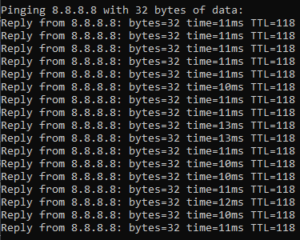
Zero lost packets here means your PC and home network are fine. The problem is between your ISP and Epic’s servers. Also check Epic’s server status page to rule out a Fortnite server outage before calling your ISP.
If you do need to contact your ISP, show them the ping results and ask specifically about packet loss on your line. Also see: PC connected to internet but not working — 7 fixes.
Quick Recap — Fortnite Packet Loss Fixes
| Fix | Best For | Time |
|---|---|---|
| Change matchmaking region | Everyone — try this first | 1 min |
| Run Epic network diagnostics | Rule out Epic server issues | 3 min |
| Switch to Ethernet | Any Wi-Fi user | 2 min |
| Close background apps | Mid or lower-end PCs | 2 min |
| Flush DNS + change DNS | Slow or random packet loss | 3 min |
| Update network driver | After any Windows update | 5 min |
| Verify game files | After a major Fortnite update | 5 min |
| Restart router | Loss that gets worse over a session | 2 min |
Frequently Asked Questions
Why do I only get packet loss in Fortnite and not other games?+
Fortnite connects you to Epic’s own servers which are separate from other games. You may be auto-matched to a server in a different region without knowing it. Change your matchmaking region from Auto to your nearest region as described in Fix 1 — this alone solves it for many players.
Does Fortnite packet loss cause shots to not register?+
Yes, directly. Outgoing packet loss means the server never receives data about your shots. This is different from hit registration bugs — it is a network issue. If your shots clearly land visually but deal no damage, check your Pkt Loss Out value in the Net Debug Stats overlay. Anything above 0% is causing your shots to not register.
Can a slow PC cause packet loss in Fortnite?+
Yes, more so than in other games. Fortnite is CPU-intensive and when your processor is maxed out, it delays packet processing in ways that mimic network packet loss. If your packet loss spikes specifically during large fights or during the storm, check CPU usage in Task Manager. See our guide on fixing game stutter from CPU bottlenecks for more.
Why does Fortnite packet loss spike only during builds?+
Building sends a burst of packets to the server simultaneously. If your connection or PC cannot handle the burst, some packets get dropped. This points to either a bandwidth bottleneck (close background apps — Fix 4) or a CPU bottleneck (your processor cannot process the burst fast enough). Check both before assuming it is a network problem.
Is Fortnite packet loss an Epic server problem?+
Sometimes. Run the Epic Games Launcher network diagnostics (Fix 2) and check Epic’s server status page. If the diagnostics show issues on Epic’s side and the status page reports degraded performance, there is nothing to fix on your end — wait it out.
→ How to fix packet loss in Battlefield 6
→ How to fix packet loss in Valorant
→ Windows CMD commands every gamer should know
→ How to free up RAM on Windows
→ How to optimize your PC for best performance
→ Fix games that stutter due to a CPU bottleneck
→ PC connected to internet but not working — 7 fixes
→ Gaming PC maintenance — the complete guide
→ PC crashing while gaming — how to fix it

I spent 2 years managing a gaming café where I maintained a full setup — multiple gaming PCs, PS5 consoles, and racing simulators running back to back every day. I hold a Diploma in Computer Applications and started FixMyGames.in to document the real fixes I learned on the job — not the generic advice you find everywhere else.