Is your PC freezing and restarting randomly? In almost every case, something slowly becomes unstable. Most PCs don’t start freezing and restarting overnight for no reason. I see this a lot in older PCs that worked perfectly for years.
Here’s the guide on how to fix PC freezing that causes random restarts, but first we have to understand:
Why your PC freezes and restarts randomly:
When a PC freezes and restarts on its own, there usually isn’t just one single cause. In most real-world cases, it happens because something in the system becomes unstable under load.
Many users notice that their PC works fine for normal tasks like browsing or watching videos but starts freezing when gaming or doing heavier work. That’s because demanding apps push your CPU, GPU, RAM and power supply harder. If any one of these components can’t handle the load properly, Windows may freeze or restart to protect the system.
Interestingly, some users also report freezes happening without any heavy load at all. This usually points toward unstable drivers, corrupted Windows files, BIOS issues, or failing hardware that doesn’t always show problems under stress tests.
If your system doesn’t just freeze but also power cycles unexpectedly, you may want to check out our guide on PCs turning on and off repeatedly without overheating, as both issues often share the same root cause, like unstable power delivery, BIOS problems, or corrupted drivers.
In older PCs, this often comes down to ageing hardware; power supplies lose efficiency over time, RAM slots can develop poor contact, and graphics card may become unstable after years of heat cycles. Even a slightly loose GPU or power cable can cause sudden freezes and restarts.
On newer builds, the problem is more commonly related to drivers, BIOS settings, or Windows issues. Sometimes everything appears fine for days or weeks, then random restarts start happening after an update or driver change. It’s recommended to go for a refund or replacement if your new system is freezing and restarting.
In short, PC freezing with random restarts usually means your system is becoming unstable under load, and the goal is to find which part is responsible before it causes permanent damage.
How to fix PC freezing and random restarts (step by step):
Before replacing hardware, it’s important to first understand what is actually causing the freeze or restart. Windows usually logs these errors in “Event Viewer”, which helps narrow down whether the problem is software, drivers, or hardware.
Step 1: Checking Windows Event Viewer
- Press Win+R, type eventvwr, and press enter.
- Go to: Windows Logs → System
Look for “critical error entries” around the time your PC froze or restarted. Common errors often point to driver failures, power issues, or unexpected shutdowns. This gives you a starting direction instead of guessing.
Step 2: Clean Install of your Graphics Drivers
Corrupted GPU drivers are one of the most common causes of freezing followed by random restarts.
Instead of updating over the old driver, do a clean install:
- Download Display Driver Uninstaller (DDU).
- Boot into safe mode.
- Use DDU to completely remove your current graphics driver.
- Download the latest driver directly from NVIDIA/AMD/Intel (not Windows Update).
- Install the fresh driver and restart your PC.
Many users report this alone fixes freezing caused by driver conflicts or corrupted GPU files.
Step 3: Check Power and Internal Connections
Freezing that leads to sudden restarts can also happen when power delivery becomes unstable.
Make sure:
- GPU power cables are fully seated.
- RAM sticks are firmly installed.
- Motherboard power connectors are tight.
- No loose cables inside the case.
If you are using a UPS or extension board, try plugging the PC directly into the wall socket for testing.
Even a slightly loose connection can cause random freezes that look like software problems.
Step 4: Test Your RAM (Very Important)
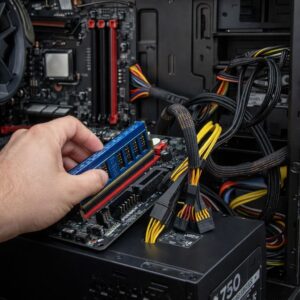
Unstable RAM is a silent killer. It often causes freezing first, then random restarts later.
Do this to check unstable RAM in your PC:
- Press Win+R, then type ‘mdsched.exe’, and press Enter.
- Choose ‘Restart Now’ and check for problems.
- Let Windows Diagnostic run. If an error appears → your RAM or RAM slot is faulty.
Also, test the individual RAM sticks and try this manually:
- Power off the PC
- Remove all RAM sticks
- Insert only one stick
- Boot and test
- Repeat for each stick and slot
If your PC freezes only with a specific stick or slot, you’ve found the problem!
Also check usable RAM: press Win + R → msiinfo32 and compare installed RAM vs total physical memory. If available RAM is much lower, one stick or slot isn’t detected properly. Move RAM to different slots or test sticks individually.
This step alone fixes many “random” restart cases.
Step 5: Check the power supply’s stability (PSU)
If your PC freezes and instantly restarts without warning, the PSU is a prime suspect.
Especially if:
- Restarts happen under load or randomly.
- Fans suddenly ramp up.
- The system goes dead for a second before reboot.
What to do:
- Make sure CPU and GPU power cables are fully clicked in.
- If possible, test with another known good PSU.
- Avoid cheap extension boards while testing.
A weak PSU may look fine in daily use but fail during power spikes.
If swapping the PSU fixes it, then that’s your root cause.
Step 6: Disable ‘Fast Startup’ of Windows
‘Fast startup’ can corrupt the system’s state and cause freezing on boot.
Go to:
Control Panel → Power options → Choose what power buttons do → Click “Change settings currently unavailable” → Uncheck ‘Fast Startup’ → Save → Restart PC
This solves many “freezes on first boot of the day” problems.
Step 7: Update BIOS
If everything above checks out, update BIOS.
Old BIOS versions sometimes fail to handle newer GPUs, RAM, or power management.
Download BIOS only from your motherboard manufacturer.
Do not interrupt power during update.
This often fixes:
- Random restarts
- Cold boot freezes
- Hardware detection issues
Step 8: Check storage health
A bad SSD/HDD can freeze Windows and force a restart.
Check storage health smart tools like CrystalDiskInfo.
If storage shows “Warning”, then replace it.
You can see this guide if your Windows do not detect your SSD
Step 9: Inspect Possible Motherboard Issues (when nothing else works)
If you’ve tested RAM, PSU, storage, drivers, and BIOS, then the motherboard becomes the suspect. If your PC freezes and restarts and later starts booting with no screen output, see our guide on PC turns on but no display, as both issues are often connected to motherboard, GPU, or power-related faults.
Common motherboard-related symptoms are:
- Freezing even when idle.
- Random restarts with no error logs.
- USB device disconnecting.
- The system works for minutes, then crashes.
- The problem appears across fresh Windows installs.
What you can try:
- Reset CPU (if comfortable doing so).
- Inspect the motherboard for swollen capacitors.
- Remove all non-essential devices (extra drives, USBs, RGB controllers).
- Boot with minimum hardware (CPU + 1 RAM + SSD only).
If freezes still happen in this bare setup, the motherboard is likely failing.
Unfortunately, motherboard faults usually mean replacement.
Step 10: Identify Corrupted Windows
If hardware checks out but freezing continues, Windows may be damaged.
Try the following steps first to check for corrupted Windows:
- Open Command Prompt as admin and run: code: sfc /scannow
- Then code: DISM /Online /Cleanup-Image /RestoreHealth
If problems still persist, perform a repair install through the following steps:
Use “Microsoft Media Creation Tool” → Upgrade this PC → ‘Keep Files’
This reinstalls Windows without deleting data and often fixes deep system corruption.
Avoid full resets unless necessary.
Final Checklist:
Before replacing parts, make sure you’ve done this:
- Checked “Event Viewer”
- Cleanly installed “GPU Drivers” (DDU)
- Individually tested both the RAM sticks
- Verified / Swapped PSU connections
- Disabled ‘Fast Startup’
- Updated BIOS
- Checked storage health
- Repaired Windows system files
Follow the order above – it saves money and time!
PC freezing followed by random restarts is almost never “random”. In most real cases, the causes come down to unstable RAM, weak power delivery, corrupted drivers, or ageing hardware.
Start with software and simple checks first. Move to hardware only if the issue persists.
If your PC freezes even with fresh Windows and minimal components, hardware replacement becomes unavoidable.
Take it step-by-step because rushing leads to unnecessary part changes.
Sometimes the PC works fine, but the mouse freezes, which can be very frustrating at some moments. If your display works fine but just the mouse freezes, you can check this guide: Mouse freezing and lagging

I spent 2 years managing a gaming café where I maintained a full setup — multiple gaming PCs, PS5 consoles, and racing simulators running back to back every day. I hold a Diploma in Computer Applications and started FixMyGames.in to document the real fixes I learned on the job — not the generic advice you find everywhere else.