How to fix packet loss in Valorant is trickier than most games because Valorant runs Riot Vanguard — a kernel-level anti-cheat that actively interferes with certain network adapters, VPNs, and firewall rules. Generic networking advice often does not work here because the problem is frequently Vanguard itself, not your router or ISP.
This guide covers Valorant-specific causes first — the ones no other packet loss guide will tell you — and then moves to standard network fixes. Work through them in order.
Why Packet Loss in Valorant Is Different From Other Games
Most games sit on top of Windows networking like any normal application. Valorant does not. Vanguard loads at the kernel level before Windows even fully boots, and it can block or throttle network adapters it flags as suspicious — which sometimes includes perfectly normal hardware.
On top of that, Valorant uses specific UDP ports that many consumer routers and ISP-provided modems throttle or deprioritize. This means you can have zero packet loss in CS2 or Battlefield and still get heavy packet loss in Valorant on the exact same connection.
How to See Packet Loss in Valorant
Valorant has a built-in network stats display that shows packet loss in real time. You do not need third-party software.
Enable the Stats Overlay
- Open Valorant and go to Settings → Video → Stats
- Enable Network Round Trip Time and Packet Loss
- Set both to Show — they appear in the top left corner during matches
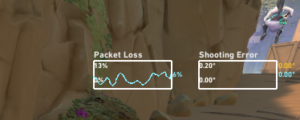
Even 1% packet loss is enough to cause missed shots and ability delays in Valorant’s 128-tick environment.
Check With CMD
You can also test your connection to Riot’s servers directly. Open Command Prompt and run:
ping 162.249.73.1 -n 50That is one of Riot’s primary game server IPs. Any “Request timed out” lines means packets are being dropped on the path to Valorant specifically. For more networking commands, see our guide on Windows CMD commands every gamer should know.
How to Fix Packet Loss in Valorant — 8 Fixes in Order
1Restart Vanguard Completely — Do This First
Vanguard running in a bad state is one of the most common causes of packet loss in Valorant that players never think to check. When Vanguard loads incorrectly at boot, it interferes with your network adapter at the driver level and causes persistent packet loss that no amount of router rebooting will fix.
- Right-click the Vanguard icon in your system tray (bottom right of taskbar)
- Select Exit Vanguard
- Wait 30 seconds
- Relaunch Valorant — Vanguard will restart automatically
2Open Valorant’s Required Ports in Your Firewall
Valorant uses specific UDP ports to communicate with Riot’s servers. Many routers and Windows Firewall configurations block or throttle these ports by default — which directly causes packet loss in Valorant even when every other game works fine.
Valorant needs these ports open for outbound UDP traffic:
UDP 7000–8000   (game server communication)

UDP 8088         (voice chat)

TCP 2099         (Riot login / patching)

TCP 443          (HTTPS / Riot client)
To open these, search for Windows Defender Firewall with Advanced Security, go to Outbound Rules → New Rule → Port and add the UDP range 7000 to 8000. If you have a third-party antivirus with its own firewall (Bitdefender, Kaspersky, Norton), check its settings too — these frequently block Valorant’s ports without any warning.
3Select the Right Valorant Server Region

Unlike most games, Valorant lets you manually pick which Riot game server you connect to. If you are auto-connecting to an overloaded server, you will get packet loss that has nothing to do with your hardware.
- From the Valorant main menu, click the flag icon next to your ping display (top right)
- You will see a list of available server regions with current ping estimates
- Select the region with the lowest ping — this is not always your default
- Play a match and check your packet loss overlay
4Switch to Ethernet
Valorant is particularly sensitive to Wi-Fi instability because of its 128-tick server rate. Small packet drops that other games smooth over will show up immediately in Valorant’s packet loss display. Switching to a wired Ethernet connection removes Wi-Fi interference entirely.
If you are already on Ethernet and still getting Valorant packet loss, try a different cable. A damaged or low-quality cable causes intermittent drops that show up clearly as packet loss in Valorant but are hard to diagnose any other way.
For more on keeping your PC and hardware in good shape, see our gaming PC maintenance complete guide.
5Flush DNS and Switch DNS Servers
A stale DNS cache can route your Valorant traffic through degraded network paths. Open Command Prompt as Administrator and run:
ipconfig /flushdns

ipconfig /release

ipconfig /renew
Then switch to a faster DNS. Go to Network Adapter Settings → IPv4 Properties and set Preferred DNS to 1.1.1.1 and Alternate to 1.0.0.1. Cloudflare’s 1.1.1.1 has consistently lower latency to Riot’s infrastructure than most ISP defaults.
6Disable or Reinstall Your VPN
This one is Valorant-specific. Vanguard actively blocks certain VPN drivers at the kernel level because they can be used to spoof player locations. If you have a VPN installed — even if it is turned off — the VPN’s network driver may still be active and Vanguard may be conflicting with it.
- Open Device Manager → Network Adapters
- Look for any adapter named after a VPN service (NordVPN TAP, ExpressVPN, Mullvad, etc.)
- Right-click it and select Disable device
- Relaunch Valorant and check your packet loss overlay
7Update Your Network Adapter Driver
Because Vanguard operates at the kernel level, it interacts with your network adapter driver directly. An outdated driver is more likely to cause conflicts with Vanguard than with other games, leading to Valorant-specific packet loss that does not affect any other title you play.
- Press
Windows + Xand open Device Manager - Expand Network Adapters
- Right-click your adapter and select Update driver → Search automatically
- If nothing is found, visit your motherboard manufacturer’s website for the latest version
8Close Background Apps Eating Bandwidth
Valorant does not use much bandwidth compared to games like Battlefield, but it is extremely sensitive to latency spikes. A background download or a Discord screen share can cause just enough congestion to produce packet loss in Valorant without visibly affecting anything else.
- Pause all downloads in Steam, Epic, and Windows Update
- Switch Discord to voice-only — no video or screen share
- Close any browser tabs streaming video
For more on keeping your PC lean before gaming: How to free up RAM on Windows and How to optimize your PC for best performance.
Is Riot’s Server Causing Your Valorant Packet Loss?
Before blaming your setup entirely, check Riot’s official server status page. Riot publishes live incidents for all regions. If Valorant is showing degraded performance in your region, no fix on your end will help — you simply have to wait.
You can also run a final test to confirm your home network is clean:
ping 8.8.8.8 -n 100 -l 32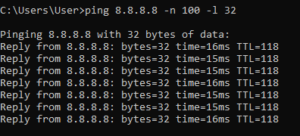
If this returns zero lost packets, your connection is fine and the issue is between your ISP and Riot’s servers. Contact your ISP with the results and ask specifically about packet loss on your line, not just download speed. Also see: PC connected to internet but not working — 7 fixes.
Quick Recap — Valorant Packet Loss Fixes
| Fix | Why It Is Valorant-Specific | Time |
|---|---|---|
| Restart Vanguard | Bad Vanguard state blocks network adapter | 1 min |
| Open firewall ports | Valorant uses UDP 7000–8000 which routers block | 5 min |
| Select server region | Valorant lets you manually pick your Riot server | 1 min |
| Switch to Ethernet | 128-tick server amplifies every Wi-Fi drop | 2 min |
| Flush DNS + change DNS | Routes traffic better to Riot’s infrastructure | 3 min |
| Disable VPN adapter | Vanguard conflicts with VPN drivers even when off | 3 min |
| Update network driver | Vanguard at kernel level — driver conflicts matter more | 5 min |
| Close background apps | Valorant is sensitive to latency spikes, not just bandwidth | 2 min |
Frequently Asked Questions
Why do I get packet loss in Valorant but not other games?+
This is almost always Vanguard conflicting with your network driver or VPN adapter, or Valorant’s UDP ports being blocked by your router or firewall. Other games use different ports and do not have a kernel-level anti-cheat. Start with Fix 1 (restart Vanguard) and Fix 2 (open firewall ports) before anything else.
Does Vanguard cause packet loss in Valorant?+
Yes, it can. Vanguard loads before Windows networking is fully initialized and sometimes interferes with network adapter drivers — especially after a Windows update or driver change. Restarting Vanguard from the system tray is the fastest way to rule this out.
Can I use a VPN to fix packet loss in Valorant?+
Complicated. A VPN can improve routing to Riot’s servers if your ISP takes a bad path. However Vanguard blocks many VPN drivers at the kernel level and can cause more packet loss than it fixes. Many players find that removing their VPN entirely is what fixes their Valorant packet loss. If you do try one, use a gaming-focused VPN on a free trial first.
My Valorant packet loss only happens at night — why?+
Evening peak hours cause congestion on both Riot’s servers and your ISP’s network backbone. Try switching your Valorant server region to a less busy one in the evening, or contact your ISP — time-specific packet loss is a known symptom of an overloaded ISP node that they are required to fix.
Can a CPU bottleneck cause packet loss in Valorant?+
In rare cases yes. If your CPU is at 100% during a Valorant match, it can delay packet processing and mimic packet loss symptoms. Check our guide on fixing game stutter caused by CPU bottlenecks if you suspect this is the cause.
→ How to fix packet loss in Battlefield 6
→ Windows CMD commands every gamer should know
→ How to free up RAM on Windows
→ How to optimize your PC for best performance
→ Fix games that stutter due to a CPU bottleneck
→ PC connected to internet but not working — 7 fixes
→ Gaming PC maintenance — the complete guide
→ PC crashing while gaming — how to fix it

I spent 2 years managing a gaming café where I maintained a full setup — multiple gaming PCs, PS5 consoles, and racing simulators running back to back every day. I hold a Diploma in Computer Applications and started FixMyGames.in to document the real fixes I learned on the job — not the generic advice you find everywhere else.