How to fix packet loss in Battlefield 6 is something thousands of players are searching for right now. BF6 packet loss causes rubber banding, delayed shots, and that infuriating delay where you die half a second after running behind cover.
The good news is that most Battlefield 6 packet loss issues are fixable on your end without waiting for DICE to patch anything. This guide covers every fix in order, starting with the ones that solve it for most players immediately.
What Causes Packet Loss in Battlefield 6?
Packet loss in Battlefield 6 happens when data packets travelling between your PC and EA’s servers get dropped or never arrive. BF6 is a fast-paced, high-tickrate game, so even 1% to 2% loss is enough to cause noticeable issues like hits not registering, enemies teleporting, or vehicles behaving erratically.
The most common causes are an unstable Wi-Fi connection, an overloaded router, outdated network drivers, or congestion between your ISP and EA’s data centers. In some cases the problem is on EA’s side entirely.
How to Check for Packet Loss in Battlefield 6
Before you start changing settings, confirm you actually have packet loss in BF6 and not just high ping or a frame rate issue — they feel similar but have completely different fixes.
In-Game Method
Battlefield 6 has a built-in network stats overlay. Enable it in:
- Go to Settings → Gameplay → Advanced
- Turn on Network Performance Graph
- Look for the Packet Loss % line during a match
Anything above 0% consistently is worth investigating.
Using CMD on Windows
You can also test your connection outside the game by pinging EA’s servers directly:
ping 104.20.64.1 -n 50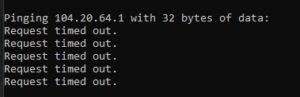
Any “Request timed out” responses in the output means packets are dropping between your PC and the server. For more CMD networking commands see our guide: Windows CMD commands every gamer should know.
How to Fix Packet Loss in Battlefield 6 — 8 Fixes in Order
1 Switch to Ethernet
If you are on Wi-Fi, switching to a wired Ethernet connection will fix Battlefield 6 packet loss for the majority of players immediately. Wi-Fi signals are unstable by nature — walls, interference from other devices, and signal drops all cause packets to be lost before they even leave your home network.
Ethernet gives you a dedicated, direct line to your router with near-zero packet loss under normal conditions. This is always the first thing to try.
2 Restart Your Router
Routers accumulate connection state over time and can develop memory issues that cause packet loss. A full power cycle — not just a reboot through the admin panel — clears this.
- Unplug your router from the wall completely
- Wait a full 60 seconds
- Plug it back in and wait for it to fully reconnect
- Launch BF6 and check your packet loss stats
3 Flush Your DNS Cache
A corrupted DNS cache forces your PC to route BF6 traffic through slow or broken network paths. Flushing it is quick and often fixes packet loss in Battlefield 6 that appears out of nowhere. Open Command Prompt as Administrator and run:
ipconfig /flushdns

ipconfig /release

ipconfig /renew
Restart your PC after running these and relaunch BF6.
4 Switch to a Faster DNS Server
Your ISP assigns you DNS servers by default — and they are usually slow. Switching to Cloudflare’s 1.1.1.1 or Google’s 8.8.8.8 can dramatically improve routing to EA’s servers and reduce packet loss in BF6.
- Open Settings → Network & Internet → Change adapter options
- Right-click your connection and select Properties
- Click Internet Protocol Version 4 (TCP/IPv4) then Properties
- Set Preferred DNS to
1.1.1.1and Alternate to1.0.0.1 - Click OK and restart your PC
5 Update Your Network Adapter Driver
Windows updates frequently break or roll back network drivers without warning. An outdated driver is a silent cause of Battlefield 6 packet loss that most players never check.
- Press
Windows + Xand open Device Manager - Expand Network Adapters
- Right-click your Ethernet or Wi-Fi adapter and select Update driver
- Choose Search automatically
BF6 is one of the most bandwidth-intensive games available. Any application eating your connection in the background — Windows Update, cloud backups, Discord video, or a browser tab streaming video — can push you over the edge into packet loss territory.
- Pause all downloads in Steam, EA App, and Windows Update before launching BF6
- Switch Discord to voice-only (no video or screen share)
- Close browser tabs with any streaming content
For a deeper look at freeing up system resources before gaming, see: How to free up RAM on Windows and How to optimize your PC for best performance.
7 Adjust Your MTU Setting
MTU (Maximum Transmission Unit) controls the size of data packets your PC sends. If your MTU is set too high, packets get fragmented mid-route and some get dropped — which shows up as packet loss in Battlefield 6. The optimal MTU for gaming is 1492 for most connections.
To change your MTU, open Command Prompt as Administrator and run:
netsh interface ipv4 set subinterface "Ethernet" mtu=1492 store=persistent8 Change Your BF6 Server Region
EA runs Battlefield 6 servers across multiple regions. If your assigned region has overloaded or degraded servers, you will see packet loss no matter what you do on your end. Manually selecting a different nearby region can instantly solve it.
- From the BF6 main menu go to Settings → Gameplay → Server Region
- Switch to the next closest region to your location
- Run a match and compare your network stats overlay
You can also check real-time EA server status at EA’s official server status page before assuming the problem is on your side.
Is EA’s Server Causing Your Battlefield 6 Packet Loss?
If you have worked through all 8 fixes and BF6 packet loss is still happening, run this final test to rule out your own hardware completely:
ping 8.8.8.8 -n 100 -l 32If this comes back clean with zero lost packets, your home network is fine and the issue is between your ISP and EA’s servers — a routing problem you cannot control. Contact your ISP with the results and ask them to investigate packet loss on your line, not just your speed.
If packets are dropping in this test too, the problem is inside your home network. Revisit fixes 1 through 5 above.
Quick Recap — Battlefield 6 Packet Loss Fixes
| Fix | Best For | Time Needed |
|---|---|---|
| Switch to Ethernet | Wi-Fi users | 2 minutes |
| Restart router | Everyone — try this early | 2 minutes |
| Flush DNS cache | Sudden or intermittent loss | 1 minute |
| Switch DNS server | Slow ISP routing | 5 minutes |
| Update network driver | Post Windows update issues | 5 minutes |
| Close background apps | Bandwidth congestion | 2 minutes |
| Adjust MTU setting | Persistent packet fragmentation | 5 minutes |
| Change server region | EA server-side issues | 2 minutes |
Frequently Asked Questions

I spent 2 years managing a gaming café where I maintained a full setup — multiple gaming PCs, PS5 consoles, and racing simulators running back to back every day. I hold a Diploma in Computer Applications and started FixMyGames.in to document the real fixes I learned on the job — not the generic advice you find everywhere else.