02 How to Check Your CPU Temp
03 Free Tools to Use
049 Reasons Why Your CPU is Overheating
05 Step-by-Step Diagnosis
06 Fixes That Actually Work
07 Laptop-Specific Issues
08 BIOS & Software Causes
09 Prevention Checklist
10 When to See a Professional
“Disclosure: This post may contain affiliate links. I may earn a small commission if you buy through them, at no extra cost to you.”
01 How to Know Your CPU Is Overheating
Your computer will tell you when it’s too hot — you just need to know what to look for. Here are the most common warning signs, explained in a beginner friendly way.
💥
🐢
🌀
🖥️
WHEA_UNCORRECTABLE_ERROR and KERNEL_SECURITY_CHECK_FAILURE. If these happen only during gaming or heavy use, heat is the likely cause.🔗Related on FixMyGames.inHow to Fix PC Freezing and Random Restarts →
🎮
🔥
🖱️
⚠️The dangerous part is what you can’t see. Thermal throttling makes your PC slower without any error messages. Lots of people buy a new PC when all they needed was a $0 can of compressed air to clean it out.
🔗Related Article on FixMyGames.inPC Won’t Turn On? 7 Often Missed Causes →
02 How to Check Your CPU Temperature
Before fixing anything, you need to know the actual number. Windows doesn’t show CPU temperatures by default — but free tools make this easy. Here’s how to do it on any computer.
On Windows — Step by Step
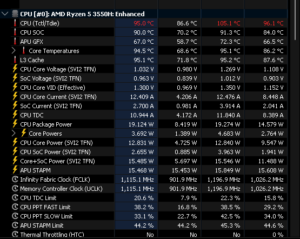
Download HWiNFO64 (Free — No Install Needed)
Go to hwinfo.com and download the free “Portable” version. Run it — no installation required. When it opens, click “Sensors Only”. This shows live temperature readings from every sensor in your PC.
Find Your CPU Temperature
Scroll down to the section with your CPU name. Look for “CPU Package” — that’s the overall CPU temperature. You’ll also see individual Core temperatures (Core #0, Core #1, etc.). Focus on the Max column — that’s the highest it’s hit.
Check at Idle AND Under Load
First, record the temperature when your PC is just sitting at the desktop doing nothing (this is “idle”). Then open a game or run a YouTube video in 4K for 10 minutes and check again (this is “under load”). You need both numbers — a high idle temp means a different problem than a high temp only when gaming.
On Linux
sudo apt install lm-sensors # Ubuntu / Debian
sudo dnf install lm_sensors # Fedora# Let it detect your hardware (say yes to everything)
sudo sensors-detect# Read the temperatures
sensors# Watch it update every 2 seconds live
watch -n 2 sensors
On macOS
Download Stats from github.com/exelban/stats (free). It adds a menu bar icon that shows CPU temperature at a glance. For Intel Macs, Intel Power Gadget (free from Intel) gives per-core readings.
What Do the Numbers Mean?
Use this table to understand whether your temperature is normal or a problem:
ℹ️Beginner tip: Don’t panic if your CPU hits 80°C while gaming. That’s often completely normal. The context matters — 80°C while gaming is fine; 80°C while just sitting at the desktop is a serious problem.
03 The Best Free Tools to Diagnose Overheating
You don’t need to pay for anything. These are the exact tools used by PC repair professionals — all free, all safe to download.
| Tool | Works On | What It Does | Cost |
|---|---|---|---|
| HWiNFO64 | Windows | Shows every temperature sensor in your PC — the most detailed free tool available | FREE |
| Core Temp | Windows | Simpler view — one temperature per CPU core. Great for beginners | FREE |
| Cinebench R23 | Win / Mac | Stresses your CPU like a real game would — run this to see max temperature under load | FREE |
| MSI Afterburner | Windows | Shows temperature on-screen while you’re in-game — perfect for diagnosing during gaming crashes | FREE |
| ThrottleStop | Windows | Specifically for laptops — shows if your CPU is being throttled and lets you fix it | FREE |
| Stats (Mac) | macOS | Menu bar temperature monitor for Apple Silicon and Intel Macs | FREE |
| lm-sensors | Linux | Terminal-based temperature tool — works on all major Linux distributions | FREE |
💡Best combo for gaming issues: Run HWiNFO64 in the background, then launch your game. After a crash or slowdown, check HWiNFO’s “Max” column. If CPU Package shows 90°C+, you have your answer.
🔗Related Article on FixMyGames.inWindows CMD Commands: Find the Right Command for Any Problem →
04 The 9 Reasons Your CPU Is Overheating
Most overheating comes from one of these nine causes. They’re ranked by how often they actually occur in real PCs — the first two alone cause 60% of all overheating problems.
#1 Most Common
Dust Blocking the Cooler
Dust collects between the metal fins of your CPU cooler like a blanket — and blankets trap heat. Even a thin layer of dust can reduce cooling by 30–50%. This is the #1 cause and also the easiest to fix. Here’s a full guide on how to clean your CPU with step-by-step guide
#2 Most Common
Old or Dried Thermal Paste
Between your CPU chip and its cooler, there’s a thin layer of special paste that transfers heat. Over 3–5 years, this paste dries out and cracks — like dried-up toothpaste — and stops conducting heat properly. Replacing it takes 20 minutes and typically drops temps by 10–20°C.
#3 Most Common
Cooling Fan Stopped or Slowed Down
Fans wear out over time — bearings degrade and they spin slower or stop. A fan spinning at half speed can cause temperatures to spike 25–30°C. Check HWiNFO for fan RPM. A reading of 0 RPM means the fan is dead.
#4 Cooler Too Weak for the CPU
Every CPU has a TDP (how much heat it generates). Every cooler has a TDP rating (how much heat it can handle). If your cooler’s rating is lower than your CPU’s, it will always overheat — no matter how clean everything is.
Upgrade Cooler₹2,000–6,000
#5 Poor Airflow Inside the Case
Even the best cooler fails if the hot air it removes has nowhere to go. If your case has no exhaust fans, or cables are blocking the airflow path, the air inside the case stays hot — and your CPU cooler is fighting against warm air rather than cool air.
#6 Overclocking Without Better Cooling
Overclocking means running the CPU faster than its factory setting. More speed = more heat. If someone overclocked your PC (or you did in BIOS), but didn’t upgrade the cooler, temperatures will be much higher than the cooler was designed for.
#7 Hot Room or Enclosed Space
CPU coolers work by transferring heat to the surrounding air. If your room is 38°C in summer, your CPU will always run at least 38°C warmer than it would in a cool room. Putting a PC inside a cabinet with no ventilation makes this even worse.
#8 Cooler Not Sitting Flat on the CPU
The CPU cooler must sit perfectly flat with even pressure across the chip. If one mounting clip is loose, or the cooler is slightly tilted, there’s an air gap — and air is a terrible conductor of heat. Even 1mm of gap causes massive temperature spikes.
#9 A Program Maxing Out Your CPU 24/7
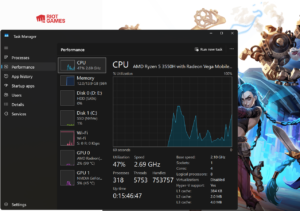
Malware (especially crypto miners), Windows Update running silently, or a buggy app can push your CPU to 100% usage all the time. A CPU at 100% generates the same heat as a CPU under gaming load. Always check Task Manager before assuming a hardware problem.
05 How to Diagnose It — Step by Step
First, Confirm It’s Actually a Temperature Problem
Install HWiNFO64. Record your idle temperature (PC doing nothing for 5 minutes). Then run a game or Cinebench R23 and record the maximum temperature. Compare to the table in Section 02. If temps are normal, the problem is something else entirely.
Check If a Program Is Eating Your CPU
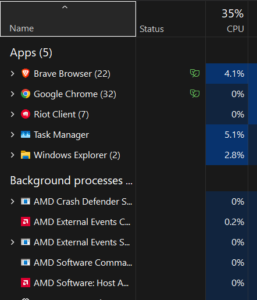
Press Ctrl + Shift + Esc to open Task Manager. Click the CPU column to sort by highest usage. If any unknown program is using 30%+ at idle, that’s likely causing the heat. Right-click it and choose “Search online” to find out what it is. Run Malwarebytes (free) if you suspect malware.
Check If the Fan Is Actually Spinning
Put your hand near the exhaust vent on the back or side of your PC. You should feel warm air blowing out. If there’s no airflow at all, the fan may be dead. In HWiNFO64, check the Fan RPM reading — 0 RPM = fan not spinning = critical problem.
Look for Visible Dust
Shine a phone flashlight at the intake and exhaust grilles on your PC. If you can see a fluffy grey layer of dust clogging the vents — that’s your problem right there. On laptops, look at the exhaust vent on the side. Even a small dust plug completely blocks airflow.
Clean It Out With Compressed Air
Power off and unplug the PC. Use a can of compressed air (available at any electronics shop for ~₹400). Spray in short 2–3 second bursts — never long continuous blasts. Hold fan blades still with a pencil while spraying so they don’t over-spin. For laptops, remove the bottom panel first.
Test Again After Cleaning
Boot up and recheck temperatures in HWiNFO64. If max temp dropped by 5°C or more, dust was the culprit — you’re done. If temperature hasn’t changed, continue to the next steps.
Inspect and Replace the Thermal Paste
Remove the CPU cooler (check a YouTube video for your specific PC model). Look at the thermal paste on the CPU. If it looks grey and crusty, cracked, or has dried-up patches — it needs replacing. Clean both surfaces with 90%+ isopropyl alcohol on a cotton pad, then apply a fresh pea-sized dot of Arctic MX-6 or Noctua NT-H1 to the centre of the CPU chip before reattaching the cooler.
Check the Cooler Is Sitting Flat
After replacing paste or if you’ve never checked: make sure all four screws/clips on the cooler are fully tightened. Tighten in a cross pattern (top-left, bottom-right, top-right, bottom-left) — like tightening a car tyre. The cooler should not move when you gently push it.
Check the Airflow Inside the Case
Open your PC case. Trace where the air flows: cool air should enter from the front/bottom fans, and hot air should exit from the back/top fans. If cables are routed across fans or blocking the CPU area, bundle them with zip ties. One misplaced thick cable can kill 20% of your cooling performance.
Check Fan Settings in BIOS
Restart your PC and press Del or F2 repeatedly as it boots to enter BIOS. Look for “Fan Control,” “Smart Fan,” or “Q-Fan Control.” Change the CPU fan profile from “Silent” to “Performance” or “Turbo.” Silent mode keeps fans quiet but lets temperatures climb dangerously high.
Check If Your Cooler Is Powerful Enough
Search your CPU model (e.g., “Intel Core i5-12600K TDP”) on Google or Intel/AMD’s website. Note the TDP wattage. Then search your cooler model and check its rated TDP. If your cooler’s number is lower than your CPU’s — you need a better cooler, full stop.
Confirm If Throttling Is Happening
In HWiNFO64, scroll down and look for sensors named “CPU Package Power Limit Throttling” or “Thermal Throttling.” If these show “Yes” during gaming or heavy use, your CPU is actively slowing itself down due to heat. This is the definitive confirmation that overheating is your problem.
🔗Related Article on FixMyGames.inPC Turns On But No Display? Here’s How to Fix It →
06 Fixes That Actually Work
Each fix is matched to the cause it solves. Start from the top — the fixes are ordered from cheapest and easiest to more involved.
Fix 1: Clean the Cooler (Free — Do This First)
Use compressed air. Hold the can upright so liquid doesn’t spray out. Short bursts only (2–3 seconds). For the CPU fan: hold blades still to prevent over-spinning. For the heatsink fins: spray sideways through them to push dust out the other side, not deeper in. Do this every 6 months for desktops, every 3 months for gaming laptops. I have written a full guide on how to clean a CPU that can be very helpful.
🚫Never use a household vacuum cleaner on PC components. It generates static electricity that can instantly kill your GPU or motherboard — even without any visible sparks. Use only compressed air or a dedicated PC blower.
Fix 2: Replace Thermal Paste (~₹600)
Best options available in India: Arctic MX-6 (best value, widely available on Amazon.in), Noctua NT-H1 (great for beginners, very easy to apply), or Thermal Grizzly Kryonaut (premium pick for high-end CPUs). Apply only a pea-sized dot to the center of the CPU chip — the pressure from the cooler spreads it perfectly. Don’t spread it manually.
Fix 3: Upgrade Your CPU Cooler (₹2,500 and up)
If your stock cooler (the one that came in the box with your CPU) is struggling, replacing it makes a massive difference. For most budget and mid-range builds, the Cooler Master Hyper 212 (~₹2,500) is the go-to recommendation — it handles CPUs up to 150W TDP reliably and is available across India. For high-end CPUs, the Noctua NH-D15 is the best air cooler money can buy.
Fix 4: Improve Case Airflow (Free or cheap)
Ideal airflow direction: 2–3 fans at the front pulling cool air in, 1–2 fans at the back/top pushing hot air out. Use zip ties to bundle cables away from the CPU cooler and fan path. If your case has a completely solid front panel with no mesh vents, it’s strangling airflow — a new case with a mesh front panel (~₹3,000) can drop temperatures by 10–15°C.
Fix 5: Reset BIOS to Default Settings (Free)
If your PC was overclocked or power limits were removed in BIOS, enter BIOS on boot (Del or F2) and look for “Load Optimized Defaults” or “Reset to Default.” This restores the CPU to its original safe operating settings instantly.
Fix 6: Kill the Software Causing the Heat (Free)
Open Task Manager → sort by CPU%. Kill any process using 20%+ that you don’t recognise. Download Malwarebytes Free and run a full scan — crypto miners are common and go unnoticed. Disable unnecessary startup programs from the Startup tab in Task Manager.
🔗Related Article on FixMyGames.inGame Crashing? How to Fix Marvel Rivals DirectX 12 Error →
07 Laptop-Specific Overheating Issues
Laptops are far harder to cool than desktops. They have less space, smaller fans, and thinner heat pipes — and they overheat much more easily. Here’s what’s different for laptops.
Using It on a Soft Surface
Beds, couches, and pillows block the bottom intake vents. Within minutes, temperatures can spike 20°C. Always use a laptop on a hard, flat surface — even a book works.
Clogged Heat Pipe Exit Vent
Laptops route heat through a copper pipe to a single exhaust vent. When dust plugs that one vent, the entire cooling system fails. This is the most common laptop overheating cause and is fixed by opening the bottom panel and clearing the vent with compressed air.
Performance Mode Removing Thermal Limits
Lenovo Vantage, Dell Power Manager, ASUS Armoury Crate — these apps often have a “Performance” or “Turbo” mode that removes thermal limits. Great for a quick boost, bad if left on all day. Switch to “Balanced” for normal use.
Laptop Cooling Pad
A cooling pad with fans (~₹1,000–2,000) sits under your laptop and blows fresh cool air into the bottom intake vents. For laptops with bottom-facing vents, this can drop temperatures by 5–12°C. Not a fix for internal dust, but a helpful supplement.
Laptop Repaste Every 2–3 Years
Laptop thermal paste dries out faster than desktop paste because laptops run hotter and the thermal interface is thinner. A laptop repaste every 2–3 years is routine maintenance — not a sign something is broken. Many repair shops offer this service for ₹500–1,500.
Undervolting (Advanced)
Undervolting reduces how much electrical voltage the CPU uses — which directly reduces heat, without reducing performance. On Windows laptops, ThrottleStop (free) makes this easy. On newer locked laptops, this option may not be available.
⚠️Under warranty? Don’t open it. Opening a laptop yourself voids the manufacturer warranty. Contact support first — many brands will clean, repaste, or replace the cooler for free if the laptop is under warranty.
08 BIOS & Software Causes You Might Be Missing
Not all overheating is a hardware problem. These software and firmware causes are easy to overlook — and completely free to fix.
1. Outdated BIOS
Your motherboard has its own software called BIOS (or UEFI). Manufacturers release updates that improve how the CPU manages its own heat and power usage. Some early BIOS versions for Intel 13th/14th gen and AMD Ryzen 7000 had bugs that allowed CPUs to draw far more power than they should — causing massive overheating. Check your motherboard brand’s website for updates.
2. Fan Curve Set Too Quiet
In BIOS, there’s a “fan curve” setting — basically a graph that tells fans how fast to spin at each temperature. Many motherboards default to “Silent” mode, which keeps fans quiet by spinning slowly even when the CPU is dangerously hot. Change this to a more aggressive profile: the CPU fan should hit 100% speed at 75–80°C, not 90°C.
3. CPU Fan Plugged Into the Wrong Header
On motherboards, there are multiple fan headers (connectors). The one labeled CPU_FAN controls the fan based on CPU temperature. The ones labeled CHA_FAN (chassis fan) run at a fixed speed. If your CPU cooler fan is accidentally plugged into a CHA_FAN header, it will always spin slowly regardless of how hot the CPU gets.
4. XMP / DOCP Enabled
XMP (Intel) and DOCP (AMD) are settings that let your RAM run at its full advertised speed instead of a slower default speed. Enabling this is generally good for performance, but it slightly increases voltage inside the CPU’s memory controller, adding 3–5°C to CPU temperature. If your cooling is already marginal, this extra heat can tip you over the edge.
🔗New to PC Gaming? Read This FirstPC Gaming for Beginners: Is It Worth It in 2026? →
09 How to Prevent Overheating Long-Term
A simple maintenance schedule keeps your CPU cool for years. These tasks take less than 30 minutes per year combined — and save you from expensive repairs.
Every 3–6 Months
Blow compressed air through all vents, fans, and heatsink fins. For gaming PCs or dusty rooms, do this every 3 months.
Every 2–4 Years
Replace thermal paste on the CPU, even if it seems fine. Preventive reapplication costs ₹600 and avoids a ₹5,000+ repair.
Monthly 5-Min Check
Open HWiNFO64 during gaming for 5 minutes and note max CPU temp. If the number is creeping up month by month, something is degrading.
Yearly Airflow Audit
Re-check fan directions, cable routing, and case dust filters. One cable that shifted can block 20% of airflow to the CPU.
BIOS Updates
Check your motherboard manufacturer’s website every 6 months for BIOS updates. Critical thermal fixes are often delivered this way.
PC Placement
Never inside a closed cabinet. Keep at least 15cm of clearance around all vents. Ideally in a room kept below 28°C.
10 When to Stop DIY and See a Professional
Most overheating is fixable at home. But some situations genuinely need professional help — and knowing when to stop saves you from making things worse.
🔴
If you’ve cleaned the cooler, applied fresh paste, verified it’s mounted correctly, and improved airflow — but temperatures are still above 90°C at idle — the cooler itself may have failed, or the CPU may have internal damage. Time for a professional assessment.
🔴
If you have an AIO liquid cooler and you notice a liquid smell, visible moisture near the radiator, or the pump has gone silent — shut down immediately. Liquid on a motherboard is catastrophic. Do not attempt to fix this yourself.
🔴
Don’t open a laptop that’s still under warranty. Contact the manufacturer’s support line. Most brands will clean, repaste, or replace the cooler for free. Opening it yourself voids the warranty and removes that protection.
🔴
A drop can dislodge the CPU cooler, crack the heat pipe on a laptop, or damage the CPU die itself. If overheating started immediately after an impact, the thermal interface was likely physically disrupted and needs professional inspection.
🔗Still Having Issues?How to Fix PC Freezing and Random Restarts — Full Guide →
Your Action Plan — In Order
Work through this list top to bottom. Most problems are solved by step 4.

I spent 2 years managing a gaming café where I maintained a full setup — multiple gaming PCs, PS5 consoles, and racing simulators running back to back every day. I hold a Diploma in Computer Applications and started FixMyGames.in to document the real fixes I learned on the job — not the generic advice you find everywhere else.