I work at a gaming café and have been fixing PC hardware issues for over two years. In that time, an M.2 SSD not showing up in BIOS is one of the most common problems I see — especially from people who’ve just built their first PC or upgraded their storage for the first time.
The good news? In almost every case I’ve dealt with, it wasn’t a dead drive. It was something simple — a loose connection, a wrong BIOS setting, or a slot conflict nobody warned them about.
Work through these fixes in order. Most people find their answer within the first three.
Fix 1: Reseat the SSD
This is the first thing I check at the café. It works more often than you’d think.
M.2 SSDs need to be seated at a slight angle and pushed down firmly before the screw holds them flat. If the drive wasn’t fully seated, the BIOS won’t see it.
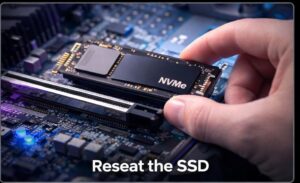
How to do it:
- Turn off your PC and unplug it from the wall
- Unscrew the small retaining screw at the end of the M.2 slot
- Pull the SSD out at a slight upward angle
- Push it firmly back in until you feel it click into the connector
- Replace the screw so the drive sits flat
- Boot up and check BIOS before trying anything else
Fix 2: Enable the M.2 Slot in BIOS
Some motherboards — especially budget and mid-range boards — ship with M.2 slots disabled by default. I’ve seen this catch out experienced builders who assumed the slot would just work out of the box.
How to do it:
- Restart your PC and enter BIOS – press Delete, F2, or F10 on start-up (shown briefly on screen)
- Look for Storage Configuration or Onboard Device Configuration
- Find any setting labelled M.2, PCIe NVMe, or the slot name like M2_2
- Set it to Enabled
- Save and exit, then check if the drive appears
Fix 3: Check NVMe vs SATA Mode
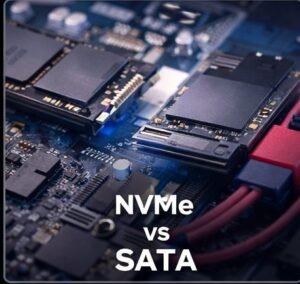
Think of NVMe and SATA as two different languages. Your M.2 slot speaks one language, and your SSD speaks another — if they don’t match, they simply can’t communicate, so the drive stays invisible with no error or warning.
How to fix it:
- Enter BIOS and find the M.2 slot settings
- Check the protocol/mode it’s currently set to
- Change it to match your drive type
- Save and restart
Not sure which type you have? Check the product name on the label or look it up on the retailer site. Most drives sold today are NVMe.
Fix 4: Check for Slot Conflicts

This is the fix most guides skip – and the one that trips up even experienced builders. On many motherboards, using certain SATA ports or PCIe slots automatically disables a specific M.2 slot. It’s called bandwidth sharing.
I’ve seen this at the café multiple times. Someone installs an M.2 drive, adds a new GPU or extra SATA hard drive, and suddenly the SSD disappears from BIOS. The two components were sharing bandwidth and the motherboard had to pick one.
How to check:
- Pull out your motherboard manual
- Look for a diagram or table showing slot conflicts
- Check if any recently added component shares bandwidth with your M.2 slot
- Try temporarily removing that component and see if the SSD appears
Fix 5: Update Your BIOS
Newer SSDs – especially high-capacity NVMe drives – sometimes aren’t recognised until the motherboard firmware is updated. The BIOS was written before that drive existed.
How to do it:
- Go to your motherboard manufacturer’s website
- Search your exact motherboard model and download the latest BIOS
- Update using a USB drive inside the BIOS menu:
ASUS boards → EZ Flash
MSI boards → M-Flash
Gigabyte boards → BIOS Flashback
Don’t turn off the PC during the update.
Fix 6: Try a Different M.2 Slot
If your motherboard has two M.2 slots, just move the drive to the other one. Takes two minutes and rules out a faulty slot entirely. At the cafe I always try this before suspecting a dead drive.
Fix 7: Test the Drive in Another PC
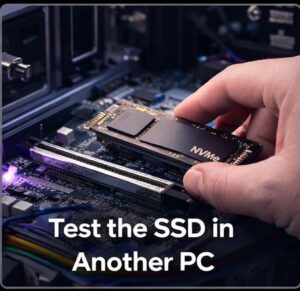
If nothing has worked so far, it’s time to test the drive itself.
- Install the SSD in another PC that has an M.2 slot
- If it doesn’t show up there either — the drive is almost certainly dead
- Most M.2 SSDs have a 3–5 year warranty — contact the retailer for a replacement
Before buying a replacement — check this first:
Some older motherboards only support SATA M.2 and will never recognise an NVMe drive no matter what. Check your motherboard spec sheet under the storage section to confirm compatibility.
Quick Checklist
- Reseat the drive? Fully clicked in, screw tight
- Slot enabled in BIOS? Not disabled by default
- Correct mode set? NVMe or SATA — must match your drive
- No slot conflicts? Check motherboard manual
- BIOS up to date? Download latest from manufacturer
- Tried other M.2 slot? Rules out a dead slot
- Tested in another PC? Confirms if drive is faulty
BIOS Detects It But Windows Doesn’t?
That’s a completely different problem with its own fixes. We’ve covered it here: Windows Not Detecting SSD? Fix It (BIOS Detects It)
Not Sure How Many M.2 Slots Your PC Has?
Use our free SSD calculator to find out exactly how many SSDs your PC can support — just enter your specs and get your answer in second
You can also check your SSD speed by running a SSD speed test online with this tool.

I spent 2 years managing a gaming café where I maintained a full setup — multiple gaming PCs, PS5 consoles, and racing simulators running back to back every day. I hold a Diploma in Computer Applications and started FixMyGames.in to document the real fixes I learned on the job — not the generic advice you find everywhere else.