I work at a gaming parlour, and a PC turning on but showing no display is one of the most common problems we face. In many cases, the issue is caused by a faulty cable and loose connection. However, it can also happen due to GPU or RAM issues, incorrect BIOS settings, or a failing power supply unit. If you find that your PC turns on but no display appears, these fixes might help.
Why does your computer turn on but show no display?
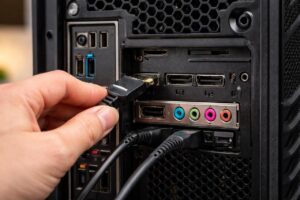
There are several reasons why a computer turns on but shows no display. One common cause can be a faulty monitor. First, make sure the monitor is powered on and shows a “No Signal” message. If the monitor displays a no-signal message, it means the monitor itself is working properly, and the issue is likely caused by one of the following:
- Loose or faulty display cable
- Power supply unit failure
- GPU- or RAM-related issues
- Incorrect BIOS settings
In many cases, the problem starts with heavy dust build up inside the GPU and connectors. I explain exactly how I clean gaming PCs step by step here: How to clean dust from gaming PC
Understanding why your PC turns on but has no display is crucial for troubleshooting. Various components could be at fault, and identifying them can lead to a quick resolution.
Easy Ways to Fix a PC That Turns On but Has No Display:
Fixing a “PC turns on but no display” issue is often straightforward. Below are some effective solutions, listed from less common to more common causes.
Important: Before attempting any troubleshooting, ensure your computer is unplugged, and you’re working in a static-free environment. If you’re unsure about any steps, consult a professional technician.
Understanding POST Beep Codes (What Your PC Is Trying to Tell You)
When your PC powers on with no display, the motherboard runs a Power-On Self-Test (POST). If something is wrong, it communicates through a series of beeps before the display even matters. Here’s a quick reference:
| Beep Pattern | Common Meaning |
|---|---|
| 1 short beep | POST passed — display issue elsewhere |
| 2 short beeps | POST error — check RAM |
| 3 long beeps | No RAM detected |
| 1 long + 2 short | Graphics card not detected |
| Continuous beeping | RAM or GPU not seated correctly |
| No beeps at all | PSU, motherboard, or CPU issue |
Tip: Beep codes vary by BIOS manufacturer (AMI, Award, Phoenix). Check your motherboard manual for the exact codes.
Is Your Monitor Actually the Problem?
Before opening your PC case, rule out the monitor itself — this is the most overlooked cause.
Step 1 — Check the input source. Monitors have multiple ports (HDMI, DisplayPort, VGA). Press the monitor’s input/source button and cycle through all available sources.
Step 2 — Test with a different cable. Display cables can fail silently. Swap your HDMI or DisplayPort cable with a known-good one.
Step 3 — Test with a different monitor. Connect your PC to a TV or a second monitor. If it works, your monitor is faulty.
Step 4 — Check the monitor’s power. Some monitors show a power LED but are in standby. Hold the power button for 5–10 seconds for a hard reset.
Resetting the BIOS (rare; may require professional help)
The BIOS checks and initialises hardware components during start-up. If the BIOS settings are misconfigured, especially after a hardware change or power issue, it can prevent the system from sending a video signal to the display. Resetting the BIOS restores default settings, which can resolve display issues caused by incorrect graphics or hardware configuration.
How to reset the BIOS:
- Shut down the computer and unplug all power cables.
- Open the PC cabinet and locate the CMOS battery (a small, round, silver battery on the motherboard).
- Carefully remove the battery using a non-conductive tool.
- Wait for 5 minutes.
- Reinstall your CMOS battery and reconnect power.
- Turn on your computer and check if the display appears.
Reinstalling RAM (common fix, no professional help required)
A loose or improperly seated RAM module is one of the most common causes of a PC turning on with no display. This often happens after moving the PC, cleaning it, or due to vibration over time.
How to reinstall RAM:
- Turn off the PC and unplug all power cables.
- Open the cabinet and ground yourself (touch the metal case).
- Remove the RAM sticks and reinstall them firmly until you hear a click.
- Make sure all power connectors are securely connected.
- Close the case and power on the PC.
Important: If you are unsure or uncomfortable opening your PC, it’s best to seek professional assistance.
Incorrectly Seated GPU — The Most Common Beginner Mistake
A graphics card that looks installed may not actually be making full contact with the PCIe slot. This is one of the top causes in freshly built PCs.
How to fix it:
- Fully power down and unplug your PC
- Press the PCIe latch at the end of the slot to release the GPU
- Remove the card completely
- Gently clean the gold contacts with a dry eraser
- Firmly reinsert — you should hear or feel a click from the latch
- Make sure your display cable is plugged into the GPU, not the motherboard
Important: If your motherboard has an HDMI port and a dedicated GPU, always use the GPU’s HDMI — the mobo port is disabled by default when a GPU is present.
Loose or faulty display cables (common fix, no professional help required)
This is the most common reason a PC turns on but shows no display. In many cases, the system is working perfectly, but the display signal is just not reaching the monitor.
Start by checking the cable connecting your PC to the monitor (HDMI, DisplayPort, VGA, or DVI).
What to do:
- Turn off your PC and monitor completely.
- Unplug the display cable from both the PC and the monitor.
- Plug the cable back in firmly on both ends.
- Make sure the cable is not loose or bent.
- If possible, try a different display cable.
- Try switching to another port on the monitor or GPU.
If your monitor shows a “No Signal” message, it usually means the cable or port is the problem, not the PC itself.
If the display works after reconnecting or changing the cable, the issue is resolved.
Faulty Power Supply Unit (PSU) (common; may require professional help)
If your PC turns on but does not display anything and you have already checked cables, RAM, GPU, and BIOS – then the power supply unit could be the cause.
A failing PSU may still power fans and lights but not provide stable voltage to the GPU or motherboard, preventing a display signal.
Common signs of a faulty PSU:
- The PC turns on but randomly shuts down.
- GPU fans do not spin consistently.
- The PC worked fine earlier and suddenly stopped showing a display.
- Burning smell or unusual noise from the PSU.
What you can do:
- Turn off the PC and unplug it from the power source.
- Check if all power cables inside the PC are securely connected.
- If available, test your PC with a known working PSU.
Important: Do not open or repair a PSU yourself. If you suspect PSU failure and are unsure, seek professional assistance. A faulty PSU can damage other components if ignored.
Start troubleshooting from the simplest and safest fixes, such as checking display cables and monitor connections, before moving on to advanced steps like resetting the BIOS or testing the power supply.
If none of the solutions work and you are uncomfortable opening your PC, consulting a professional technician is the safest option.
Taking a step-by-step approach will help you identify the problem quickly and avoid unnecessary damage to your system.
“In some cases, a faulty power supply can cause the PC to restart repeatedly.” See : PC Turns On and off Repeatedly
Computer Turns On But No Display, Mouse, or Keyboard (What It Means and How to Fix It)
If your PC powers on — fans spin, lights come on — but you get no display and your mouse and keyboard are completely dead, this is different from a regular no-display issue.
When peripherals are also unresponsive, it usually means the system never completed POST, so USB power was never initialised. The most common causes are a failing PSU, an unseated CPU power connector, or RAM that isn’t properly seated.
Here’s how to work through it:
- Check the CPU power connector. Open your case and locate the 8-pin EPS connector near the top of the motherboard. If it’s even slightly loose, the CPU won’t initialise and nothing will work. Press it in firmly until it clicks.
- Reseat your RAM. If the system can’t complete POST, USB ports stay dead along with the display. Remove your RAM sticks and reinstall them one at a time in the A2 slot. This alone fixes the issue more often than you’d expect.
- Try a different USB port. Plug your keyboard into a rear USB 2.0 port. USB 2.0 and USB 3.0 ports sit on separate controllers — if one controller has failed, the other may still work.
- Suspect the PSU. A failing PSU can power fans and RGB but not deliver stable voltage to the motherboard. If your mouse and keyboard show zero LED activity from the moment you press the power button, the PSU is the most likely cause. Test with a known-good unit if you have access to one.
Quick check: Look at your motherboard’s standby LED (a small light on the board itself). If it’s off while the PC is plugged in, the PSU isn’t delivering standby power — replace it.
If Display Works in BIOS But Not in Windows
If your PC shows the BIOS/UEFI screen fine but goes black when Windows loads, this is a software issue, not hardware.
Common causes and fixes:
- Corrupted display driver — Boot into Safe Mode (hold Shift, click Restart → Troubleshoot → Advanced Options → Safe Mode). Then uninstall your GPU driver and reinstall from the manufacturer’s site (NVIDIA or AMD).
- Windows update conflict — Roll back the latest Windows update from Settings → Windows Update → Update History.
- Fast startup causing black screen — Disable it in Control Panel → Power Options → Choose what the power buttons do → uncheck “Turn on fast startup.”
Frequently Asked Questions
Why does my PC turn on but show no display?
This usually happens due to loose or faulty display cables, RAM or GPU issues, incorrect BIOS settings or a failing power supply unit. In many cases, the monitor is working fine, but the PC is not sending a video signal.
Can a faulty power supply cause no display but the PC still turns on?
Yes: a weak or failing power supply can provide enough power for fans and lights but not enough to properly power the GPU or motherboard, resulting in no display on the screen.
Is it safe to reset BIOS if my PC has no display?
Resetting the BIOS is generally safe if done correctly, but it should be attempted only after checking cables, RAM, and power connections. If you are unsure or uncomfortable opening your PC, it’s best to seek professional help.
Does RAM affect display output?
Yes, significantly. If RAM isn’t properly seated or is incompatible with your motherboard, the system will fail POST and produce no video output at all. Try one stick at a time in the A2 slot (check your manual) to isolate a faulty module.
Can a bad GPU cause no display even if the fans spin?
Yes. GPU fans are powered independently from the display output. A card can spin its fans while having a failed video output circuit, blown capacitors, or a corrupted VBIOS. Test with integrated graphics to confirm.
How do I know if my PSU is causing no display?
Common signs: PC powers on briefly then shuts off, restarts randomly, or powers on but no peripherals light up (no RGB, no fans). A PSU tester ($10–15) can check output voltages, or test with a known-good PSU.
My monitor says “No Signal” — what does that mean exactly?
It means the monitor is working fine and receiving power, but it’s not receiving any video data from the PC. The problem is between the PC output and the monitor — check cables, input source, GPU seating, and whether you’re plugged into the GPU vs the motherboard.
Will resetting BIOS delete my data?
No. A BIOS reset only clears your BIOS settings (boot order, clock speeds, XMP profile) — it does not touch your hard drive or SSD data. Your files are completely safe.
My new PC build has no display. What should I check first?
For a new build: (1) CPU power connectors plugged in (8-pin EPS), (2) GPU power connectors attached (6+2 pin), (3) RAM in correct slots (A2/B2 for dual-channel), (4) display cable into GPU, not motherboard, (5) GPU PCIe latch clicked in. These cover 90% of new build no-display issues.
My PC had display yesterday — now it doesn’t. What changed?
Check for: a Windows update that installed overnight, a loose cable from moving the PC, overheating if the room got warmer, or a partially failing GPU that has finally given out. Start with the cable check, then try Safe Mode to rule out software.
Can a single bad RAM stick cause no display?
Yes. One faulty RAM stick can prevent the entire system from POSTing. Remove all sticks and test each one individually in the A2 slot. This is a quick way to find a dead module.
I hope this helps. 😀

I spent 2 years managing a gaming café where I maintained a full setup — multiple gaming PCs, PS5 consoles, and racing simulators running back to back every day. I hold a Diploma in Computer Applications and started FixMyGames.in to document the real fixes I learned on the job — not the generic advice you find everywhere else.