If you’ve launched EA FC 26 on PC and noticed your frame rate tanking mid-match, stuttering through cutscenes, freezing during replays, or dropping from a smooth 60fps down to an unplayable 20fps, you’re not alone. FC 26 dropping FPS is one of the most reported issues in the community right now, and it’s affecting even high-end PCs that should have no trouble running the game. If your PC has also been crashing during gameplay, the two problems are often connected, and we’ve covered this in detail in our post “PC Crashing While Gaming.”
I work at a gaming café, and this issue hit us hard personally. We had multiple PCs set up for customers to play FIFA (as most of us still call it), and within the first few days of EA FC 26 launching, the complaints started rolling in. Customers were sitting down expecting a fluid, responsive game, only to get choppy, laggy gameplay that made matches genuinely frustrating. I spent a good chunk of time troubleshooting across different machines – different specs, different GPU brands, different configurations — and what I found was that the FPS drops weren’t coming from one single cause. There were several overlapping issues, most of them on the software and settings side rather than hardware limitations.
Here’s a thorough breakdown of what’s causing the problem and what you can actually do about it.
1. Poor CPU-GPU Communication and CPU Bottlenecking
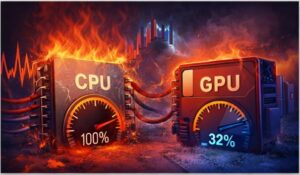
EA FC 26 is notably more CPU-dependent than previous entries in the series. The game runs a significant amount of simulation logic, like player AI, ball physics, crowd rendering, and dynamic weather. If your processor is even slightly bottlenecked, or if the game isn’t properly utilizing multiple cores, you’ll see FPS instability even when your GPU usage sits comfortably below 80%.
At the café, we had machines running mid-range CPUs paired with capable GPUs, and those were the worst performers. The GPU was essentially waiting on the CPU to catch up, causing frame time spikes that showed up as stuttering rather than a consistent low framerate. This is closely tied to thermal throttling. When your CPU overheats, it automatically reduces its clock speed to protect itself, and that directly tanks your in-game FPS. If you want to understand exactly how this works, check out our post “Can CPU Thermal Throttling Cause Game Stuttering?” for a full breakdown.
2. DirectX 12 Instability
EA FC 26 defaults to DirectX 12, which in theory offers better performance through lower-level hardware access. In practice, the DX12 implementation in this game is currently problematic for a wide range of PC configurations. Many users, and this matched what I saw at the café, report that switching to DirectX 11 produces an immediate and significant improvement in stability, even if raw benchmark numbers suggest DX12 should be faster.
3. Shader Compilation Stutters
The game compiles shaders in real time during early sessions, which causes severe stuttering particularly in the first few hours of play or after a major patch. This is a known issue in modern game development and EA FC 26 handles it poorly. If your game is freezing mid-match and snapping back a second later, shader compilation is one of the most likely culprits. The stutters tend to reduce over time as the shader cache builds up, but they can be alarming when you first boot the game.
4. EA Anti-Cheat Overhead

EA’s anti-cheat system runs as a kernel-level process and carries noticeable overhead, particularly during online matches. It can interfere with how the game allocates CPU threads and has been linked to sudden framerate drops specifically during online Ultimate Team and Pro Clubs sessions.
5. VRAM Overflow from Texture Settings
If your GPU has 6GB or less of VRAM, running texture quality on High or Ultra will push assets into system RAM, causing significant stuttering whenever the game needs to swap textures mid-session. This is particularly brutal in stadium environments with large crowds and detailed pitch rendering.
6. Background Processes, Dust Buildup, and Power Plan Settings
This one sounds basic but it made a real difference at the café. Windows running on a Balanced power plan, which is the default, throttles CPU clock speeds dynamically. During high-demand moments in a match, the CPU doesn’t ramp up fast enough, and you get a framerate dip. Combined with browser tabs, Discord, or EA App update processes running in the background, it compounds quickly.
One thing that often gets overlooked entirely is dust build-up inside the PC. At the café, some machines that were dropping frames weren’t suffering from a software issue at all — they were just overheating because of clogged fans and heatsinks. If you haven’t cleaned your PC in a while, our post “How to Clean Dust From Gaming PC” is worth a read before you dive into any software fixes.
HOW TO FIX FC 26 Dropping FPS — STEP BY STEP
Step 1: Switch from DirectX 12 to DirectX 11
In the in-game settings, go to Graphics and change the DirectX version to DX11. Restart the game completely. For the majority of users, this alone reduces or eliminates the worst stuttering, especially on Nvidia GPUs.
Step 2: Set Windows Power Plan to High Performance
Go to Control Panel > Power Options and switch to High Performance. If you’re on a laptop, also make sure your GPU is set to prefer maximum performance in Nvidia Control Panel or AMD Radeon Software. This ensures your CPU doesn’t throttle during demanding gameplay moments.
Step 3: Lower Texture Quality to Match Your VRAM
Open the in-game graphics settings and reduce texture quality one step at a time until it comfortably fits within your GPU’s VRAM. If you’re on a 6GB card, Medium textures are generally the sweet spot. You lose some visual fidelity but gain consistent frame times, which matters far more for competitive play.
Step 4: Cap Your Framerate
Uncapped framerates cause the GPU to push unnecessarily hard during menus and cutscenes, which can spike temperatures and cause thermal throttling when it matters most, during actual gameplay. Use the in-game framerate cap or Nvidia’s Frame Rate Target Control to cap at 60fps or 120fps depending on your display. Also worth checking – if your monitor isn’t running at its actual refresh rate, even a stable 100fps can feel laggy. Our post “Monitor Stuck at 60Hz Instead of 144Hz?” walks you through exactly how to sort that out.
Step 5: Close Background Applications
Before launching EA FC 26, close Discord overlays, browser tabs, streaming software, and any background update services where possible. The EA App itself sometimes runs update checks that compete for system resources during gameplay. Check Task Manager and end unnecessary high-CPU processes.
Step 6: Clear and Rebuild the Shader Cache
Navigate to your EA FC 26 installation folder, find the shader cache directory, and delete its contents. The game will rebuild it on next launch. While the first session after this may stutter during initial shader compilation, subsequent sessions should be noticeably smoother.
Step 7: Update and Clean Install GPU Drivers
Outdated or corrupted GPU drivers are a surprisingly common culprit. Use DDU (Display Driver Uninstaller) in Safe Mode to completely remove your current drivers, then install the latest version directly from Nvidia or AMD’s website. A clean install rather than an update-over-existing install often resolves performance anomalies that a standard update misses.
Step 8: Verify Game Files
Through the EA App, go to your EA FC 26 installation and run the Verify option. Corrupted or incomplete game files, which can occur after patches, sometimes cause unusual performance behaviour that has nothing to do with your hardware or settings.
FINAL THOUGHTS
EA FC 26’s FPS issues on PC are a genuine technical problem, not just a case of players needing better hardware. From my experience managing multiple gaming setups at the cafe and testing fixes across different configurations, the combination of switching to DirectX 11, setting the correct power plan, and matching texture quality to available VRAM resolves the issue for the vast majority of affected players.
The game does seem to improve with each patch, and EA has acknowledged performance optimization as an ongoing priority. But until those fixes arrive at scale, the steps above will get you and your customers, if you’re in a similar setup to me, back to smooth, competitive football the way it’s meant to be played.
If you’ve tried all of the above and are still struggling, it may be worth checking the EA FC 26 official forums and community subreddits, as hardware-specific workarounds are frequently posted by the community in real time.

I spent 2 years managing a gaming café where I maintained a full setup — multiple gaming PCs, PS5 consoles, and racing simulators running back to back every day. I hold a Diploma in Computer Applications and started FixMyGames.in to document the real fixes I learned on the job — not the generic advice you find everywhere else.