Yes, CPU thermal throttling cause game stuttering. I’ve worked at a gaming café for years, and if there’s one problem I’ve seen quietly ruin gaming sessions more than anything else, it’s thermal throttling. Players come to me frustrated – blaming bad internet, the game’s servers, or even their mouse. But half the time, the real culprit is sitting right inside the machine, silently overheating. So let me break this down from someone who’s diagnosed this problem hundreds of times in real gaming setups.
What Is Thermal Throttling?

Thermal throttling is a built-in protection mechanism in your CPU and GPU. When your processor gets too hot, it automatically reduces its clock speed to bring temperatures down and avoid permanent damage. Think of it like a car engine that limits its own power output to avoid overheating on a long highway drive – smart, but it comes at a real cost to performance.
Modern processors are designed to boost performance during demanding tasks. But if your cooling system can’t keep up, that boost doesn’t last. The chip throttles back, performance drops, and that’s where your problems start.
So, How Does Thermal Throttling Cause Game Stuttering?
Stuttering happens when your system can’t deliver frames at a smooth, consistent rate. When your CPU or GPU throttles mid-game, processing power suddenly drops. The game engine, which was expecting full performance, now has to work with less – and that mismatch shows up as a stutter or hitch on your screen.
What makes this especially tricky is that the stutter doesn’t always look dramatic. Your FPS counter might read 60 or even 90, but the frame delivery becomes uneven. You get frames bunching up and then gaps – and your eyes pick that up as a stutter even if the numbers look fine. At the café, I’ve watched players blame their mouse for “skipping” when it was actually the CPU throttling that was causing input lag and choppy movement. If you’re dealing with something similar, it might also be worth checking out our guide on how to fix mouse stuttering and skipping, since thermal issues and peripheral problems can often look identical from the player’s perspective.
What Makes Thermal Throttling Worse?
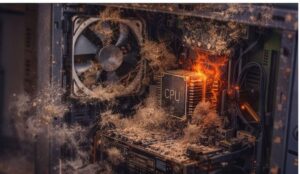
Not all systems throttle the same way. Some machines handle heat well for hours; others start throttling within minutes. Here are the main things that make it worse:
Dust build-up – This is the number one cause I see at the café, without question. Dust clogs your heatsink fins and fans, trapping heat inside the case. A machine that ran perfectly a year ago can throttle badly today just because it’s never been cleaned. We have a full breakdown of this problem in our post on how to clean dust from a gaming PC, and I’d strongly recommend reading it if you haven’t cleaned your system in a while.
Old or dried-out thermal paste – The thermal paste between your CPU and its cooler transfers heat efficiently when it’s fresh. Over time, it dries out and becomes less effective. This alone can raise CPU temps by 10–20°C in older machines.
Poor case airflow – If hot air can’t exit the case and cool air can’t enter, even a great cooler can’t do its job. Cable management, fan placement, and the number of intake vs exhaust fans all matter more than most people think.
Running in a hot environment – Ambient room temperature directly affects your cooling headroom. On hot days at the café, we notice throttling on certain machines that run perfectly fine in cooler conditions.
Aggressive overclocks without proper cooling – Pushing your CPU or GPU beyond stock speeds generates more heat. If your cooling isn’t matched to the overclock, throttling becomes almost inevitable under load.
Laptops are especially vulnerable here. Their compact designs leave very little room for heat dissipation, and they throttle much faster and more aggressively than desktop builds. At the café, our gaming desktops hold up far better across long sessions compared to any laptop we’ve tested.
How to Tell If Thermal Throttling Is Your Problem
Before you start replacing hardware or reinstalling software, confirm that throttling is actually happening. The most reliable way is to monitor your system while the stutter is occurring.
Use tools like HWiNFO64, MSI Afterburner, or ThrottleStop to watch your CPU and GPU temps and clock speeds in real time. If clock speeds drop at the same moment stutters appear, and temps are sitting above 90°C, you’ve found your culprit.
It’s worth noting that throttling-related stuttering often gets misdiagnosed. I’ve seen players at the café assume they have a mouse or cursor issue when the real problem is frame delivery caused by CPU throttling. If your mouse cursor feels like it’s freezing or lagging during the stutter, have a look at our mouse cursor freezing and lagging troubleshooting guide – but always rule out thermals first, because they’re the more common cause.
And in more severe cases, a system that’s been running hot for a long time without intervention can start to crash entirely under load. If you’re experiencing full crashes alongside the stutters, our post on PC crashing while gaming covers the most common causes and guaranteed fixes in detail.
How to Fix Thermal Throttling
The good news is that most thermal throttling issues are completely fixable without buying new hardware.
Clean your system first – Open up your PC (or use compressed air on your laptop vents) and remove all the dust you can. This single step fixes the problem entirely in a large number of cases. It’s always the first thing I do at the cafe when a machine starts acting up.
Reapply thermal paste – If your system is two or more years old, replacing the thermal paste is a quick and inexpensive fix that can drop your temps significantly. Arctic MX-6 and Thermal Grizzly Kryonaut are both solid choices.
Improve airflow – Make sure your case has proper intake fans at the front and exhaust fans at the rear and top. If your cables are a mess inside the case, tidying them up can make a noticeable difference to airflow.
Undervolt your CPU or GPU – Undervolting reduces the voltage your chip runs at, which directly lowers heat output with minimal performance impact. Tools like ThrottleStop for Intel CPUs and AMD’s own software make this easier than ever.
Upgrade your cooler — If you’re still running a stock cooler on a high-performance CPU, an aftermarket air cooler or AIO liquid cooler can make a significant difference. The investment is usually worth it.
For laptop users, a quality cooling pad that actively blows air into the laptop’s intake vents can help. Also, always use your laptop on a hard, flat surface — using it on a bed or pillow blocks the vents entirely and almost guarantees throttling during heavy loads.
The Bottom Line
Thermal throttling is one of the most common and underdiagnosed causes of PC stuttering — and I say that as someone who works with gaming machines every single day. It doesn’t always announce itself loudly. Sometimes it’s just a subtle roughness that makes your session feel off without a clear explanation.
Before you spend money on new hardware, check your temps, clean your system, and try fresh thermal paste. Nine times out of ten, the fix is simpler than people expect. Your PC isn’t broken — it’s just hot.

I spent 2 years managing a gaming café where I maintained a full setup — multiple gaming PCs, PS5 consoles, and racing simulators running back to back every day. I hold a Diploma in Computer Applications and started FixMyGames.in to document the real fixes I learned on the job — not the generic advice you find everywhere else.