If you find your mouse double clicking when you single-click, you are not alone. I work around gaming PCs in a gaming cafe every day, and this is one of the most common issues players face – sometimes even with brand new mice.
I’ve seen this happen on gaming mice we use daily, including Logitech, HyperX, and other gaming models. Many people assume the mouse is broken immediately, but in reality, the cause isn’t always hardware failure.
Sometimes it’s just setting.
Sometimes dust inside the switch.
Sometimes power or USB issues.
And yes – sometimes the mouse really is dying.
In this guide, I’ll walk you through exactly how I diagnose and fix the mouse double clicking problem in a real setup – step by step – using methods that actually work.
By the end, you’ll know whether your mouse can be fixed or needs replacement.
How to confirm your mouse is actually double clicking
Before fixing anything, make sure the problem is real.
Many players confuse mouse lag, cursor freezing, sensitivity issues, accidental fast clicking, and game lag with actual double clicking.
A true double clicking issue means:
- single click opens file twice
- drag and drop fails
- text selection breaks
- weapons fire twice in games
- button trigger multiple times
Quick test
Click on this link for the mouse double-click test and click repeatedly.
If the test shows multiple clicks from one press, then continue below.
If not, your issue may be different (like cursor freezing or USB problems)
You can check my guide on mouse cursor freezing and lagging for that situation.
Why mouse double-click happens (real causes)
From daily use in gaming environments, these are the real reasons:
1. Mouse double-click speed settings are incorrect
Windows may detect one press as two clicks
2. Dust or debris inside mouse switch
Very common in gaming setups
3. USB ports power or signal problems
Loose or dirty ports cause false input signals.
4. Worn-out internal switch
Mechanical failure after heavy use
5. Driver or software conflict
Rare, but possible.
We always check causes in this order – because most issues are simple.
Fix 1: Adjust double-click speed (most overlooked fix)
This fixes many cases instantly.
If the double-click speed is too sensitive, the system registers one press as two.
How to fix (Windows)
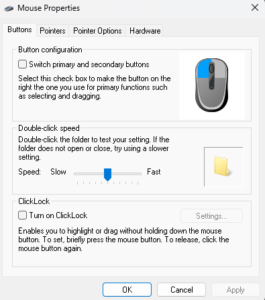
- Open Control Panel
- Go to mouse settings
- Find ” Double Click Speed”
- Move the slider towards slower
- Test using the folder icon.
If the problem stops, then your mouse was fine.
If it still happens, continue with this guide.
Fix 2: Change USB port (works surprisingly often)
This one step solves more issues than people expect.
In gaming cafes, I often see a “faulty mouse” working perfectly after switching USB ports.
Why this works
- Loose USB ports create unstable signals
- Dust inside USB ports blocks connections
- Power delivery fluctuates
- Front panel ports wear faster
What to try:
- Plug mouse into another rear USB port
- Avoid USB hubs temporarily
- Check if problem disappears
If switching ports fixes it, clean the original port.
You can read my guide on mouse and keyboard keeps disconnecting if ports cause repeated issues.
Fix 3: Clean the mouse (very common in gaming setups)
Dust is a silent killer of a gaming setup and peripherals.
In heavy gaming environments, dust slowly enters the mouse buttons, switch mechanism, scroll wheel and sensor area. This creates false electrical contact – causing mouse double clicking issues.
How I clean mouse in gaming setup
- Disconnect the mouse.
- Blow compressed air around buttons
- Clean gaps near left/right click
- Clean sensor underside
- Remove visible debris carefully.
(You can also check my guide on cleaning gaming PCs to prevent issues.)
When basic cleaning doesn’t work, I sometimes use an electronic contact cleaner spray like WD-40 Specialist Contact Cleaner.
This type of spray removes dust and residue from electronic switches and evaporates quickly.
How to use it safely
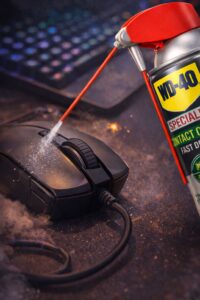
- Disconnect the mouse completely
- Use very short spray bursts (never soak the mouse)
- Spray near the mouse button gap or switch area
- Press the button repeatedly to loosen dust inside
- Let the mouse dry for 5-10 minutes before use
This often fixes double clicking caused by dust inside the switch.
Important: Do not use regular WD-40 lubricant. Only use electronic contact cleaner made for electronics. Regular WD-40 leaves residue and can damage mouse switches.
Regular dust cleaning prevents many hardware problems.
Fix 4: Update or reinstall mouse drivers
If hardware is fine, software may be confused.
This is common after Windows updates, driver conflicts, and gaming software installations.
What to do
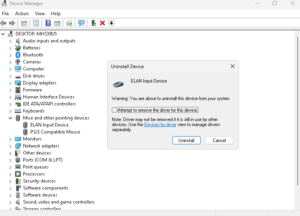
- Open Device manager by pressing Win + X
- Find Mouse/HID device
- Uninstall device
- Restart PC
Windows will reinstall automatically.
If using Logitech or any other mouse software, update it.
Fix 5: Check for failing mouse switch (common in older gaming mice).
If nothing works, the internal switch may be worn out.
Gaming mice are used heavily:
- rapid clicking
- high pressure
- long gaming sessions
Over time the mechanical switch fails.
Signs of failing switch
- random double clicks
- inconsistent clicking
- problem getting worse daily
- happens on all computers
At this stage, replacement is usually the best solution. Many gaming mice eventually develop this after daily long use.
How to know if your mouse is beyond repair
- The issue happens on multiple PCs.
- Cleaning doesn’t help
- Setting don’t help
- USB ports don’t help
- The problem keeps increasing
Switch failure cannot be permanently fixed without hardware replacement.
Why this happens frequently in gaming setups
From real gaming environments, I’ve learned most peripheral problems don’t appear suddenly.
They slowly build due to:
- dust buildup
- heavy usage
- poor port maintenance
- heat
- continuous clicking stress
That’s why regular cleaning and maintenance prevent many issues before they even start.
Prevent mouse double clicking in the future
Simple habits help:
- keep desk dust-free
- clean mouse monthly
- avoid aggressive clicking force
- use stable USB ports
- maintain PC airflow and cleanliness
Small maintenance prevents expensive replacements.
What usually works
From daily experience working around gaming PCs, most double clicking issues are not serious hardware failures.
In real setups, these fixes solve most cases:
- Adjust double-click speed
- Change USB ports
- Clean mouse
- Reinstall drivers
Only a small percentage actually need replacement.
If your mouse still double clicks after all fixes, the internal switch is likely worn out, which is normal for heavily used gaming mice.

I spent 2 years managing a gaming café where I maintained a full setup — multiple gaming PCs, PS5 consoles, and racing simulators running back to back every day. I hold a Diploma in Computer Applications and started FixMyGames.in to document the real fixes I learned on the job — not the generic advice you find everywhere else.