If your mouse is stuttering, skipping, or feels like it’s freezing while gaming, I know exactly how frustrating that feels. I work around gaming PCs every day, and this is one of those issues that looks scary at first but is usually caused by something small and fixable.
What makes it worse is that mouse stutter often gets confused with PC lag or FPS drops. Players think their whole system is failing when in reality the mouse input itself is breaking somewhere between the sensor, the USB port, and Windows.
In this guide, I’ll walk you through how I actually diagnose and fix mouse stuttering in real setups, the same way I do in a gaming cafe. No generic theory. No “just update drivers” and move on. You’ll understand why it happens, how to isolate the real cause, and how to stop it from coming back.
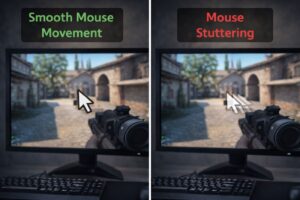
First, let’s be clear: mouse stutter is Not the same as lag
This matters, because fixing the wrong problem wastes hours.
Mouse stuttering usually feels like:
- The cursor jumps suddenly
- Small movements don’t register
- The mouse freezes for a split second, then catches up
- It feels worse in games than on the desktop
PC lags or FPS drops feels Different:
- The entire game slows down
- Audio may crackle
- The screen freezes, not just the cursor
If your FPS is stable but the mouse movement feels broken, this article is for you.
How I diagnose mouse stuttering (the same order I use at work)
Before touching Windows settings or drivers, I always answer one simple question:
Is this a mouse problem, a USB problem, or a system problem?
We solve that by starting with the fastest checks first.
Step 1: Change the USB port (this fixes more causes than you think)
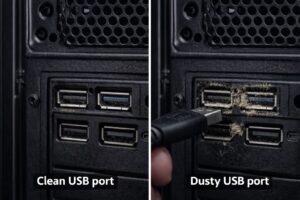
This sounds too simple, but it’s the single most common fix I use.
I’ve seen brand-new gaming mice show the same exact stutter as old ones. That’s when you realize the mouse isn’t the issue – the USB port is.
Here’s what actually happens:
- Dust builds up inside USB ports
- Internal USB headers loosen over time
- Front panel USB ports degrade faster than rear ones
- Some USB controllers handle high polling rates poorly
What I do
- Unplug the mouse
- Plug it directly into a rear motherboard USB port
- Prefer USB 2.0 ports for testing (they’re often more stable for mice)
- Avoid hubs and front panel ports during testing
If the stutter disappears instantly, you’ve already found the real cause.
If your mouse and keyboard also randomly disconnect, this is closely related. I’ve covered the same scenario in detail in my post on Mouse and keyboard keeps disconnecting, and the fixes overlap more than people realize.
Why this issue keeps coming back even after changing ports
Many people think switching ports “fixed it” permanently. It didn’t. It just moved the problem.
Dust is the silent killer here.
Over time, dust:
- Settles inside the USB ports
- Causes micro-connection drops
- Interrupts power delivery to the mouse
- Makes the sensor feel inconsistent
That’s why I treat cleaning as maintenance, not a one-time fix. I am linking to how I clean gaming PCs properly so this doesn’t keep repeating.
Step 2: Clean the mouse sensor and surface (yes, even if it looks clean)
I’ve lost count of how many times a mouse “magically” fixed itself after this.
Gaming mouse sensors are extremely sensitive. A tiny layer of dust, skin, oil, or fabric fibres can cause:
- Tracking loss
- Sudden jumps
- Micro-freezes during fast movement
What I do
- Unplug the mouse
- Use a soft brush or blower on the sensor opening
- Wipe the mouse feet lightly
- Test on a plain surface (paper or desk) before blaming the mouse pad
This takes 30 seconds and eliminates a huge variable.
Step 3: Polling rate – when higher is actually worse
Most gaming mice default to a 1000 Hz polling rate, and everyone assumes higher is always better.
It isn’t
Here’s the reality:
- 1000 Hz = 1000 updates per second
- That means constant USB interrupts.
- Weak USB controllers or dirty ports can choke
- The result feel like stutter, not smoothness
What I test
- Drop polling rate from 1000 to 500 Hz
- If needed, test 250 Hz
You will NOT feel input delay in real gameplay, but you will notice smoother tracking if polling was the issue.
This single change fixes a surprising number of “unfixable” mouse stutter cases.
Step 4: Disable USB power saving (Windows does this behind your back)
Windows tries to save power on desktops, and it’s terrible for gaming peripherals.
I see this constantly on systems where:
- Mouse stutters after a few minutes
- Mouse feels fine after reboot, then degrades
- The issue happens randomly, not instantly.
What’s happening
Windows is putting USB ports into low-power mode states, causing brief interruptions.
What I always disable
- USB selective suspend in Power options
- Power Saving on USB root Hubs in device Manager
This stabilises mouse behaviour on many systems.
Step 5: When it’s not the mouse – system latency and drivers
Sometimes the mouse is fine, the USB port is clean, the polling rate is sane, and stutter still happens.
That’s when I look at system latency, not FPS.
Certain drivers can block the CPU for microseconds:
- Network drivers
- Audio drivers
- Storage drivers
- Bad RGB software
When that happens, mouse input gets delayed or dropped.
I use latency tools to confirm this, but even without them, you can test:
- Close background overlays
- Disable RGB software temporarily
- Test with Ethernet unplugged (yes, really)
- Update or roll back recent drivers
This is especially common on PCs with lots of utilities installed.
Step 6: GPU timing issue that feels like mouse stutter
Sometimes the mouse isn’t stuttering – the game’s frame pacing is.
This usually happens when:
- FPS fluctuates heavily
- V-sync is fighting the GPU
- Frame caps are inconsistent
What I test:
- Enable a stable FPS cap
- Toggle V-sync off and on
- Test windows with fullscreen
If mouse movements feel smooth, the issue was timing, not input.
A real-world pattern I see all the time
Here’s a typical case from work:
A player complains their mouse stutters only in games. Mouse replaced. Still stutters. USB ports changed. Temporarily fixed. The issue comes back next week.
The real cause?
- Dust inside rear USB ports
- High polling rate stressing a dirty controller
- USB power saving kicking in mid-session
Once cleaned properly and configured, the issue never returned.
That’s why maintenance matters more than “one fix”.
How I prevent mouse stuttering from coming back
I prevent repeat issues by:
- Cleaning USB ports during regular PC cleaning
- Keeping polling rate reasonable
- Avoiding cheap USB hubs
- Replacing worn cables early
- Keeping driver installs minimal
I’ve written a full breakdown of my cleaning process in my guide on how I clean gaming PCs, including the GPU, PSU, and hidden dust zones most people miss. That routine alone reduces peripheral issues massively.
When mouse stutter is actually part of a bigger problem
If mouse stutter appear alongside;
- Random restarts
- USB devices disconnecting
- Display issues
- Sudden freezes
Then it’s not just a mouse issue anymore.
In those cases, I check power delivery and motherboard stability. I’ve documented one such scenario in my post on PC turns on but no display, where loose connections and dust caused multiple symptoms at once.
Final thoughts (from someone who fixes this daily)
Mouse stuttering feels like a serious problem, but in reality, it’s usually:
- A dirty port
- An unstable USB connection
- A bad power power or polling configuration
- Or Windows helping when it shouldn’t
The biggest mistake people make is jumping straight to replacing hardware.
Slow down. Isolate the cause. Fix the simplest thing first.
If you take one thing from this guide, let it be this:
Most mouse stuttering issues are input problems, not performance problems.
Fix the input path, and the problem disappears.

I spent 2 years managing a gaming café where I maintained a full setup — multiple gaming PCs, PS5 consoles, and racing simulators running back to back every day. I hold a Diploma in Computer Applications and started FixMyGames.in to document the real fixes I learned on the job — not the generic advice you find everywhere else.