Most people see this and immediately start swapping cables, reinstalling drivers, or blaming the monitor. But here is what nobody tells you:
When your display has no signal AND your keyboard has zero power at the same time, your PC is giving you a very specific diagnostic signal.
It means the system never completed POST.
POST stands for Power On Self Test. It is the internal check your PC runs in the first few seconds after you press the power button. Every single thing your PC does — sending a signal to the monitor, powering the USB ports, loading Windows — happens only after POST completes successfully.
If POST fails or never runs, everything stays dead. No display. No keyboard. No mouse. Fans spin, lights come on, but nothing responds. That is exactly what you are seeing.
This article does not just give you a fix list. It helps you figure out which part of your PC is stopping POST from completing — because that is the only way to actually solve this.
⚠️ Safety Warning Before You Open Your PC Opening your PC cabinet and touching components carries a real risk of electrostatic discharge, which can permanently damage your motherboard, RAM, or GPU without you even realising it.
Before touching anything inside the cabinet:
- Unplug the PC from the wall completely
- Touch a metal part of the cabinet to ground yourself
- Or use an anti-static wrist strap if you have one
If you are not comfortable opening your PC, skip to the end of this article and take it to a professional. There is no shame in that — some of these components are expensive and one wrong move can make things worse.
Step 1: Observe Before You Touch Anything
Before opening the cabinet, spend 60 seconds watching and listening. What you observe right now will tell you which fix to go to directly.
Check for beep sounds:
- One short beep when powering on — POST is actually passing, the issue is likely the GPU or monitor connection
- Continuous beeping or a pattern of beeps — RAM or GPU is not seated properly
- Complete silence with no beep at all — PSU or motherboard is not delivering power correctly
Check the motherboard standby LED:
- This is a small light on the motherboard itself, usually near the RAM slots or bottom edge
- If it is on while the PC is plugged in but powered off — the PSU is delivering standby power correctly
- If it is completely off — the PSU is not delivering power to the board at all
Watch the fans when you power on:
- Fans spin up fully and stay running — POST is attempting but failing somewhere
- Fans spin for one second then stop — PSU cannot sustain power delivery
- Nothing moves at all — PSU or power button connection is the issue
Note down what you see and use it to jump straight to the right fix below.
Fix 1: Reseat the RAM
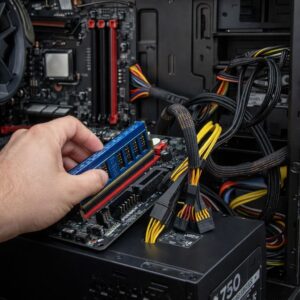
RAM that is even slightly loose is the single most common reason POST fails. It does not have to look loose — sometimes it just needs to be pressed in fully.
- Unplug the PC from the wall completely.
- Ground yourself by touching the metal part of the cabinet.
- Open the cabinet and locate the RAM sticks. They are the long flat sticks in the slots next to the CPU.
- Press the clips on both ends of each slot outward to release the RAM.
- Remove all sticks completely.
- Put just one stick back in the A2 slot. This is the second slot from the CPU — check your motherboard manual if you are unsure which one it is.
- Press it down firmly until both clips click back into place.
- Plug in and power on to test.
Tip: If you have two RAM sticks and one slot works but the other does not, you likely have a faulty RAM stick or a damaged slot.
Fix 2: Check the CPU Power Connector
This is the fix that gets missed the most. People check the big 24 pin connector going into the motherboard but forget the smaller one going to the CPU. Without this, the CPU has no power and POST cannot run at all.
- Unplug the PC and ground yourself.
- Look for the 8 pin connector at the top of the motherboard near the CPU cooler. It is separate from the main 24 pin connector.
- Press it in firmly until it clicks.
- Power on and test.
If you are on a high end build, your motherboard may have two CPU power connectors — a main 8 pin and an additional 4 or 8 pin beside it. Make sure both are connected.
Fix 3: Reseat the GPU
A GPU that is not making full contact with the PCIe slot will prevent POST from completing on most systems. This is especially common after moving a PC or if the cabinet was knocked.
- Unplug the PC and ground yourself.
- Remove the GPU completely by pressing the retention clip at the end of the PCIe slot.
- Press it firmly back in until you hear and feel the clip click.
- Make sure the power cables going into the GPU are fully seated.
- Power on and test.
Also try this: If your motherboard has a built in HDMI or DisplayPort directly on the board itself (not on the GPU), plug your monitor into that instead and test. If you get a display, the GPU needs further attention.
Fix 4: Drain Residual Power
Leftover electrical charge can interfere with POST starting properly. This takes 30 seconds and is worth doing at any stage.
- Unplug the power cable from the back of the PC completely.
- Hold the power button for 30 seconds. This drains any charge left in the system.
- Plug the cable back in.
- Power on and test.
Fix 5: Suspect the PSU
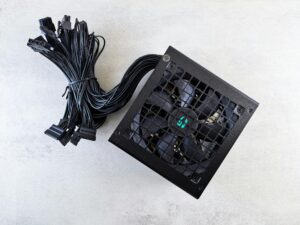
If your observations in Step 1 showed fans cutting off after one second, no standby LED, or complete silence — the PSU is not delivering proper power to the motherboard. POST cannot run without stable power.
Signs pointing to the PSU:
- Motherboard standby LED is off even when plugged in
- Fans spin briefly then cut out
- Burnt smell near the back of the cabinet
- Problem started after a power outage or surge
What to do:
- Check that all PSU cables are seated firmly at both ends — at the PSU and at the component.
- If you have access to a spare PSU, swap it in to test.
- If not, take the PC to a technician and ask them to test the PSU output.
If this started after a power outage, we have a full guide on exactly what a power outage damages and how to fix it: [Computer Won’t Turn On After a Power Outage — Here’s What Actually Got Damaged and How to Fix It]
Fix 6: Reset the BIOS
A corrupted BIOS can stop POST from running correctly. Resetting it wipes any bad settings and brings everything back to factory defaults.
- Unplug the PC completely and ground yourself.
- Find the small round silver battery on the motherboard. It looks like a large watch battery.
- Remove it carefully using a non conductive tool like a plastic spudger.
- Wait 5 minutes.
- Put the battery back in.
- Power on and test.
When to Stop and See a Professional
If you have worked through every fix above and nothing has changed, the issue is most likely a hardware fault that needs proper diagnosis and equipment to identify.
Take it to a professional if:
- The motherboard standby LED is off even with a known working PSU
- You can smell burning from inside the cabinet
- The PC was dropped, knocked, or exposed to liquid
- You are not comfortable opening the cabinet at all
There is no benefit to keep trying things at this point — a technician can test each component individually and tell you exactly what failed.
For a full breakdown of no display issues beyond keyboard and power problems, visit our guide here: PC Turns On But No Display — How to Fix
Frequently Asked Questions
Why does my computer turn on but the keyboard and mouse have no power at all?
When both the display and USB ports are completely dead, it almost always means POST did not complete. USB ports only receive power after POST runs successfully. The most common causes are unseated RAM, a loose CPU power connector, or a PSU that cannot deliver stable power.
Computer turns on but no display or power to keyboard — what is POST and why does it matter?
POST stands for Power On Self Test. It is the internal check your PC runs in the first few seconds after powering on. If POST fails, your PC cannot send a signal to the monitor or power the USB ports. Everything stays dead until POST completes successfully.
Can a bad GPU cause the keyboard to have no power?
Yes. On most systems, a GPU that is not seated properly can cause POST to fail, which means USB ports never receive power either. Reseating the GPU or testing with the integrated graphics port on the motherboard often confirms this.
My PC has no display and no keyboard power — is the motherboard dead?
A dead motherboard is possible but it is the last thing to suspect. Work through RAM, CPU power connector, PSU, and GPU first. A motherboard fault is usually confirmed only when every other component has been tested and ruled out.
What does it mean when my PC fans spin but nothing else works?
Fans require very little power to spin. A failing PSU can keep fans running but fail to deliver the stable voltage the motherboard needs to complete POST. If fans spin but display and keyboard stay dead, start with the PSU check.

I spent 2 years managing a gaming café where I maintained a full setup — multiple gaming PCs, PS5 consoles, and racing simulators running back to back every day. I hold a Diploma in Computer Applications and started FixMyGames.in to document the real fixes I learned on the job — not the generic advice you find everywhere else.