If your PS5 keeps overheating, the internet will tell you the same thing every time: clean the vents, move it to a ventilated area, update the firmware. And while that advice is not wrong, it is incomplete.
Here is what most articles miss: PS5 overheating is not one single problem. The cause is completely different depending on when and how the overheating happens. Treating every case the same way is why so many people clean their console, put it back, and the problem comes right back.
I spent years managing a gaming parlour where PS5s were running for hours every single day. The overheating issues we saw were never all the same — and the fix that worked for one console did not always work for another.
This article helps you figure out which overheating problem you actually have, so you fix the right thing the first time.
First: Identify When Your PS5 Overheats
Before doing anything, answer this question:
Does your PS5 overheat during one specific game only? Go to Scenario 1.
Does your PS5 overheat after 30 to 60 minutes regardless of what you are playing? Go to Scenario 2.
Is your PS5 older than 2 years and overheating even after cleaning it thoroughly? Go to Scenario 3.
Scenario 1: PS5 Overheats During One Specific Game Only

This is more common than people realise and it is almost never a hardware problem. Certain games are poorly optimised for the PS5 and push the processor harder than necessary, generating more heat than the cooling system is designed to handle during that specific workload.
This is a game issue, not a console issue.
Signs this is your situation:
- The overheating warning only appears in one game
- Other games run fine with no warnings
- The problem started after a specific game update
- Your PS5 fan gets dramatically louder the moment you load into that game
What to do:
- Check if other PS5 users are reporting the same overheating issue with that game. Search the game title plus “PS5 overheating” — if it is a widespread issue you will find forum threads immediately.
- Lower the resolution or frame rate in the game settings. Go to Settings, then Game Presets, and try switching Performance Mode to Resolution Mode or vice versa. This changes how hard the processor works.
- Check if a game update is available. Developers sometimes release patches specifically to fix overheating caused by poor optimisation.
- If the game has a PS4 version available, try running that instead while waiting for a patch. The PS4 version is less demanding and will not push the hardware as hard.
Note: If the problem only appeared after a game update and other players are reporting the same thing, wait for the developer to patch it. Cleaning your console or changing its position will not fix a software optimisation problem.
Scenario 2: PS5 Overheats After 30 to 60 Minutes During Any Game

This is the most common scenario and it is almost always caused by restricted airflow, dust buildup, or the console being placed in a position that traps heat.
Signs this is your situation:
- Overheating happens across multiple games
- The fan gets progressively louder over time during a session
- The console feels very hot to the touch on the top or sides
- You get the “Your PS5 is too hot” warning after extended play
Step 1: Check the placement of your PS5
This alone fixes the problem in a large number of cases.
- Your PS5 needs at least 10 cm of clear space on all sides
- Never place it inside a closed cabinet or TV unit
- Keep it away from other heat generating devices like routers or other consoles
- Both vertical and horizontal placement are fine as long as airflow is not blocked
Step 2: Clean the vents
⚠️ Safety Warning: Use compressed air in short bursts and keep the can upright. Never use a vacuum cleaner directly on the vents as it can generate static that damages internal components. Do not open the console if it is still under warranty — Sony may void the warranty if the seals are broken.
- Power off the PS5 completely and unplug it from the wall.
- Wait 10 minutes for it to cool down before touching it.
- Use a can of compressed air to blow out the vents on the sides and back of the console.
- Use a soft dry brush to gently remove any visible dust from the vent openings.
- Sony has also built a dust collector into the PS5 — two small holes at the bottom of the console. You can remove the side covers and use a vacuum nozzle on these specific points. Sony officially recommends this in their support documentation.
Step 3: Check your room temperature
The PS5 starts struggling when the room temperature goes above 35 degrees Celsius. If you are in a hot climate or playing in summer without air conditioning, the console simply cannot cool itself fast enough regardless of how clean it is.
In this case, a small external fan pointed at the console vents can make a significant difference.
Scenario 3: Older PS5 Overheating Even After Cleaning
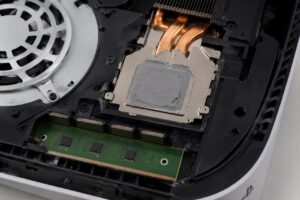
This is the scenario almost nobody writes about clearly, and it is the reason many people with older PS5 consoles cannot seem to fix their overheating problem no matter what they try.
Sony uses liquid metal as the thermal interface material between the PS5 processor and its heatsink. Liquid metal conducts heat far better than standard thermal paste — but over time and with repeated heating and cooling cycles, it can dry out or shift position. When this happens, heat transfer becomes inefficient and the console overheats even when the vents are perfectly clean.
This is a known issue with early launch PS5 units and consoles that were stored or used vertically for long periods.
Signs this is your situation:
- Your PS5 is 2 or more years old
- You have cleaned the vents thoroughly and the problem persists
- The fan runs at maximum speed almost immediately after startup
- The console overheats even when playing less demanding games
What to do:
⚠️ Important Warning: Replacing liquid metal involves opening the PS5 fully and working near sensitive components. This is an advanced repair. If your console is still under warranty, contact Sony first — opening the console will void the warranty. If you are not confident doing this yourself, take it to a professional repair service. Liquid metal is also electrically conductive, which means a spill onto the motherboard can cause permanent damage.
Option 1: Contact Sony support
If your PS5 is within the warranty period, Sony may repair or replace it. Visit the official PlayStation support page and submit a repair request. This is always the first step for consoles still under warranty.
Option 2: Take it to a professional repair service
A technician experienced in PS5 repairs can safely remove the old liquid metal, clean the processor and heatsink surfaces, and reapply fresh liquid metal or high quality thermal paste. This typically resolves the overheating issue completely on older units.
Option 3: DIY liquid metal replacement (advanced users only)
If your console is out of warranty and you are comfortable with electronics repair, there are detailed guides available on replacing the liquid metal yourself. This requires a T8 Torx screwdriver, isopropyl alcohol for cleaning, and the correct liquid metal compound. Proceed only if you fully understand the risks involved.
General Tips That Apply to All Scenarios
These apply regardless of which scenario you are in:
- Keep your PS5 system software updated. Go to Settings, then System, then System Software Update. Sony occasionally releases updates that improve thermal management.
- Avoid leaving the PS5 in Rest Mode for extended periods in a hot environment. Fully power it off if you are not using it.
- If your PS5 shuts down suddenly without a warning message, that is a more serious thermal event. Let it cool for at least 30 minutes before powering it back on.
When to Contact Sony
Contact PlayStation support directly if:
- Your PS5 is still under warranty and overheating repeatedly
- The console shuts down without warning on a regular basis
- The fan runs at full speed from the moment you power on, even after cleaning
- None of the fixes above made any difference
Sony’s official support page is at playstation.com/support. Do not attempt advanced repairs on a console still covered under warranty.
Frequently Asked Questions
Why does my PS5 keep overheating even after I clean it?
If cleaning made no difference, the issue is likely deeper than dust. On older PS5 units, the liquid metal thermal compound between the processor and heatsink can dry out over time, making heat transfer inefficient. This is a known issue with early PS5 models and requires either a professional repair or liquid metal replacement.
Why is my PS5 overheating with only one specific game?
This is usually a game optimisation issue rather than a hardware problem. Some games are poorly optimised and push the PS5 processor harder than necessary. Check if other players are reporting the same issue and look for a game update or patch from the developer.
How do I stop my PS5 from overheating?
Start by identifying when the overheating happens. If it is game specific, check for patches and lower the graphics settings. If it happens across all games, improve ventilation and clean the vents. If your console is older and cleaning does not help, the liquid metal thermal compound may need replacing.
Is it bad to keep playing on an overheating PS5?
Yes. Repeated overheating causes long term damage to internal components including the processor and motherboard. If your PS5 is showing the overheating warning regularly, stop using it until the issue is resolved.
PS5 overheating repair — should I do it myself or go to a professional?
For basic cleaning and ventilation fixes, you can do it yourself safely. For anything involving opening the console — especially liquid metal replacement — a professional repair service is strongly recommended unless you have experience with electronics repair. The risk of permanent damage is real.
Why does my PS5 fan sound like a jet engine?
A very loud fan usually means the PS5 is working hard to cool itself down. This can be caused by blocked vents, a poorly optimised game, or failing thermal compound on an older unit. Run through the scenarios in this guide to find which one applies to your situation.
Related Guides
How to fix packet loss in fortnite

I spent 2 years managing a gaming café where I maintained a full setup — multiple gaming PCs, PS5 consoles, and racing simulators running back to back every day. I hold a Diploma in Computer Applications and started FixMyGames.in to document the real fixes I learned on the job — not the generic advice you find everywhere else.