Running a gaming cafe teaches you things no YouTube tutorial will. When you have twenty PCs and forty guys arguing over headphones not working, you stop Googling and start actually knowing. This guide covers every type of wired headphone connection, because they all behave differently and people mix them up constantly.
First, Figure Out What Type of Headphones You Have
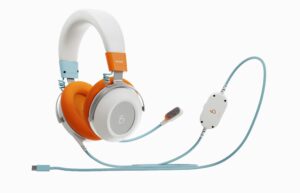
Before you try to connect wired headphones to PC, check what connector your headphones use. Most budget and mid-range headphones use a 3.5mm jack, which is the standard round metal plug. Gaming headsets, studio headphones, and some premium models use USB instead. And then there is a third category, headphones that come with a small USB dongle or sound card that plugs into your USB port and acts as a dedicated audio device.
Knowing which one you have saves you ten minutes of confusion.
Connecting 3.5mm Wired Headphones
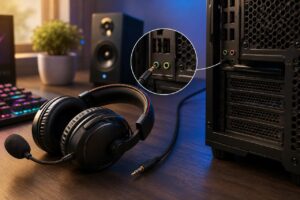
Look at your PC. Desktops have colour coded ports — green is for audio output and pink is for the microphone. If your headphones have a single combined jack (one plug for both audio and mic), plug it into the green port. The mic may or may not work depending on whether your motherboard supports combo jacks. Most older ones do not.
Laptops are simpler. They usually have one combo jack that handles both audio and mic from a single plug. Plug in and you are mostly done.
Push the jack in firmly until you feel resistance. A loose connection is the number one reason people think their headphones are broken when they are perfectly fine.
Once plugged in, Windows should detect the device and show a pop-up in the bottom right corner. Select headphones from the list.
Connecting USB Headphones
USB headphones skip your motherboard’s audio entirely. When you plug them into a USB port, Windows sees them as a completely separate audio device with their own built-in sound processor. This is actually better for audio quality in most cases, but it means Windows will not automatically switch to them without a prompt.
After plugging in, go to your taskbar, right-click the speaker icon, and open Sound Settings. Under the Output section, change the device from your default speakers or 3.5mm output to your USB headphones, which will appear by their actual model name. Do the same under Input if the headset has a microphone.
If Windows is not detecting the USB headphones at all, try a different USB port. Front panel USB ports on desktops are sometimes underpowered or connected loosely to the motherboard internally. The back USB ports are directly on the motherboard and are far more reliable. At my cafe, front panel USB issues caused half the headphone complaints we got.
Dusty or dirty USB ports can cause intermittent detection problems. If your PC has not been cleaned in a while, that port may not be making proper contact. I have a full guide on how to clean dust from your gaming PC that covers ports and connectors properly.
Connecting Headphones With a USB Sound Card
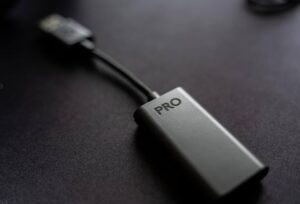
Some headphones, especially older gaming headsets from brands like SteelSeries or older Corsair models, come with a small USB sound card or audio controller. It is a tiny dongle that your 3.5mm headphone jack plugs into, and then the dongle itself plugs into your USB port. This is different from a native USB headset.
The setup process is the same as USB headphones. Windows will detect the dongle as a new audio device. Go into Sound Settings and set it as your default output and input. The advantage here is that you can use the same headphones across multiple PCs without depending on each machine’s audio quality, which is exactly why these were so common in gaming cafes.
If the sound card dongle is not being detected, try plugging it directly into a rear USB port, and give it thirty seconds before checking Sound Settings. Some of these devices are slow to initialize.
Windows Is Not Playing Audio Through Your Headphones
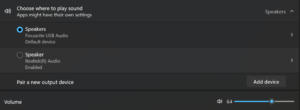
This used to drive my customers insane. The headphones are plugged in, the wire is fine, but sound is still coming from the speakers or nothing is happening at all.
Right-click the speaker icon in your taskbar. Click Open Sound Settings or Playback Devices. Find your headphones in the list, right-click, and set them as the Default Device. Windows has a habit of staying loyal to whatever device it was using before, even after you plug something new in.
If you do not see your headphones listed at all, right-click inside that window and enable Show Disabled Devices and Show Disconnected Devices. Windows hides them sometimes for no good reason.
When the Mic Is Not Working
Go back into Sound Settings and click the Recording tab. Find your microphone, set it as default, and make sure the input volume is not sitting at zero. Then check the app you are using — Discord, your game, whatever it is — because most apps have their own microphone selection separate from Windows. Discord especially loves to reset its audio input device after updates.
Realtek Audio Manager Getting in the Way
If your desktop has Realtek HD Audio Manager installed, it will sometimes pop up when you plug in headphones and ask you to confirm what device you connected. One wrong click and that port stops behaving correctly. Open Realtek from your taskbar or Control Panel and check that your front and back ports are assigned properly. This was behind at least a third of the headphone issues I dealt with at my cafe.
USB Headphones Randomly Disconnecting
If your USB headphones keep cutting out or disconnecting during use, this is usually a Windows power management issue. Windows will put USB devices to sleep to save power. To fix it, go to Device Manager, find your USB audio device, right-click and open Properties, go to the Power Management tab, and uncheck the option that allows Windows to turn off the device to save power.
If the disconnections are happening with other USB devices too, that is a different problem worth looking into separately . I cover this in detail in my article on fixing mouse and keyboard disconnecting issues, and most of the same USB fixes apply.
Driver Issues
If nothing is working and the device is not being detected no matter what you try, open Device Manager and check for a yellow warning triangle next to your audio device. If it is there, right-click and update the driver. If there is no warning but it still does not work, uninstall the driver and restart. Windows will reinstall a basic one automatically, and that is often enough to fix it.
A Note on Single Jack Headphones With Older PCs
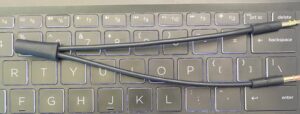
If your headphones have one combined plug for audio and mic but your PC has separate green and pink ports, you have two options. Use just the green port for audio only, or buy a headphone splitter adapter that splits one combined jack into two separate plugs. These cost almost nothing. I kept a box of them at my cafe because someone needed one every day.
Final Thoughts
Connecting wired headphones to a PC is simple once you understand that Windows does not always switch audio devices on its own, and that 3.5mm and USB headphones are handled completely differently by the system. The hardware takes five seconds. The software is where people get lost.
If you are having other unexplained PC issues beyond audio, the PC troubleshooting section on this site is a good place to work through things systematically.
Go through the steps above one at a time and you will have it sorted.

I spent 2 years managing a gaming café where I maintained a full setup — multiple gaming PCs, PS5 consoles, and racing simulators running back to back every day. I hold a Diploma in Computer Applications and started FixMyGames.in to document the real fixes I learned on the job — not the generic advice you find everywhere else.