How to fix packet loss in CS2 is one of the most searched questions in the game right now — and for good reason. Packet loss in CS2 feels like the game is reading your mind and ignoring you anyway. You click, nothing happens. You peek a corner and die before your screen even shows the enemy.
This guide walks you through every fix, starting with the easiest ones. Most CS2 players solve packet loss within the first three steps.
What Is Packet Loss in CS2 and Why Does It Happen?
Packet loss means data sent between your PC and Valve’s servers is getting dropped mid-journey. In CS2, even 2% to 5% loss causes rubber banding, shots not registering, and freezing mid-round.
It is different from high ping. You can have a 20ms ping and still suffer packet loss. The two problems have different causes and different fixes.
How to Check for Packet Loss in CS2 Before You Fix It
Before fixing anything, confirm you actually have packet loss. Do not skip this step.
In-Game Method
Open your console and type:
net_graph 1Look at the loss row in the bottom right. Anything above 0% during a match is worth fixing.
Using CMD
Open Command Prompt and ping a Valve server directly:
ping 208.64.200.1 -n 50If you see “Request timed out” lines in the output, you have packet loss between your PC and Valve’s servers.

How to Fix Packet Loss in CS2 — 7 Fixes in Order
This is the single most effective way to fix packet loss in CS2 and takes two minutes. Wi-Fi drops packets constantly due to interference from walls, other devices, and signal congestion. Ethernet gives you a direct, stable connection with almost zero packet loss under normal conditions.
A corrupted DNS cache can route your traffic through slow or broken paths, causing packet loss before data even reaches Valve’s servers. Open Command Prompt as Administrator and run these one by one:
ipconfig /flushdns

ipconfig /release

ipconfig /renew
Restart CS2 after running these commands and check your net_graph again.
Your ISP’s default DNS servers are often slow and unreliable for gaming. Switching to a faster DNS can reduce routing issues that cause packet loss in CS2. Cloudflare’s 1.1.1.1 and Google’s 8.8.8.8 are both free and significantly faster than most ISP defaults.
- Open Settings → Network & Internet → Change adapter options
- Right-click your active connection and select Properties
- Click Internet Protocol Version 4 (TCP/IPv4) then Properties
- Set Preferred DNS to
1.1.1.1(Cloudflare) or8.8.8.8(Google) - Set Alternate DNS to
1.0.0.1or8.8.4.4 - Click OK and restart your PC
An outdated network driver is a common and overlooked cause of packet loss, especially after Windows updates.
- Press
Windows + Xand open Device Manager - Expand Network Adapters
- Right-click your Ethernet or Wi-Fi adapter
- Select Update driver → Search automatically
In Steam, right-click CS2 and go to Properties → Launch Options. Add:
-high -novid +cl_interp_ratio 1 +cl_interp 0 +rate 786432| Option | What It Does |
|---|---|
-high |
Sets CS2 as a high priority process |
+rate 786432 |
Matches current Valve server data rate limits |
+cl_interp_ratio 1 |
Reduces interpolation delay |
-novid |
Skips intro video for faster loading |
Streaming, downloading, or even browser tabs with video can eat enough bandwidth to cause packet loss in CS2. Before launching the game:
- Pause any downloads in Steam, Epic, or Windows Update
- Close Discord video calls (audio only is fine)
- Close browser tabs with YouTube or Twitch
See our guides for keeping your PC lean before gaming: How to free up RAM on Windows and How to optimize your PC for best performance.
Sometimes the packet loss is not on your end at all. Valve’s servers in specific regions get overloaded, especially during peak hours.
- Open CS2 and go to Settings → Game → Official Matchmaking
- Change your server region to a nearby alternative
- Run a test match and compare your net_graph stats
When to Call Your ISP About CS2 Packet Loss
If you have tried every fix above and still see packet loss in CS2, run this test in Command Prompt:
ping 8.8.8.8 -n 100 -l 32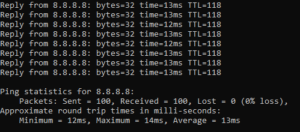
If you see lost packets here, the problem exists between your PC and your ISP’s network. That is not something you can fix yourself. Contact your ISP and show them the results. Ask specifically about packet loss on your line, not just speed. You can also check Valve’s support page to rule out a server-side issue first.
Quick Recap — CS2 Packet Loss Fixes
| Fix | Best For | Difficulty |
|---|---|---|
| Switch to Ethernet | Wi-Fi users | Easy |
| Flush DNS | Everyone — try this first | Easy |
| Change DNS server | Slow ISP routing | Easy |
| Update network driver | Post Windows update issues | Easy |
| CS2 launch options | In-game specific loss | Easy |
| Close background apps | Bandwidth congestion | Easy |
| Change server region | Valve server issues | Easy |
Frequently Asked Questions

I spent 2 years managing a gaming café where I maintained a full setup — multiple gaming PCs, PS5 consoles, and racing simulators running back to back every day. I hold a Diploma in Computer Applications and started FixMyGames.in to document the real fixes I learned on the job — not the generic advice you find everywhere else.