We assume and have been told that a PC shut down while gaming is because of overheating. It’s common for a PC to shutdown as a self defence mechanism, only to protect the hardware from any permanent damage.
However, sometimes the PC shows no signs of overheating. The fans work properly, properly ventilated and the temperature is normal. Still the PC shuts down while gaming. If your PC is freezing while gaming, you can try the fixes mentioned in the post.
Why a PC shuts down while gaming :
There can be several reasons for a PC to shut down, if not overheating the PC can be shutting down because of the following hardware or software issues:
Hardware issues that cause a PC to shutdown while gaming:
- A failing Power Supply Unit (PSU)
- GPU or a loosely connected GPU
- Motherboard
If you have a UPS or an extension board connected to you PC, try plugging in the PC directly to the wall. You won’t believe the number of times an issue is caused by dumb reasons, like the power cable slightly plugged off the wall or the PSU.
Software issues that cause a PC to shutdown while gaming:
If not hardware issue, the software is as guilty as overheating for your PC to shut down. Common software issue are:
- Corrupted windows, especially Windows 10
- Outdated drivers
- Outdated BIOS
- A specific game causing the issue
Keep in mind that if a PC is shutting down due to any software issue it usually shows the error code before shutting down.
If your PC freezes, the peripheral stops working, the monitor goes black and the only way is to force shutdown the PC then try checking the error in event viewer. You can do that by pressing Win+R then type eventvwr.msc and press enter.
Meanwhile if your PC is running but shows no display, try troubleshooting the monitor before jumping to a conclusion.
How To Fix a PC shut down while Gaming:
If your PC doesn’t make any funny sounds or you can not smell something burning, you should do a step-by-step guide of finding the error and solving it. Here is the step by step guide to solve the issue:
Important (read this first)
Before opening your PC:
- Shut it down completely.
- Unplug the power cable.
- Press the power button once to discharge remaining power.
- Work on a flat, static free surface.
If you are not comfortable opening your PC, it’s best to seek professional help.
1.Update BIOS
Many users have claimed that updating BIOS resolved the issue. An older version of BIOS sometimes mess with the components of your PC. It can prevent your PC from working on its full potential.
To update the BIOS you need the exact model of your motherboard which you can find in the BIOS. Then search the official website of your motherboard and check for latest BIOS update. You can see it under “Driver and Tools” section after you identify your specific model.
You’ll get a .cap file after extracting the .zip. After that, in BIOS advanced mode move to “Tool Section” and select your drive in which the .cap file is present. Press enter on the .cap file and don’t touch anything. Your PC might freeze for a few minutes and then restart. Once the BIOS is updated, your PC should work just fine.
2. Check for any loose connections:
Check for any loose connections of the power cable. See if it is properly connected to the socket and PSU. If it’s properly seated check for any loose connection inside the PC with the help of a technician. While gaming, the fans cause a lot of disturbance and vibrations, a loose connection can not withstand these. Power supply to the components is temporarily cut off and the PC shuts down while gaming.
To ensure that there aren’t any loose connections in your PC, remove the components and wire one by one and fit them back in their place. Listen carefully for a click sound, then it’s seated perfectly.
3. Software issues:
An official from Microsoft claimed, “In Windows 10 everything depends upon the quality of the install, factory or upgrade installs are inferior installs which most enthusiasts won’t even run because they’d expect endless issues”.
Sometimes a specific game is causing the problem. A reddit user reminded “Kinda like when (the game) “New World” first came out and it was shutting PCs off equipped with RTX4090? Remember that? The trick was to enable v-sync because those strong PCs would run the frame rate so high that they overheat and shut off”. To fix this:
- Update your drivers and firmware from PC or motherboard maker’s “Support Downloads” webpage, using the full ‘Model Number’ and ‘Serial Number’.
- Do a ‘Repair Install’, by installing “Media Creation Tool”, open tool and choose to ‘Upgrade Now’. This reinstalls Windows while keeping files, programs and most settings in place, is the most stable method to solve most problems.
If your PC shut down while gaming even though everything is updated, no signs of overheating. We are sure now that it’s a hardware issue.
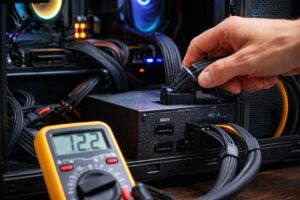
4. A faulty power supply unit(PSU)
A failing PSU is one of the most common reason a PC shuts down while gaming, even when temperature are normal. Gaming outs sudden heavy load on the GPU and CPU. If the PSU cannot handle these power spikes, the system will shut down instantly.
This is why the issue often happens only during games and not during normal use.
Common PSU-related causes include:
- The PSU cannot deliver enough power under full load.
- Internal components have weakened over time.
- Damage from power cuts or voltage fluctuations.
- Using a low quality or underrated PSU for your GPU.
A typical PSU failure causes instant shutdown with no blue screen or error message.
How to fix or confirm a PSU issue:
- Plug the PC directly into the wall (not UPS/ extension board)
- Check that all PSU cables (GPU, motherboard, CPU power ) are firmly connected.
- If possible, test with a known good PSU with higher or proper voltage.
- Replace the PSU if shutdown continue under gaming load.
Important: Do not keep stressing the PC if you suspect a PSU issue. A bad PSU can damage your motherboard or GPU over time.
Motherboard issue:
The motherboard can be the hidden reason behind random shutdowns while gaming. Under heavy load, the motherboard. Under heavy load, the motherboard has to manage power delivery, voltage regulation, and communication between components. If something goes wrong there, the system can shut down instantly.
Common motherboard related cause include :
- Failing VRM’s (voltage regulation) that cant handle gaming load.
- Loose or damaged power connectors on the board.
- BIOS bugs or outdated firmware.
- Internal damage caused by power surges or aging components.
Motherboard issues are harder to diagnose because they don’t always show clear error messages.
What you can do:
- Update the BIOS to latest stable version from motherboard manufacturer.
- Reseat RAM and GPU to rule out slot-related issues.
- If shutdown continues even after PSU replacement, the motherboard may need to be repaired to replaced.
A PC shutting down while gaming usually comes down to “power delivery”, “stability” or “firmware-related” issues. not temperature alone. Gaming pushes hardware harder than normal use, which is why the problem often doesn’t appear during everyday tasks.
By checking power connections, PSU health, GPU stability, drivers. BIOS, and finally the motherboard, you can narrow down the exact cause instead of gaming. Take the steps one by one, and avoid stressing the system if shutdowns continue, as that can lead to permanent hardware damage.

I spent 2 years managing a gaming café where I maintained a full setup — multiple gaming PCs, PS5 consoles, and racing simulators running back to back every day. I hold a Diploma in Computer Applications and started FixMyGames.in to document the real fixes I learned on the job — not the generic advice you find everywhere else.