Your PC says connected. The WiFi icon looks fine. But nothing loads. No browser, no game, nothing. This guide explains exactly why it happens and walks you through every fix step by step, even if you have never touched Windows settings before.
The reason this confuses people is that Windows showing “Connected” and your PC actually having a working internet connection are two different things. Windows confirms you have a link to the router. It does not confirm that data is actually flowing correctly between your PC and the internet.
I have fixed this problem on gaming PCs more times than I can count. It almost always comes down to one of the causes below. So if you have your PC connected to internet but not working, I have ordered all problems by how often they are actually the culprit, so you spend less time guessing.
Before Anything Else: Is It Your PC or Your Router?
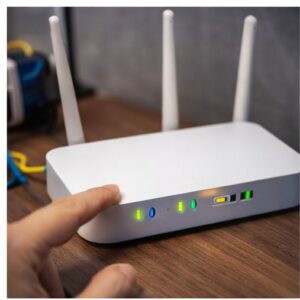
Grab your phone or any other device and try loading a website on the same WiFi. If nothing works on any device, your router or your ISP is the problem and nothing you do on the PC will fix it. Restart the router by unplugging it for 30 seconds, plug it back in, wait a minute, then try again.
If your phone loads websites just fine but your PC does not, the problem is definitely on your PC. Keep reading.
How to Open Command Prompt (CMD) as Administrator
Several fixes below require CMD. If you have never used it, here is exactly how to open it correctly. You must open it as Administrator or the commands will not work.
Opening CMD as Administrator on Windows 10 and 11
- Press the Windows key on your keyboard. The Start menu opens.
- Type cmd using your keyboard. You will see Command Prompt appear in the search results.
- Do not press Enter yet. Instead right click on Command Prompt in the results.
- Click Run as administrator from the menu that appears.
- If Windows asks Do you want to allow this app to make changes, click Yes.
- A black window opens with a blinking cursor. This is CMD. You are ready to go.
To run a command: click inside the black window, type the command exactly as shown, then press Enter. Wait for it to finish before typing the next one. You will see a short message confirming each command ran. You can check out this useful tool that give you cmd or run commands based on the problem you are having , Windows cmd command finder tool
Fix 1: Flush DNS — This Solves It Most of the Time
DNS is the system that translates a website name like google.com into an actual address your PC can reach. Think of it like a contacts list on your phone. If the contacts list gets corrupted, you cannot call anyone even though your phone has full signal.
When DNS gets stuck or corrupted, your PC is connected to the network but cannot find anything on the internet. Flushing DNS clears that corrupted list and forces Windows to rebuild it from scratch.
Open CMD as Administrator, type each command and press Enter after each one
ipconfig /flushdns
ipconfig /release
ipconfig /renew
netsh winsock reset
After running all four, close CMD and restart your PC. Do not skip the restart. Then test your internet.
After the restart most people find their internet is working again. If yours still is not, continue to Fix 2.
Fix 2: Switch to a Different DNS Server
Even after flushing DNS, your PC still uses your ISP’s DNS server by default. If that server is down or slow, you will have the same problem. Switching to Google’s free public DNS takes about two minutes and is completely safe.
How to change your DNS server
1. Press Windows key, type Control Panel and open it.
2. Go to Network and Internet, then Network and Sharing Centre.
3. On the left click Change adapter settings.
4. Right click your active connection (WiFi or Ethernet) and click Properties.
5. Find Internet Protocol Version 4 (TCP/IPv4) in the list and double click it.
6. Select Use the following DNS server addresses and enter:
Preferred DNS: 8.8.8.8
Alternate DNS: 8.8.4.4
7. Click OK, close everything and test your connection.
Fix 3: Check Your IP Address
Your router assigns each device a unique IP address so it knows where to send data. If your PC did not receive one properly, the connection breaks even though it shows as connected.
Open CMD as Administrator, type ipconfig and press Enter. Look for the line that says IPv4 Address. If it starts with 169.254 that means your PC never received a proper address from the router.
Force your PC to request a fresh IP address
In CMD as Administrator, run:
ipconfig /release
ipconfig /renew
Then run ipconfig again. The IPv4 address should now start with 192.168. If it still shows 169.254, restart your router and repeat.
Fix 4: Reset the Network Adapter
The network adapter is the part of your PC that connects to WiFi or Ethernet. It can get stuck in a broken state after Windows updates or when the PC wakes from sleep. Resetting it forces Windows to start the connection fresh.
Quick reset through Windows settings
1. Press Windows key, type Network Reset and open it.
2. Click Reset Now and then Yes when Windows asks to confirm.
3. Your PC will restart automatically. Test your connection afterward.
Manual reset through Device Manager
1. Right click the Start button and click Device Manager.
2. Click the arrow next to Network Adapters to expand it.
3. Right click your WiFi or Ethernet adapter and click Disable device.
4. Wait 10 seconds. Right click again and click Enable device.
Related on Fix My Games
If your PC is also randomly freezing or restarting while gaming, that usually points to a deeper system problem. Read: How to Fix PC Freezing and Random Restarts
Fix 5: Check If a VPN or Proxy Is Interfering
A VPN routes all your internet traffic through a different server. If a VPN is running in the background and its server is down, your PC appears connected but cannot reach the internet. A proxy setting left on by accident causes the exact same issue.

Turn off proxy settings
1. Press Windows key, type Proxy Settings and open it.
2. Under Manual proxy setup, make sure Use a proxy server is turned Off.
3. If it was on and you did not set it yourself, turn it off and test your connection.
Also check your system tray (the icons at the bottom right of your screen near the clock) for any VPN app running in the background. Close it completely and test again.
Fix 6: Check Your Antivirus or Firewall
Some antivirus programs block internet traffic when they detect something suspicious, or after an update quietly changes their firewall rules. This can happen without any obvious warning on screen.
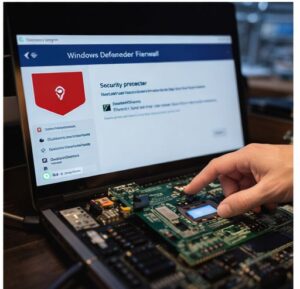
To test this, temporarily disable your antivirus protection and check if your internet comes back. If it does, the antivirus was blocking the connection. Go into its settings and look for a firewall or network protection section. Do not leave the antivirus disabled permanently.
Related on Fix My Games
Driver and firewall conflicts can also cause a blank screen after a Windows update. Read: PC Turns On But No Display
Fix 7: Update or Reinstall the Network Driver
A driver is the software that lets Windows communicate with a piece of hardware. If your network adapter driver is outdated or got corrupted by a Windows update, the adapter can appear connected while not actually working.
How to reinstall the network driver
1. Right click the Start button and click Device Manager.
2. Click the arrow next to Network Adapters.
3. Right click your WiFi or Ethernet adapter and click Uninstall device.
4. Check the box that says Delete the driver software for this device if it appears.
5. Click Uninstall then restart your PC. Windows will reinstall the driver automatically on startup.
If the problem continues after reinstall, go to your motherboard manufacturer’s website and download the latest network driver from there directly.
Related on Fix My Games
Driver corruption often affects more than one component at a time. If Windows is also failing to detect your SSD, read: Windows Not Detecting SSD
Quick Reference: Match Your Symptom to the Right Fix
| What you are seeing | Most likely cause | Start here |
|---|---|---|
| Browser says DNS error or cannot find server | DNS corrupted or ISP DNS is down | Fix 1 then Fix 2 |
| IP address starts with 169.254 | PC never received a proper IP from router | Fix 3 |
| Was working, stopped after PC woke from sleep | Network adapter stuck | Fix 4 |
| Stopped after installing a new app | VPN or proxy interference | Fix 5 |
| Stopped after antivirus updated | Firewall blocking traffic | Fix 6 |
| None of the above worked | Corrupted or outdated driver | Fix 7 |
Still Not Fixed After Everything Above?
Try connecting your PC to a completely different network like your phone’s mobile hotspot. If it works there but not on your home network, the problem is in your router or with your ISP and not the PC itself.
If it does not work on any network at all, the network adapter hardware may have failed. The quickest short term fix is a cheap USB WiFi adapter while you investigate further.
Related on Fix My Games
If your PC is also having trouble turning on or showing any signs of life, the problem may go deeper than the network. Read: PC Won’t Turn On: 7 Often Missed Causes
In my experience fixing this across multiple machines, the DNS flush in Fix 1 solves it more than half the time. If that does not work, changing the DNS server in Fix 2 usually finishes the job. Start there and save yourself the hassle of going through everything else first.

I spent 2 years managing a gaming café where I maintained a full setup — multiple gaming PCs, PS5 consoles, and racing simulators running back to back every day. I hold a Diploma in Computer Applications and started FixMyGames.in to document the real fixes I learned on the job — not the generic advice you find everywhere else.