A PC turning on and off repeatedly is a common issue, especially in older systems or PCs that haven’t been used for a long time. I work around gaming PCs regularly, and this issue is more common than most people think.
I recently faced this problem while setting up an old PC, and it turned out to be a hardware-related issue.
In most cases, this happens due to power supply problems, overheating, loose components, or incorrect BIOS settings. In this guide, I’ll explain why this happens and how you can fix it step by step.
If you suspect the motherboard is at fault, you can check my guide on motherboard keep turning on and off for detailed explainatin
Why does your PC keep turning On and Off by itself?
If your PC turns on, shuts down, and then turns on again by itself there can be several possible reasons.
This issue is common in older systems, PCs that haven’t been used for a long time, or systems with hardware or power-related problems.
In most cases, the problem is caused by:
- Power supply issues
- Overheating
- Loose Internal components
- Incorrect BIOS settings
Follow these common fixes below, starting from the easiest ones.
Important (read this first)
Before opening your PC:
- Shut it down completely.
- Unplug the power cable.
- Press the power button once to discharge remaining power.
- Work on a flat, static free surface.
If you are not comfortable opening your PC, it’s best to seek professional help.
Power issue (wall socket, UPS, or extension board):
Sometimes the issue is not with the PC or its components.
If your PC is connected to a UPS, inverter, or an extension board, it may not be receiving stable power. It can cause the PC to turn on and off repeatedly.
This usually happens when:
- The extension board is faulty.
- The UPS battery is weak or failing.
- The wall socket is loose.
What you can do:
Plug the PC directly to the wall-socket and see if the problem persists. If the problem stops, your UPS or extension board is likely faulty. Try replacing the extension board or checking the UPS battery.
Faulty Power Supply Unit:
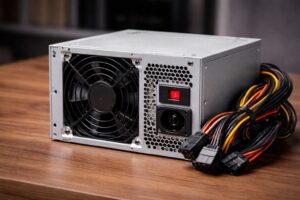
A failing power supply unit (PSU) is one of the most serious reasons a PC turns on and off by itself. When a PSU starts failing, it cannot deliver stable power to internal components. To prevent damage, the system automatically shuts down and may try to restart again.
In some cases, a failing PSU may power the system but fail to deliver enough voltage to the graphic card, which can result in a situation where the PC turns on but shows no display. You can read more about this issue in our guide on PC turns on but no display
This issue is common in older PCs or systems that have been unused for a long time.
You may be dealing with a failing PSU if:
- The PC turns on for a few seconds and shuts down repeatedly.
- You hear unusual clicking, buzzing, or whining noises.
- The system shuts down under load (gaming or heavy use).
- Fans starts spinning but the PC doesn’t stay powered on.
What can you Do if you have a faulty PSU:
If possible, test the PC with a known working PSU. This is the safest way to confirm the issue.
If you are not comfortable opening the case or swapping PSU, it’s best to consult a technician, as a failing PSU can damage the motherboard, GPU, or storage devices.
Important: Do not continue turning the PC on and off repeatedly if you suspect a PSU issue. This can cause permanent hardware damage.
Overheating
Overheating is one of the most common reasons a PC keep turning on and off. When the CPU temperature rises beyond a safe limit, the system automatically shuts down to prevent permanent hardware damage.
This is a built in self-protection mechanism design to protect the CPU and motherboard from overheating related failure.
A PC may be shutting down due to overheating if:
- A PC turns off during gaming or heavy usage.
- The CPU or GPU fans are loud or running at full speed.
- The PC restarts after a few minute of use.
- The cabinet feels unusually hot to touch.
Common cause of overheating includes:
- Dust build-up blocking airflows.
- CPU fans not spinning properly.
- Dried or poorly applies thermal paste.
- Poor ventilation inside cabinet.
What can you do:
- Power off the PC and let it cool down.
- Clean dust from fans and vents.
- Ensure all fans are spinning correctly.
- Use the PC with the side panel open temporarily to test airflow.
If the problem improves after cooling, overheating is very likely the cause.
Incorrect or Corrupted BIOS settings (proceed carefully):
In some cases, a PC may keep turning on and off due to incorrect or corrupted BIOS settings. This usually happens after a sudden power cut, a failed BIOS update, or changes made to performance or boot settings.
The BIOS controls how your hardware starts and communicate during boot. If critical settings are misconfigured, the system may shut down automatically as a safety measure.
Common BIOS related issues include signs like:
- PC restarts immediately after powering on.
- Fans spin but system doesn’t stay on.
- Issue started after a power outage or setting change.
How to reset BIOS (safe method):
Resetting the BIOS restores factory default settings and can fix boot instability.
How to reset BIOS (safe mode):
- Turn off the PC completely.
- Turn it on and repeatedly press DEL, F2 or F10 (varies by motherboard).
- Enter BIOS setup.
- Select “load default settings” or “optimized defaults”.
- Save and exit.
If the PC boots normally after this, the issue was likely caused by incorrect BIOS configuration.
In case of BIOS is not showing an option for “load default settings”, you can try advanced method of resetting BIOS.
If the system powers on but shows no signal or black screen, this too can be a bios related issue which is covered in detail here PC Turns on but no display.
In most cases, the problem can be fixed by following these basic checks step by step – instead of jumping to conclusions. If you are not sure about the problem, it’s better to stop repeated restarts and get the system checked by a professional, as continued power cycling can cause permanent damage to internal components.
Hope this helps! 🙂

I spent 2 years managing a gaming café where I maintained a full setup — multiple gaming PCs, PS5 consoles, and racing simulators running back to back every day. I hold a Diploma in Computer Applications and started FixMyGames.in to document the real fixes I learned on the job — not the generic advice you find everywhere else.
Very helpful! Thank you.
I am happy to hear that this article helped you. 🙂
This is a life saver!