Published by FixMyGames.in | Marvel Rivals | Windows 10/11 | Beginner Friendly
QUICK SUMMARY
Getting a Marvel Rivals DirectX 12 error when launching Marvel Rivals? Don’t worry. This guide walks you through every fix, step by step, in plain English. Most players fix this in under 10 minutes. Start from Fix #1 and work your way down until the game works. All fixes are free and safe.
If your PC is crashing while playing Marvel Rivals, you can check this article, ” PC crashing while playing games“.
WHAT IS DIRECTX 12 AND WHY IS IT CRASHING?
Think of DirectX 12 as a translator between your game and your graphics card (GPU). Marvel Rivals needs DirectX 12 to display all the beautiful visuals, explosions, and effects. When something goes wrong with this translator, the game crashes or refuses to launch.
Here are the most common reasons this happens:
- Your graphics card driver is outdated (most common cause)
- Your PC does not support DirectX 12 (older hardware)
- Game files are corrupted or incomplete
- Windows is out of date
- Overlays like Discord or Xbox Game Bar are interfering with the game
- Your GPU is overclocked too aggressively
BEFORE YOU START: CHECK IF YOUR PC CAN RUN MARVEL RIVALS
Make sure your computer actually supports DirectX 12. Here are the minimum requirements:
Operating System: Windows 10 64-bit (Windows 11 recommended)
GPU (Graphics Card): NVIDIA GTX 1060 or AMD RX 580 (minimum)
DirectX Version: DirectX 12 (required)
RAM: 16 GB
CPU: Intel i5-6600K or AMD Ryzen 5 1600X (minimum)
How to check your PC specs: Press Windows Key + R, type dxdiag, and press Enter. A window opens showing your Windows version, RAM, GPU, and DirectX version at the bottom of the System tab.
FIX 1: UPDATE YOUR GRAPHICS CARD DRIVER (Difficulty: Easy)
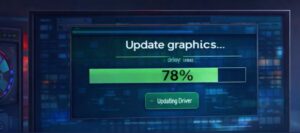
An outdated GPU driver is the most common cause of DirectX 12 errors. Always try this first.
If you have an NVIDIA card (GeForce GTX or RTX):
1. Go to nvidia.com/drivers in your browser
2. Select your GPU model from the dropdown menus (for example, GeForce RTX 3060)
3. Click Search, then Download the latest driver
4. Run the installer and choose Express Installation when asked
5. Restart your PC after installation completes
If you have an AMD card (Radeon RX):
1. Go to amd.com/en/support
2. Select your GPU from the list (for example, Radeon RX 6600)
3. Download and install AMD Software: Adrenalin Edition
4. Restart your PC when done
Tip: Don’t know your GPU? Right-click the Desktop, click Display settings, scroll down and click Advanced display. Your GPU name shows next to Display adapter.
FIX 2: VERIFY GAME FILES ON STEAM (Difficulty: Easy)
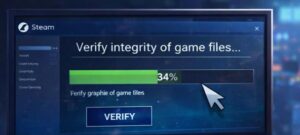
Sometimes game files get corrupted during download or after an update. Steam can automatically scan and fix these for you in just a few clicks.
1. Open Steam on your computer
2. Click Library in the top menu
3. Find Marvel Rivals in your list and right-click on it
4. Click Properties, then click Installed Files on the left sidebar
5. Click Verify integrity of game files and wait 5 to 15 minutes
6. Once done, launch the game again and see if the error is fixed
Note: If it says “1 file failed to validate and will be reacquired” that is completely normal. It just means Steam found and fixed a corrupted file.
FIX 3: UPDATE WINDOWS (Difficulty: Easy)
DirectX 12 is deeply tied to Windows. If your Windows is out of date, important DirectX components might be missing or broken.
1. Click the Start Menu and open Settings (the gear icon)
2. Click Windows Update (Windows 11) or Update and Security (Windows 10)
3. Click Check for updates and install everything it finds
4. Restart your PC after updates install
5. Launch Marvel Rivals again
FIX 4: RUN MARVEL RIVALS AS ADMINISTRATOR (Difficulty: Easy)
Sometimes Windows blocks the game from accessing system-level features like DirectX. Running as Administrator gives it full permission.
1. Find the Marvel Rivals shortcut on your Desktop or in your Steam Library
2. Right-click on it and select Run as administrator
3. Click Yes if Windows asks for permission
4. If this works and you want to make it permanent: Right-click the shortcut, click Properties, go to the Compatibility tab, check Run this program as an administrator, then click OK
FIX 5: DISABLE OVERLAYS – DISCORD, GEFORCE, XBOX (Difficulty: Medium)
Overlays are mini-apps that appear on top of your game, like Discord’s friend list or the Xbox FPS counter. They sometimes clash with DirectX 12 and cause crashes.
Disable Discord Overlay:
1. Open Discord and click the gear icon (User Settings)
2. Click Game Overlay on the left menu
3. Toggle off Enable in-game overlay
Disable NVIDIA GeForce Experience Overlay:
1. Open GeForce Experience from your taskbar
2. Click the Settings gear icon
3. Turn off In-Game Overlay
Disable Xbox Game Bar:
1. Open Windows Settings and click Gaming
2. Click Xbox Game Bar
3. Toggle it Off
FIX 6: SET DIRECTX VERSION IN STEAM LAUNCH OPTIONS (Difficulty: Medium)
You can force Marvel Rivals to explicitly use DirectX 12 through Steam’s launch options. This overrides any incorrect settings the game might be using.
1. Open Steam and go to your Library
2. Right-click Marvel Rivals and click Properties
3. Under the General tab, find the Launch Options text box
4. Type the following exactly as shown: -dx12
5. Close the window and launch the game
Tip: If -dx12 does not help, try removing it and adding -dx11 instead. Some older GPUs run better on DirectX 11.
STILL GETTING THE ERROR?
If you have tried every fix above and Marvel Rivals still will not launch, here are your next steps:
- Check if your GPU actually supports DirectX 12. GPUs older than NVIDIA GTX 900 series or AMD RX 400 series do not support DirectX 12. If that is your situation, you may need to upgrade your graphics card.
- Reinstall Marvel Rivals completely. Uninstall via Steam, delete the remaining game folder, then reinstall fresh. You will not lose your progress as it is saved on the game servers.
- Reinstall DirectX and Visual C++. Search for Microsoft Visual C++ Redistributable and DirectX End-User Runtime on microsoft.com and reinstall both. Then restart your PC.
- Check if your antivirus is blocking the game. Some antivirus software mistakenly blocks game files. Try adding Marvel Rivals to your antivirus exclusions list.
- Visit r/Marvel Rivals on Reddit. If there is a widespread bug affecting many players, others will know about it and there may be an official patch coming from the developers.
If one of these fixes worked for you, you are all set. Good luck out there!
Article published on FixMyGames.in | Not affiliated with Marvel Rivals or NetEase Games

I spent 2 years managing a gaming café where I maintained a full setup — multiple gaming PCs, PS5 consoles, and racing simulators running back to back every day. I hold a Diploma in Computer Applications and started FixMyGames.in to document the real fixes I learned on the job — not the generic advice you find everywhere else.