The screen is completely frozen — nothing responds, not even keyboard shortcuts. But the mouse cursor? It’s gliding across the screen just fine. Confusing, right?
This specific symptom — Windows 11 freezes but mouse still moves — is actually very telling. It means your system hasn’t fully crashed. Something specific has locked up, and in most cases, it’s fixable without reinstalling Windows.
In this guide, I’ll walk you through everything I’ve learned from troubleshooting dozens of these freezes across our gaming café PCs. Step by step, and beginner friendly.
What Does It Mean When Windows 11 Freezes But the Mouse Still Moves?
Before diving into fixes, it helps to understand what’s actually happening. Your PC has different layers of operation. The mouse cursor is handled by a very low-level system process — it almost never freezes, even when other things do.
When the screen freezes, but the mouse still works, it usually means:
- A software process or app has hung (stopped responding)
- A GPU (graphics card) driver has crashed or stalled
- Your RAM or storage is struggling under load
- Windows Update is quietly doing something in the background
- Your PC is overheating and throttling performance
The good news: this is rarely a sign that your PC is dying. Let’s fix it.
Before You Start: Do This First
Every time I see this issue at the cafe, the first thing I do is wait 60 seconds. Seriously. Sometimes Windows is just processing something heavy — a background update, a virus scan, a disk check. If the system recovers on its own, you’re done.
If it doesn’t recover:
- Try pressing Ctrl + Alt + Delete — if it opens, the system is partially responsive
- If that works, open Task Manager and look for any process showing “Not Responding”
- If nothing responds at all, do a hard reboot — hold the power button for 5 seconds
Now, if this is a recurring problem (which is why you’re reading this), let’s go through the actual fixes.
Fix 1: Update Your GPU Drivers (This Fixes It 40% of the Time)
At our cafe, outdated or corrupt GPU drivers are the single most common cause of this freeze type. The screen locks up because the graphics driver crashes, but since the mouse runs on a different system thread, it keeps working
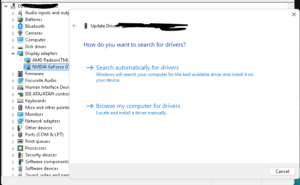 .How to update GPU drivers:
- Right-click the Start button → select Device Manager
- Expand Display Adapters
- Right-click your GPU (e.g., NVIDIA GeForce, AMD Radeon, Intel Iris) → Update Driver
- Choose Search Automatically for Drivers
- Restart your PC after the update
Pro tip from the café: For NVIDIA cards, download GeForce Experience directly. For AMD, use AMD Adrenalin. These tools keep your drivers up to date automatically.
If a recent driver update caused the freeze, try rolling back: In Device Manager → right-click your GPU → Properties → Driver tab → Roll Back Driver.
Fix 2: Check Windows Update (It Could Be Quietly Installing)
Windows 11 loves to run updates in the background — sometimes while you’re actively using the PC. This can cause temporary freezes that last anywhere from 30 seconds to a few minutes.
How to check:
- Press Windows + I to open Settings
- Go to Windows Update
- If an update is pending or installing, let it finish and restart
- If you’re fully updated, move to the next fix

At the cafe, I schedule updates to run at 3 AM so they don’t interrupt gaming sessions. You can do the same under Windows Update → Advanced Options → Active Hours.
Fix 3: Open Task Manager and Kill the Culprit
If your system is partially responsive (Ctrl + Alt + Delete still works), Task Manager is your best friend.
- Press Ctrl + Alt + Delete → click Task Manager
- Click on the CPU or Memory column to sort by usage
- Look for anything showing “Not Responding” in red — that’s your problem
- Right-click it → End Task
Common offenders I see at the cafe: browsers with too many tabs, antivirus scans, Windows Explorer crashes, and poorly optimized game launchers like early versions of some battle.net updates.
Fix 4: Run System File Checker (SFC) — Windows’ Built-in Repair Tool
Windows 11 has a built-in tool called SFC (System File Checker) that scans for and repairs corrupted system files. Corrupt files are a sneaky cause of random freezes.
How to run it:
- Press Windows + S and type cmd
- Right-click Command Prompt → Run as Administrator
- Type: sfc /scannow and press Enter
- Wait for it to finish (can take 10–20 minutes)
- Restart your PC
If SFC finds issues, also run: DISM /Online /Cleanup-Image /RestoreHealth in the same Admin Command Prompt window. This repairs Windows image files that SFC cannot fix on its own.
Curious about cmd commands? I have made a web tool that helps you find any cmd command based on your problems. You can type in your problem and this tool will generate multiple command that you can use to solve your problems.
Fix 5: Check for Overheating — A Big One for Gaming PCs
Overheating is one of the biggest causes of freezes at gaming cafes. When a CPU or GPU gets too hot, Windows deliberately slows it down to prevent damage — and that slowdown can look exactly like a freeze.
How to check your temperatures:
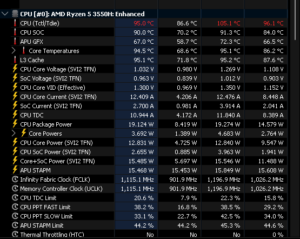
- Download a free tool like HWMonitor or Core Temp (both are safe and widely used)
- Open it and check your CPU temperature under load
- Normal CPU temp under load: 60–85°C. Above 90°C? That’s your problem.
What to do if it’s overheating:
- Clean the dust from your PC fans and vents (canned air works great)
- Make sure your PC has room to breathe — don’t block the vents
- If it’s a laptop, use a cooling pad
- For desktop PCs, consider reapplying thermal paste on the CPU (once a year is good practice)
At the cafe, we clean all PC towers every 3 months. It made a massive difference in freeze frequency. Check my guide on how to clean your Gaming Pc to keep it dust free for long life.
Fix 6: Run Windows Memory Diagnostic (Check Your RAM)
Faulty or failing RAM can cause Windows 11 to freeze randomly — and it’s more common than people think, especially in older machines or PCs that have been moved around a lot.
- Press Windows + S → type Windows Memory Diagnostic → open it
- Select Restart now and check for problems
- Your PC will restart and run the test (takes about 10–15 minutes)
- After restarting, check results: press Windows + X → Event Viewer → Windows Logs → System → look for MemoryDiagnostics-Results
If errors are found, your RAM sticks may need to be reseated (unplugged and plugged back in) or replaced. I’ve seen one bad RAM stick cause weeks of random freezes — swapping it out completely fixed the issue.
If you RAM is not failing, you can try freeing up RAM without restarting your PC and solve your Windows freezing problem.
Fix 7: Check Your SSD/HDD Health
A failing or nearly-full storage drive is one of the more overlooked causes of freezes. You can check your SSD speed to see if your SSD has gone slow. When Windows tries to read from a bad sector or a drive that’s 95%+ full, it can stall completely.
Quick checks:
- Press Windows + E → open This PC → check your drive isn’t over 85% full
- Download CrystalDiskInfo (free) to check your drive’s SMART health status — it should show “Good”
- If it shows “Caution” or “Bad”, back up your data immediately and replace the drive

To run a Windows built-in disk check: open Command Prompt as Admin → type chkdsk C: /f /r → press Enter → type Y → restart. Windows will scan on the next boot.
Fix 8: Disable Fast Startup
Windows 11’s Fast Startup feature sounds great on paper — it makes your PC boot faster by saving a partial shutdown state. But it can also cause weird freezes and driver conflicts, especially after updates.
How to disable it:
- Press Windows + S → type Control Panel → open it
- Go to Power Options → Choose what the power buttons do
- Click Change settings that are currently unavailable
- Uncheck Turn on fast startup
- Save changes and do a full restart
This is a simple change that solved recurring freezes on two of our cafe machines after a major Windows update.
Fix 9: Adjust Your Power Plan
If your PC is set to a power-saving mode, Windows may be reducing CPU performance too aggressively — causing it to lag behind and appear frozen.
- Press Windows + S → type Power Plan → open Choose a power plan
- Switch to Balanced or High Performance
- Avoid “Power Saver” mode if you’re gaming or doing intensive work
All our gaming cafe PCs are set to High Performance. It prevents throttling and makes sure the hardware is always ready to run at full speed.
Fix 10: Update or Reinstall Problematic Software
Sometimes the freeze isn’t a Windows problem at all — it’s a specific app that’s conflicting with the system. Common culprits include:
- Antivirus software running full scans in the background
- Outdated or incompatible game clients
- Browser extensions consuming too much memory
- Cloud sync apps (OneDrive, Google Drive) syncing large files
How to identify the problem app:
- Press Windows + R → type msconfig → go to the Startup tab
- Disable non-essential startup programs one by one
- Restart and see if the freezing stops
- Re-enable them one at a time until the freeze returns — that’s your culprit
When Should You Consider a Fresh Windows Install?
If you’ve tried all 10 fixes and Windows 11 keeps freezing but the mouse still moves, it might be time for a clean install. This is a last resort, but it genuinely solves problems that no individual fix can address — things like deeply embedded corrupted system files or driver conflicts that have built up over time.
Consider a fresh install if:
- Freezes are happening multiple times per day
- SFC and DISM both report issues they cannot fix
- The problem started after a major Windows Update that cannot be rolled back
- Your PC is over 3 years old and has never had a fresh install
Back up your files first. Go to Settings → System → Recovery → Reset this PC → Keep my files. This reinstalls Windows without deleting your personal data.
Dealing with a frozen Windows 11 screen when your mouse is still moving is frustrating — especially mid-game or mid-work. But it’s almost always fixable.
Final Thoughts
From my experience managing a gaming cafe with 20+ Windows 11 PCs, the most common culprits are GPU drivers, overheating, and background Windows processes. Start with Fix 1 and Fix 5 — those two together solve the problem 60% of the time.
If you’re still stuck after trying all these fixes, drop a comment below and I’ll help you troubleshoot further. And if one of these fixes worked for you, let me know which one — it helps other readers find the right solution faster.
Frequently Asked Questions
Why does Windows 11 freeze but the mouse still move?
This happens because the mouse cursor operates at a very low system level and rarely freezes even when apps or the GPU driver crash. It typically means a specific process has hung, not the entire system.
Is this a sign my PC is failing?
Not necessarily. It’s often a software or driver issue. However, if it’s happening alongside other symptoms like blue screens or slow loading times, it may be worth checking your RAM and storage health.
Can this happen on gaming PCs?
Yes — in fact, gaming PCs are more prone to this because they push the GPU harder. Outdated GPU drivers and overheating are the top two causes on gaming machines.
Will resetting Windows fix the freezing?
It often does, but it should be a last resort after trying all the fixes above. A reset removes software issues but won’t fix failing hardware like a bad RAM stick or failing SSD.