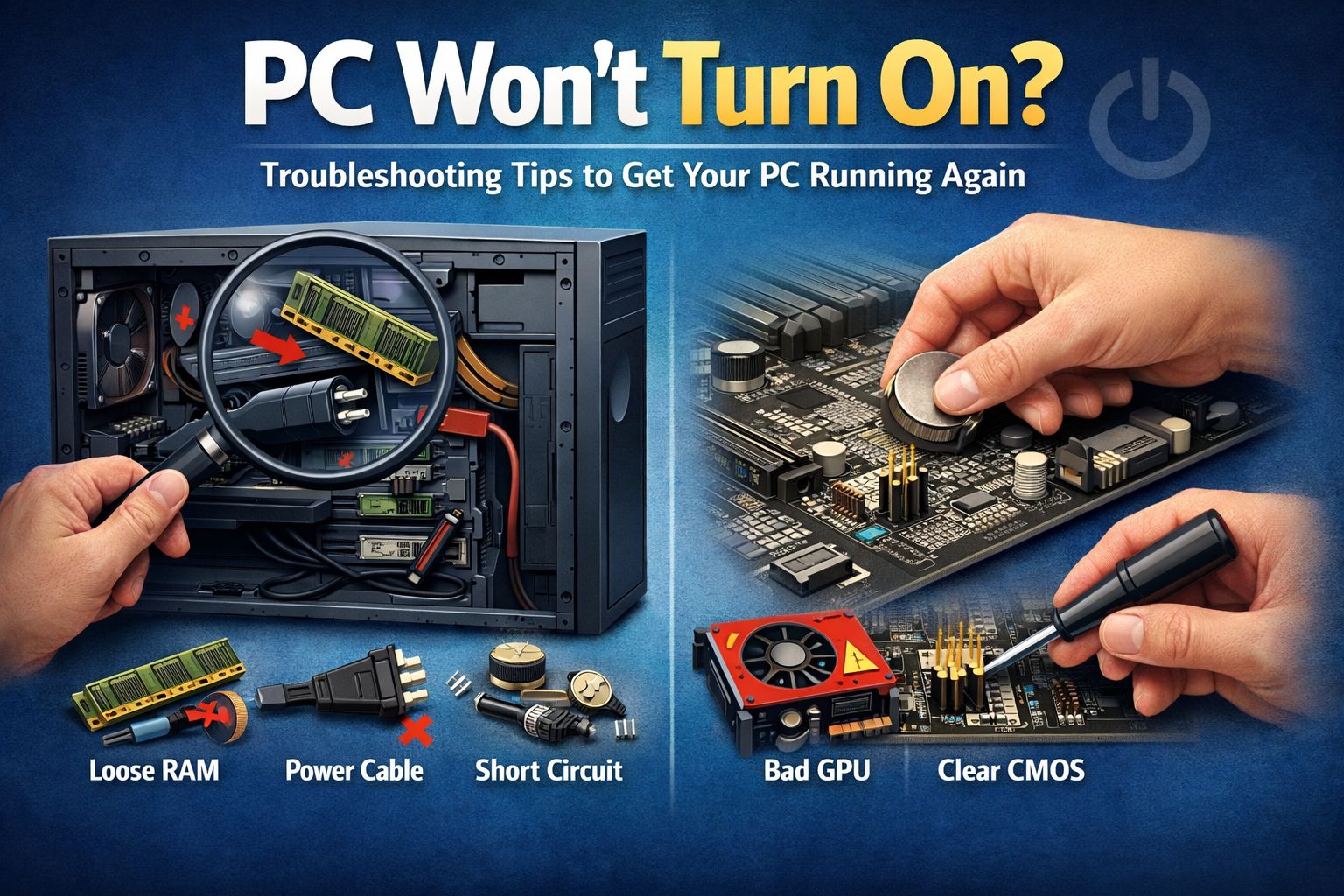
When a PC won’t turn on at all, the most probable causes are usually the power supply or the motherboard. That’s where most people start, and in some cases they are right.
But after troubleshooting multiple systems, I’ve learned that many “dead PC” situations are caused by much smaller details that are easy to overlook, especially on custom or gaming builds.
Sometimes the system shows no life. Other times it briefly powers on and shuts off. Before replacing expensive parts, it’s worth checking these commonly missed causes first.
In this guide, I’ll walk through practical fixes that often solve the “PC won’t turn on” issue. If your PC powers on but shows no picture, you can also check our guide on PC turns on but no display.
Important: Before opening your PC, always turn off the power supply and unplug the power cable from the wall. Touch the metal part of your case to remove static electricity. Work slowly and don’t force any parts. Contact a professional if in doubt.
Now lets start with the fixes.
Fix 1: Make sure the Power Button is actually connected
This sounds basic, but it’s one of the most common reasons a PC won’t turn on.
Inside your PC case, there are tiny wires coming from the power button on the front of your cabinet. These wires tell the motherboard to start the PC. If they are loose or connected to the wrong pins, pressing the power button does nothing.
Here’ what to do:
- Turn off the power and open your PC case.
- Find the small cables labelled Power SW.
- Make sure they are plugged into the correct pins on the motherboard (check your motherboard manual if needed).
- Unplug the Reset SW cable for now.
- Push the Power SW connector in firmly
Simple test: Touch the two power button pins on the motherboard gently with a screwdriver. If the PC turns on, your case power button or wiring is the problem.
This quick check alone fixes many “PC won’t start” issues.
Fix 2: Check the CPU Power Cable (very common)
Even if your PC looks connected properly, it still won’t start if the CPU power cable is loose or missing.
Near the top of your motherboard, there is a small 8-pin power connector just for the CPU. This cable is different from GPU power cables, even though they look similar.
Here’ what to do:
- Find the 8-pin CPU power cable at the top of the motherboard.
- Push it in firmly until it clicks.
- Make sure you are using the CPU/EPS cable, not a PCIE (GPU) cable.
- If your PSU has another CPU cable, try that one.
If this cable isn’t seated properly, the motherboard won’t get enough power, and the PC won’t turn on.
Fix 3: Try starting the PC with only one RAM stick
RAM problems are a very common reason a PC won’t turn on.
Your PC needs RAM to start. If the RAM is faulty, not seated properly, or if one RAM slot is damaged, the motherboard will stop the boot process completely.
That’s why even a small RAM issue can make your PC look totally dead.
Do this:
- Turn off your power and unplug the PC.
- Remove all RAM sticks.
- Put only one RAM stick back in.
- Push it until both side clips click.
- Try turning on the PC.
If it still doesn’t start, move the RAM stick to another slot and try again. You can also run Microsoft’s built in memory diagnostic tool to check for RAM errors. If your PC starts in one slot but not the other, then either the RAM stick or the RAM slot is faulty. This simple test helps you quickly find RAM-related problems.
Fix 4: Make sure the CPU cooler is Properly Installed
If your CPU gets too hot or the cooler is loose, the motherboard will shut the system down instantly to protect the processor. In some cases, the PC won’t turn on at all.
This usually happens after cleaning the PC or changing the thermal paste.
What to do:
- Check the CPU cooler is tightly mounted
- Make sure the CPU fan is connected to the CPU_FAN header on the motherboard.
- Turn on the PC and confirm the fan spins.
If the cooler isn’t sitting properly or the fan isn’t connected, the PC refuses to start. Fixing this often solves sudden shutdowns or no-power issues.
Fix 5: Check for Short Circuits Inside the case
Sometimes a PC won’t turn on because something inside the case is touching where it shouldn’t. When this happens, the PSU or motherboard blocks power to protect the system. This is called a short circuit
Things to look for:
- Loose screws inside the case
- Extra motherboard standoffs touching the board.
- Exposed wires.
- GPU or cables pressing hard against metal.
If you recently built the PC, try running the motherboard outside the case with just the CPU, one RAM stick, and the PSU. If it starts like this, something in the case is causing the short.
Fix 6: Try Turning on the PC Without the Graphics card
If your CPU has integrated graphics, remove the graphics card and connect your monitor directly to the motherboard.
(Some CPUs don’t have integrated graphics, and if that’s the case for you, you can skip this part).
Sometimes a faulty GPU or loose GPU power cable can stop the entire system from starting. In these cases, the PSU may cut power to protect itself, making the PC look completely dead.
If your PC turns on without the graphics card, then the GPU or its power cable is likely the problem.
Fix BIOS (Clear CMOS)
Sometimes your PC won’t turn on because of corrupted BIOS settings. This can happen after a power cut, crash, or failed update.
Resetting BIOS brings everything back to default.
You can do this by:
- Removing the small CMOS battery from the motherboard for about 5 minutes or
- With the PC powered off and unplugged, briefly touch the two pins labelled CLR_CMOS/CLEAR CMOS/ JBAT using a screwdriver for 5-10 seconds, then reconnect power and try starting the PC.
Start with easy checks and move step by step. Taking a calm, step-by-step approach will help you find the real cause faster and avoid replacing parts that still work fine.
1 thought on “PC won’t Turn On ? 7 Often Missed causes (and How to fix Them)”