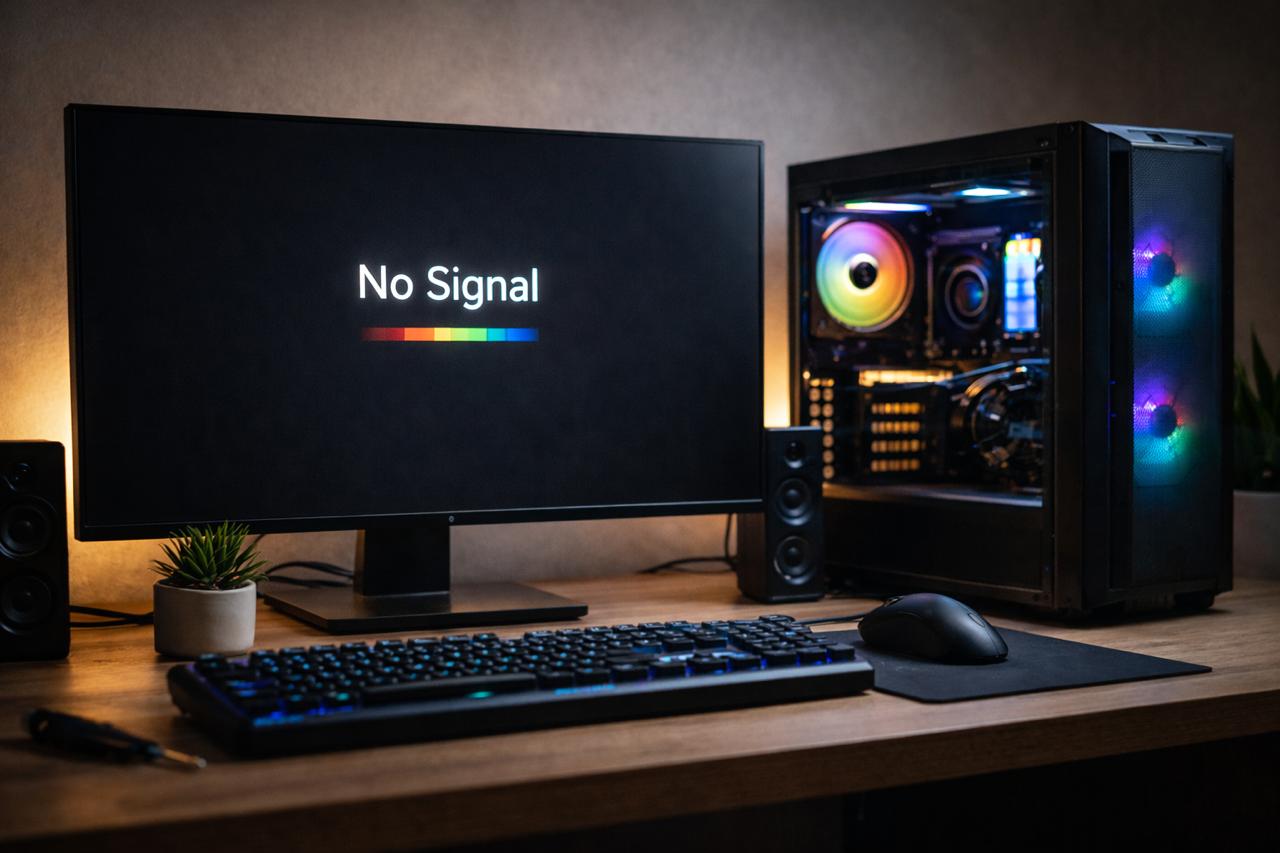
I work at a gaming parlour, and a PC turning on but showing no display is one of the most common problems we face. In many cases, the issue is caused by a faulty cable and loose connection. However, it can also happen due to GPU or RAM issues, incorrect BIOS settings, or a failing power supply unit. If you find that your PC turns on but no display appears, these fixes might help.
Why does your computer turn on but show no display?
There are several reasons why a computer turns on but shows no display. One common cause can be a faulty monitor. First, make sure the monitor is powered on and shows a “No Signal” message. If the monitor displays a no-signal message, it means the monitor itself is working properly, and the issue is likely caused by one of the following:
- Loose or faulty display cable
- Power supply unit failure
- GPU- or RAM-related issues
- Incorrect BIOS settings
In many cases, the problem starts with heavy dust build up inside the GPU and connectors. I explain exactly how I clean gaming PCs step by step here: How to clean dust from gaming PC
Understanding why your PC turns on but has no display is crucial for troubleshooting. Various components could be at fault, and identifying them can lead to a quick resolution.
Easy Ways to Fix a PC That Turns On but Has No Display:
Fixing a “PC turns on but no display” issue is often straightforward. Below are some effective solutions, listed from less common to more common causes.
Important: Before attempting any troubleshooting, ensure your computer is unplugged, and you’re working in a static-free environment. If you’re unsure about any steps, consult a professional technician.
Resetting the BIOS (rare; may require professional help)
The BIOS checks and initialises hardware components during start-up. If the BIOS settings are misconfigured, especially after a hardware change or power issue, it can prevent the system from sending a video signal to the display. Resetting the BIOS restores default settings, which can resolve display issues caused by incorrect graphics or hardware configuration.
How to reset the BIOS:
- Shut down the computer and unplug all power cables.
- Open the PC cabinet and locate the CMOS battery (a small, round, silver battery on the motherboard).
- Carefully remove the battery using a non-conductive tool.
- Wait for 5 minutes.
- Reinstall your CMOS battery and reconnect power.
- Turn on your computer and check if the display appears.
Reinstalling RAM and GPU (common fix, no professional help required)
A loose or improperly seated RAM module or graphic card is one of the most common causes of a PC turning on with no display. This often happens after moving the PC, cleaning it, or due to vibration over time.
How to reinstall RAM and GPU:
- Turn off the PC and unplug all power cables.
- Open the cabinet and ground yourself (touch the metal case).
- Remove the RAM sticks and reinstall them firmly until you hear a click.
- If a graphics card is being used, remove it and reseat it properly in the PCIe slot.
- Make sure all power connectors (especially GPU power cables) are securely connected.
- Close the case and power on the PC.
Important: If you are unsure or uncomfortable opening your PC, it’s best to seek professional assistance.
Loose or faulty display cables (common fix, no professional help required)
This is the most common reason a PC turns on but shows no display. In many cases, the system is working perfectly, but the display signal is just not reaching the monitor.
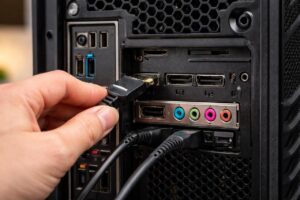
Start by checking the cable connecting your PC to the monitor (HDMI, DisplayPort, VGA, or DVI).
What to do:
- Turn off your PC and monitor completely.
- Unplug the display cable from both the PC and the monitor.
- Plug the cable back in firmly on both ends.
- Make sure the cable is not loose or bent.
- If possible, try a different display cable.
- Try switching to another port on the monitor or GPU.
If your monitor shows a “No Signal” message, it usually means the cable or port is the problem, not the PC itself.
If the display works after reconnecting or changing the cable, the issue is resolved.
Faulty Power Supply Unit (PSU) (common; may require professional help)
If your PC turns on but does not display anything and you have already checked cables, RAM, GPU, and BIOS – then the power supply unit could be the cause.
A failing PSU may still power fans and lights but not provide stable voltage to the GPU or motherboard, preventing a display signal.
Common signs of a faulty PSU:
- The PC turns on but randomly shuts down.
- GPU fans do not spin consistently.
- The PC worked fine earlier and suddenly stopped showing a display.
- Burning smell or unusual noise from the PSU.
What you can do:
- Turn off the PC and unplug it from the power source.
- Check if all power cables inside the PC are securely connected.
- If available, test your PC with a known working PSU.
Important: Do not open or repair a PSU yourself. If you suspect PSU failure and are unsure, seek professional assistance. A faulty PSU can damage other components if ignored.
Start troubleshooting from the simplest and safest fixes, such as checking display cables and monitor connections, before moving on to advanced steps like resetting the BIOS or testing the power supply.
If none of the solutions work and you are uncomfortable opening your PC, consulting a professional technician is the safest option.
Taking a step-by-step approach will help you identify the problem quickly and avoid unnecessary damage to your system.
“In some cases, a faulty power supply can cause the PC to restart repeatedly.” See : PC Turns On and off Repeatedly
Frequently Asked Questions
Why does my PC turn on but show no display?
This usually happens due to loose or faulty display cables, RAM or GPU issues, incorrect BIOS settings or a failing power supply unit. In many cases, the monitor is working fine, but the PC is not sending a video signal.
Can a faulty power supply cause no display but the PC still turns on?
Yes: a weak or failing power supply can provide enough power for fans and lights but not enough to properly power the GPU or motherboard, resulting in no display on the screen.
Is it safe to reset BIOS if my PC has no display?
Resetting the BIOS is generally safe if done correctly, but it should be attempted only after checking cables, RAM, and power connections. If you are unsure or uncomfortable opening your PC, it’s best to seek professional help.
I hope this helps. 😀
2 thoughts on “PC Turns On But No Display- How to Fix”