If your mouse and keyboard keeps disconnecting during gaming or normal use, you’re not alone. I started seeing this problem regularly on gaming PCs that are used for long hours every day. At first, it looks like the mouse or keyboard has failed – I even replaced a mouse under warranty once, but the issue still came back.
That’s when I realised the problem usually isn’t the device itself. Most of the time, it’s caused by unstable USB connections, dust buildup, or Windows settings. In this post, I’ll share the real fix that worked for me and what I now check first whenever it happens.
Why do the mouse and keyboard randomly disconnect?
In my experience, these disconnects are rarely caused by the mouse or keyboard alone. Heavy daily use slowly loosens the USB port, dust builds up inside connectors, and Windows sometimes cuts power to USB devices to save energy. All of this adds up and shows up as random disconnects, laggy input, or devices reconnecting on their own.
Change the USB Port First (This solves it most of the time)
When the issue first started, I genuinely thought the mouse had gone bad. I even replaced it under warranty, and for a moment, I thought the problem was solved. But a few days later, the disconnects came back. Even the new mouse showed the same symptoms as the old one.
That’s when it finally clicked: it wasn’t the mouse or keyboard at all. Something was wrong with the USB ports.
On gaming PCs that are used daily, front USB ports slowly loosen, and dust builds up inside both the port and device connector. Over time, this creates unstable connections.
Here’s what I do now whenever this happens:
- Try a different USB port on the motherboard.
- Avoid USB hubs or extension cables if possible.
- Blow dust out of the USB port and the device connector.
- Clean the mouse sensor area if movement feels inconsistent.
In many cases, just switching ports and cleaning dust fixes the problem instantly.
I’ve had times where everything worked fine after changing ports, only for the disconnects to return week later- simply because dust had built up again. I try to make sure USB ports get weekly maintenance, even though it’s easy to forget when things seem to be working.
Check USB power savings in Windows
On some systems, Windows manages USB power in the background to reduce energy usage. In certain setups, this can lead to mouse or keyboard disconnects, especially during longer sessions.
If you’d like to rule these out, follow these tips:
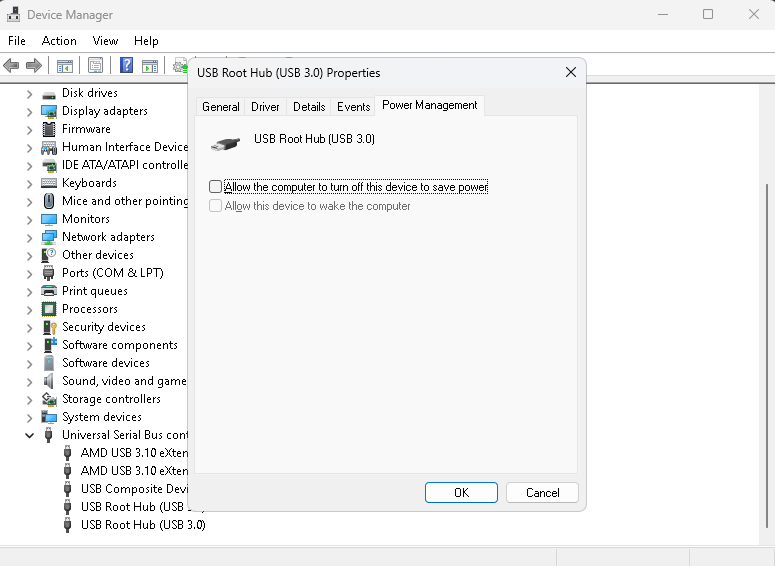
- Press Windows + X and open Device Manager
- Expand Universal Serial Bus controllers, usually at the bottom of the list.
- Right-click each USB Root Hub and go to Properties.
- Opens the Power Management tab.
- Uncheck Allow the computer to turn off this device to save power.
- Click OK, repeat for all USB Root Hubs, then restart.
This doesn’t affect performance and is safe to try if changing USB ports didn’t fully solve the issue.
Check the cable and try another mouse or keyboard.
If changing ports and Windows settings didn’t solve it, the next thing I check is the cable itself.
With daily use, mouse and keyboard cables slowly bend near the connector. From the outside they may look fine, but inside the wire can start breaking. This causes random disconnects that come and go.
Here’s what I usually do:
- Gently move the cable near the USB connector while it’s plugged in – if the device disconnects, the cable is likely damaged.
- Try the same mouse or keyboard on another PC.
- Plug a different mouse or keyboard into the problem PC and see if the issue follows the device.
If the problem moves with the device, it’s the mouse or keyboard. If it stays with the PC, the cause is somewhere else.
I’ve found this quick swap test saves a lot of guessing.
Refresh USB drivers (simple but often overlooked)
Sometimes the problem isn’t hardware at all – it’s Windows getting confused about USB devices, especially after updates or long uptime.
Instead of downloading random drivers online, I do this:
- Press Windows + X and open Device Manager.
- Expand Universal Bus controllers
- Right-click each USB device and choose ‘Uninstall device’.
- Restart PC
Windows will automatically reinstall fresh USB drivers on startup
I’ve seen this fix weird cases where everything looked fine physically, but the device still kept disconnecting.
Check for Faulty USB Ports (rare, but it does happen)
If none of the fixes above worked, there’s a chance one or more USB ports on the motherboard are failing.
I don’t see this often, but after heavy daily use, some ports can simply wear out. When that happens, anything plugged into those ports will randomly disconnect, no matter which mouse or keyboard you use.
If I suspect a USB port issue, I simply move the mouse or keyboard to another port and leave it there for a while. If the disconnects stop, that port was the problem. In some cases, I use a small USB hub or an add-on USB card as a workaround. It’s much easier than replacing the whole motherboard, and it gets everything working again.
How I try to prevent this from happening again
After dealing with this issue multiple times, I’ve learnt that a little maintenance goes a long way. Now I try to:
- Clean the USB ports and peripherals regularly (even when everything seems fine).
- Avoid constantly unplugging and replugging devices.
- Use good-quality cables and peripherals.
- Restart PCs occasionally instead of keeping them running for long hours.
Since I started doing this, random mouse and keyboard disconnects have become much less common.
Related fixes you might find helpful:
Final thoughts
Most mouse and keyboard disconnect issues turn out to be simple – usually a worn USB port, dust buildup, or a small Windows glitch. Before replacing anything, start with the basic checks. In my experience, changing ports and cleaning connections solves the problem most of the time.
If it keeps happening, work through the steps above one by one. You’ll usually find the cause without spending money on new hardware.
1 thought on “Mouse and Keyboard keeps disconnecting? Fixes I discovered after dealing with this every day”